
✨ As for now, using the AI Optimization feature is available when:
- You map Google Shopping, Facebook, Bing, TikTok, Snapchat, and Pinterest channels
- Your source feed is in English, German, Polish, French, Spanish, Italian, Dutch, Danish, Swedish, Norwegian
We're working on developing the possibilities for more channels.
Contents:
✨ Title
How can I apply AI to optimize my titles and/or descriptions
✨ Use AI when mapping your channel
How can I preview values provided by AI before sending them to the channel?
✨ On the Channel Products page
✨ Download all AI-optimized data as CSV or XLXS
What if I don't like the AI-optimized titles and/or descriptions?
In DataFeedWatch, you can use AI to:
- Avoid missing values for size and color attributes
- Optimize your titles and descriptions (available to Google Shopping and Facebook)
- Categorize your products
What does AI do?
Title
AI reviews all the product data downloaded from your store and the Master Fields in DataFeedWatch. It uses all relevant information to compile the best possible Title according to the industry's best practices.
✨ It keeps what is already in your title and enriches it with other data from your feed, such as adding color or size if that was not already in your title.
✨ It uses the ideal format for the product type, ensuring that attributes are in the right order.
✨ It does not 'make up' new information.
✨ It improves readability.
✨ It corrects spelling and grammar mistakes.
✨ It adds the most relevant keywords.
What can I expect?
-
If you already have a great, enriched title, AI may modify it, but it will still be similar.
-
If you have a short title, like a product name, AI will greatly improve it (if additional information is provided in other fields).
-
AI is not always consistent, so similar products may have a slightly different title structure. You may like one more than the other, but they will usually both be good.
-
Sometimes, you may see that an obvious attribute is not in the AI-generated title; that usually only happens when that attribute is not provided in the source feed.
-
After multiple tests, we observed that sometimes unexpected words were included in Title values. After digging in, we learned that this happens when the original description contains these words, and AI just took it from there.
Description
AI reviews all the product data downloaded from your store and the Master Fields in DataFeedWatch.
It uses all relevant information to compile the best possible Description according to the industry's best practices.
✨ It uses what is already in your Description.
✨ It will enrich it with other data from your feed, such as adding color or size if that was not already in your description.
✨ It adds general product benefits.
✨ It does not 'make up' new information.
✨ It re-writes your description to fit in additional information.
✨ It improves readability.
✨ It corrects spelling and grammar mistakes and adds the most relevant keywords.
What can I expect?
Please remember that the descriptions you send to advertising channels like Google or Facebook are not shown in the product ad; however, the channel does read your description to better understand your product and make sure it matches your target group.
- If you have a long description, AI may shorten it to make it more concise and to the point.
- If your description is very short, AI will enrich it as much as possible (if additional information is provided in other fields).
- AI is not always consistent, so similar products may have different AI descriptions. You may like one over the other, but they will usually both be good.
- After multiple tests, we observed that sometimes unexpected words were included in Description values. After digging in, we learned that this happens when the original description contains these words, and AI just took it from there.
Can AI do it better than you?
No! You are still the best! However, creating the perfect title for 1,000 or 10,000 products takes too long.
Even when you use bulk editing with the DataFeedWatch, you're still likely to miss occasional attributes or other relevant data.
AI will not get the perfect solution 100% of the time. Checking your AI titles is always reccomandable. But the overall quality is very high.
How to apply AI to optimize your titles and/or descriptions
1. Map Your Master Fields
If any information is missing, AI reviews all the product data downloaded from your store and the Master Fields in DataFeedWatch. That's why providing data in Master Fields is crucial to make the AI work.


Do you want to learn more about Master Fields? Visit the article, Creating Master Fields.
2. Map Your Channel Fields
On the Map Channel Fields:
- Head to title or description mapping rule.
- If Optimize with AI is not selected by default, click on the field and select Optimize with AI from the drop-down.
.gif?hsLang=en)
💡Want to know how does AI work? Go to What does AI do
💡 You can use Preview to look at the results of the AI optimization
Just click on Preview and check them out! Please note that we can only display the AI-optimized values of several products.
Once you finish mapping your channel, you’ll find complete AI-optimized values on your Channel Products page.
Preview data provided by AI before you send them to the channel
Could you check the AI optimization results before sending your output feed to the target channel? Yes!
💡 Want to know more about how the AI works? Go up to What does AI do✨?
1. Preview data on Map Your Channel Fields
You can check them already when you map your channel fields. Just click on the Preview.
In the Preview, we can only display the AI-optimized values of several products.
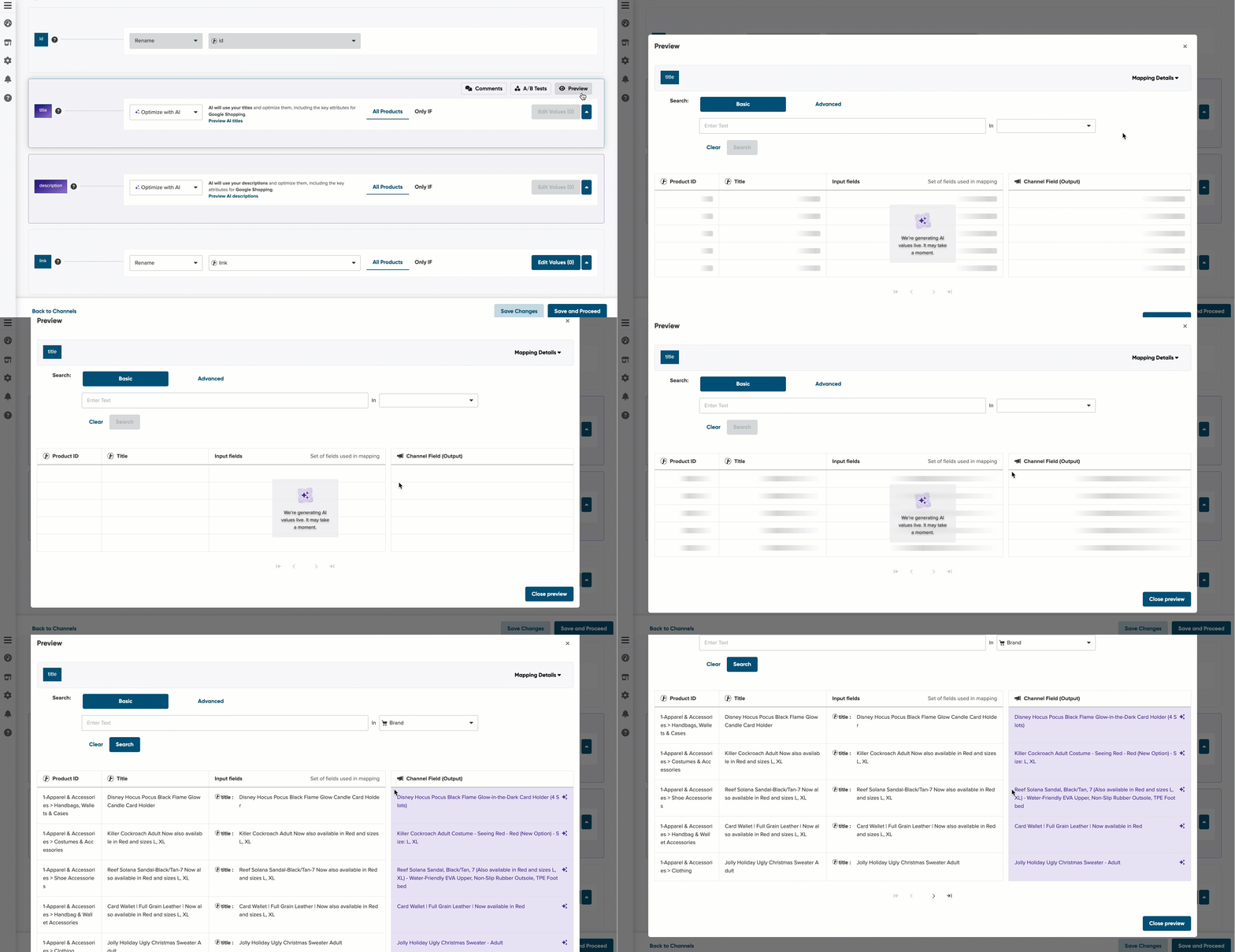
- The first two columns, Product ID & Title, help you identify the product.
- In the next column, Provided Fields (Input), we display the data from your source feed and the Master Fields you provided.
- The following column, Channel Field (Output), shows the value we’ll display in your output feed. The purple field means that AI has made its work on it. ✨
2. You can also check the results directly on the Channel Products page:
Head to the columns Title + AI-Optimized and Description + AI-Optimized to check what AI has crafted to optimize your feed.
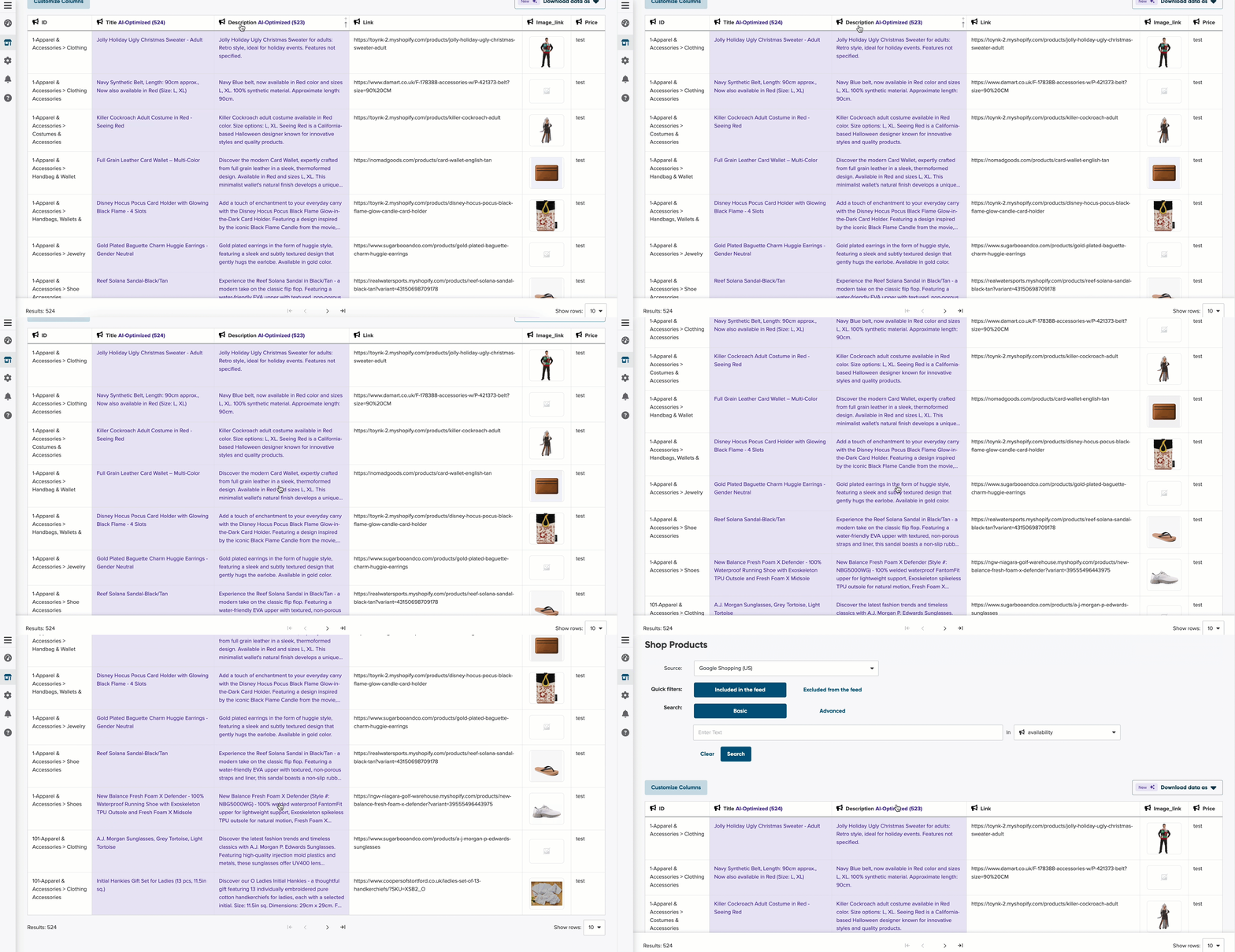
- The purple cells are the optimized values.
- You'll find the titles/descriptions in the white cells that AI has not optimized. It happens when you use the Only If condition to modify your rule.
- The number of products you can see just next to the Title + AI-Optimized is the number of products for which the AI has optimized the title.
3. Download all AI-optimized data
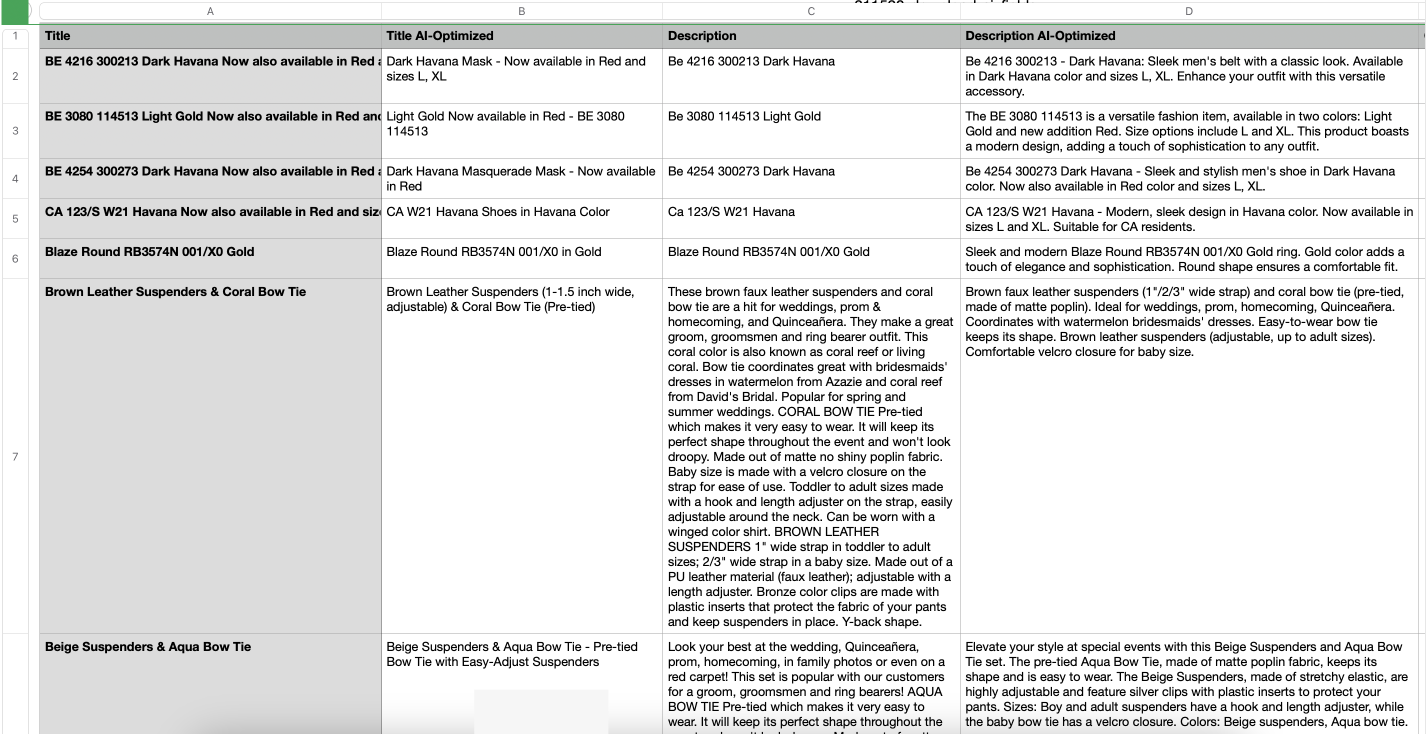
Download the Comparison of AI and your Input to see how the AI optimized your title and description.
1. Click on the button Download data as.
2. When the drop-down menu opens, select Comparison of AI and your Input in the preferred format, CSV or XLXS.
-1.gif?hsLang=en)
3. Once downloaded, you can see the data from your input feed and the one provided by AI.
What if I don't like the AI-optimized titles and/or descriptions?
What if I do not like the AI-optimized titles and/or descriptions?
If you prefer your own titles, you can use that one to map the title.
1. Head to Map Your Channel Fields.
2. Head to the Title field.
3. Click on the Optimize with AI field.
4. Select the mapping action you want to apply from the drop-down.
5. Click on Save Changes.
.gif?hsLang=en)
What if I do not like (some of) the AI titles and/or descriptions?
If you want to use the AI-titles except for a few, you can make a mapping for both:
1. Head to Map Your Channel Fields.
2. Head to the Title field.
3. Select Only If.
4. Set up the rule to indicate which data you want to optimize with AI and which you want to map using your data.
5. Click on Save Changes.
6. Repeat the process if you want to edit the Description.
.gif?hsLang=en)