
Difficulty level: Beginner.
You will probably manage to do this on your own. The steps below should help you do that.
If anything is not clear enough, please contact our Support Team.
Recapitalize enables you to change your text to uppercase lowercase, or it can simply be capitalized.
You can select the length of words that you would like to apply your changes to.
Moreover, you can create conditions to specify which products you'd like to recapitalize.
To use Recapitalize, follow the simple steps below:
- Scroll down to find the field you want to map (e.g., Title).
- Select a basic mapping type from the first drop-down list next to it (e.g., Rename).
- Select the Input Field or Master Field in the next field you want to use.

Please note that Master Fields (already mapped for the whole shop) will only be available in the Map Fields tab.
4. Click Edit values on the right.
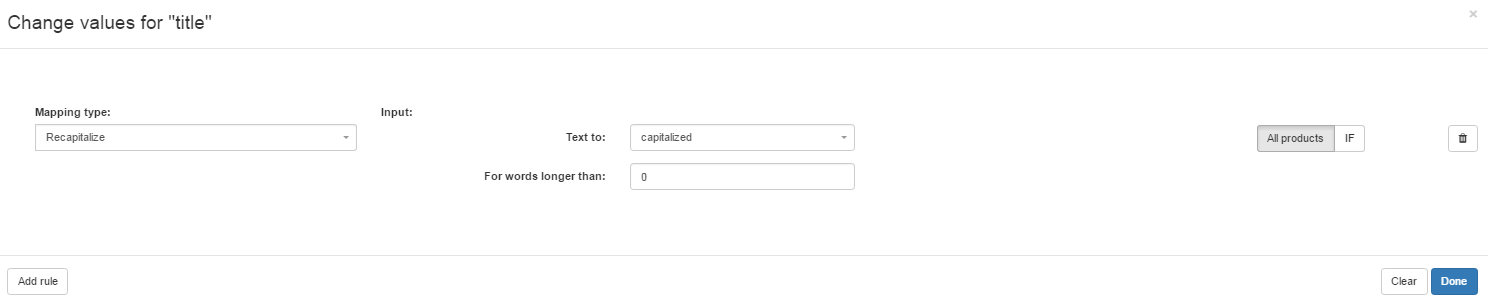
5. From the Mapping type drop-down menu, select Recapitalize.
6. From the Text to the drop-down menu, choose one of the options (lowercase, UPPERCASE, or Capitalize).
7. In the input field, for words longer than below, enter the number of characters up to which this option will not be used.
Case Studies:
Imagine you'd like to change your title from GPS TRACKER to GPS Tracker.
From the first drop-down menu, choose to recapitalize. Choose capitalized from the second drop-down menu, and enter 3 in the input field.
This way, GPS will not be modified, but TRACKER will be changed to Tracker