
Removing the Content API connection from Shopify:
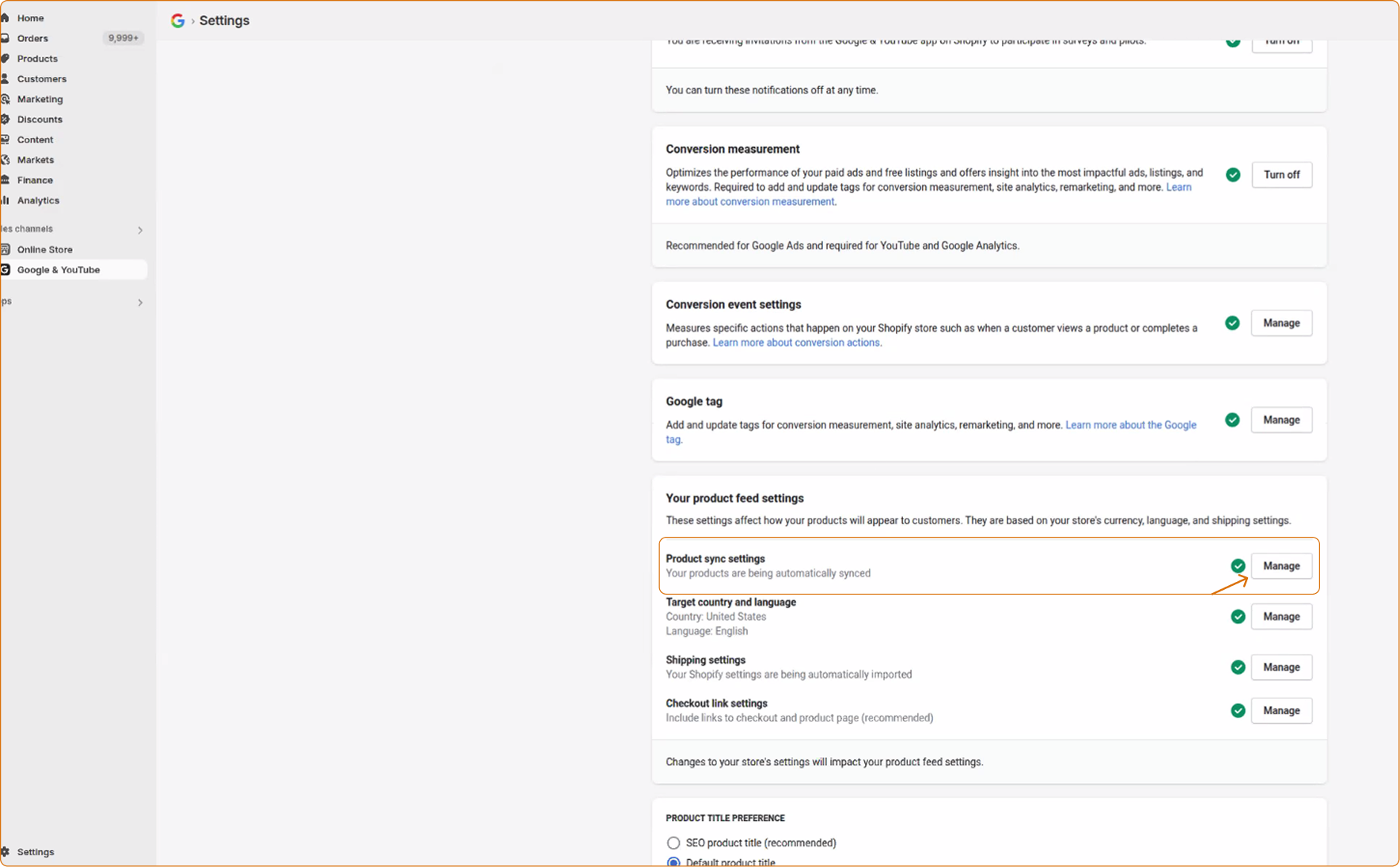
To remove the connection to prevent issues with the product submitted by the DataFeedWatch feed in your Shopify Admin Account:
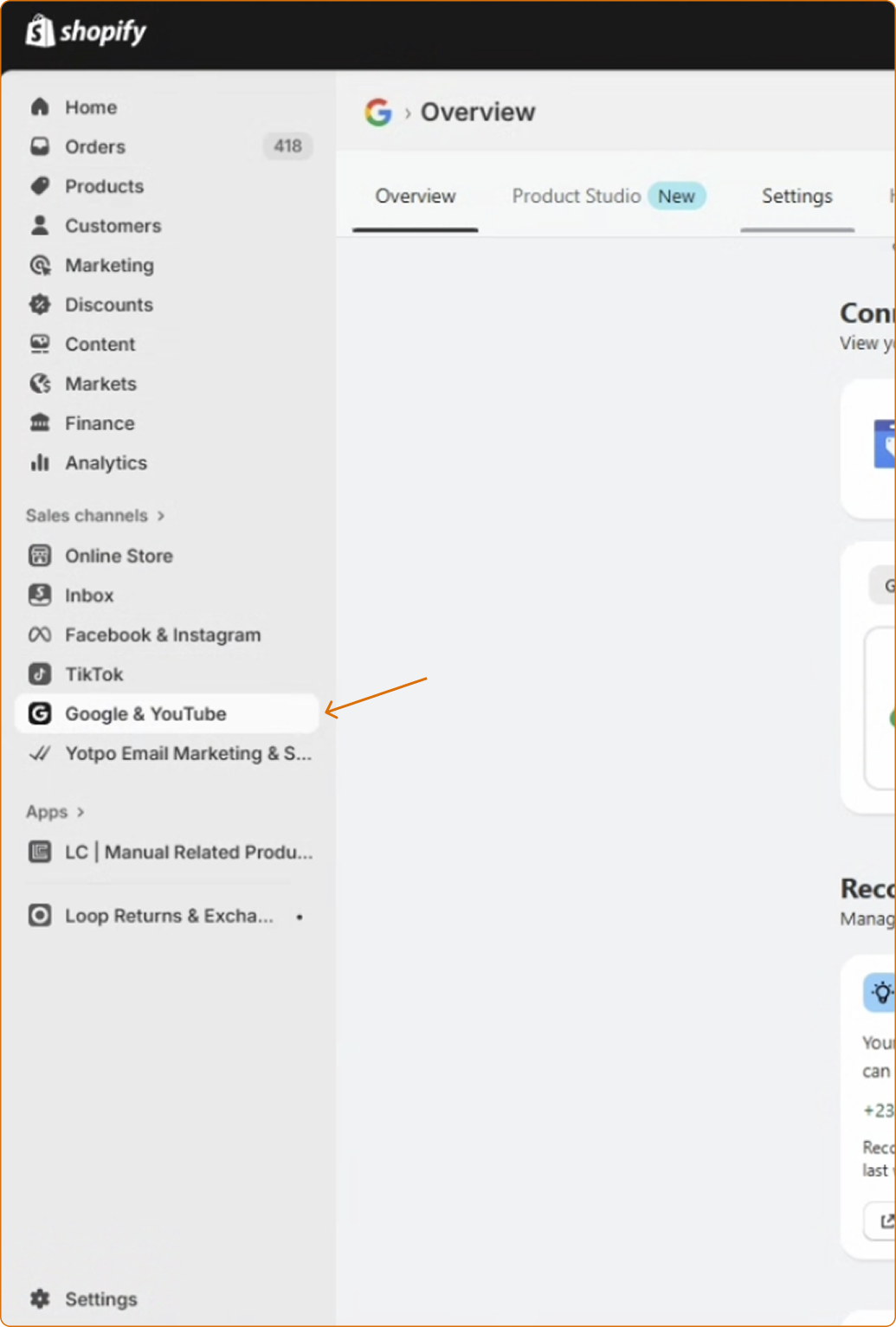
- Navigate to the side navigation.
- Go to the Sales Channel.
- Select Google & YouTube.
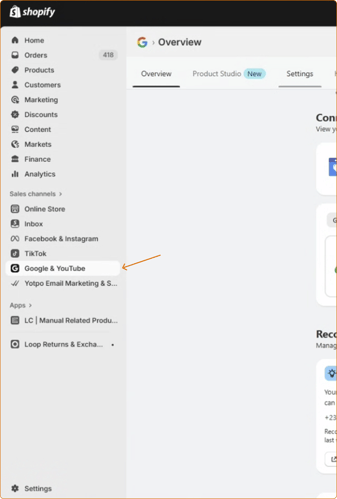
- Go to Settings.
- Scroll down to "Your product feed settings".
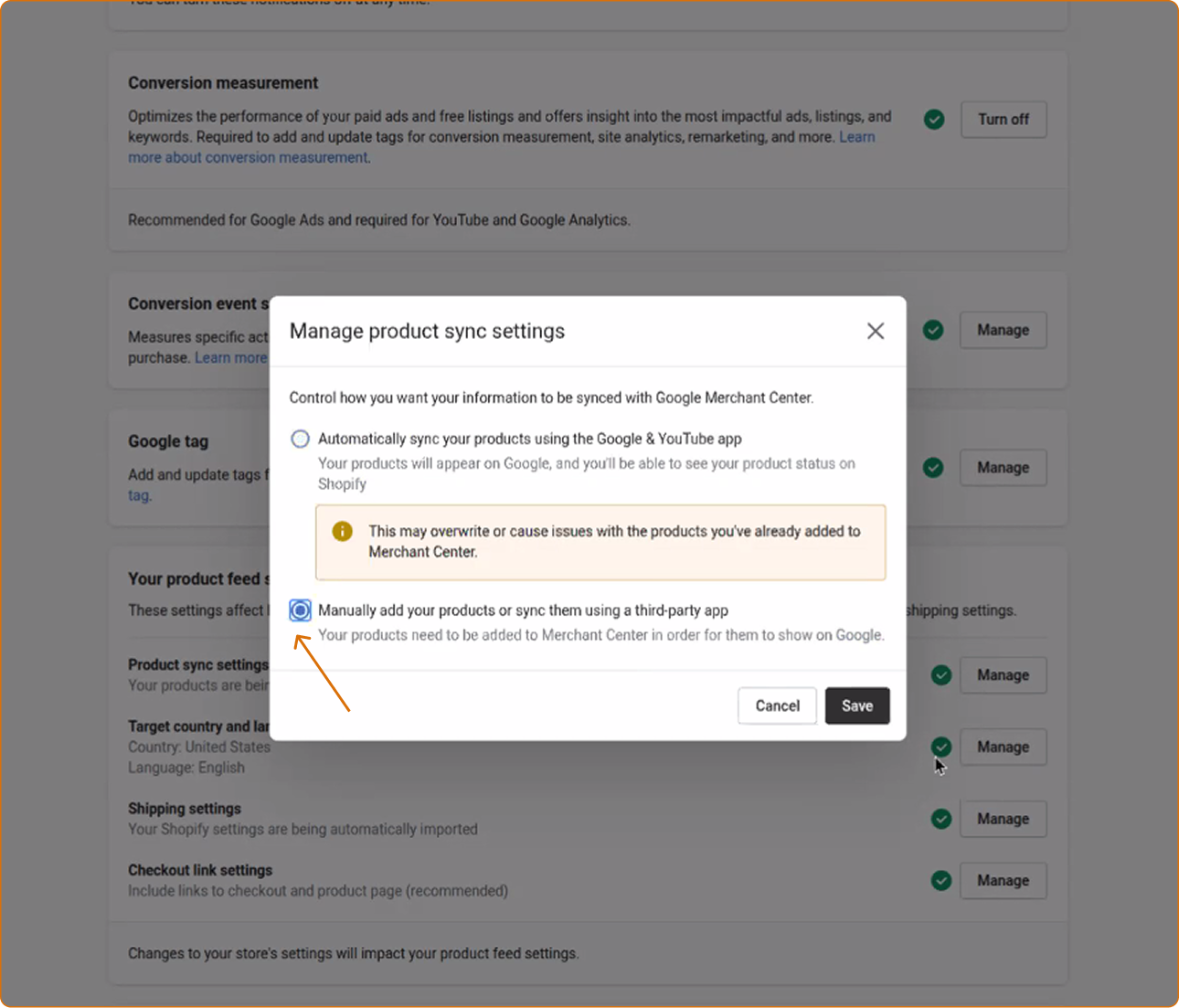
- In the Product Sync settings, click "Manage."
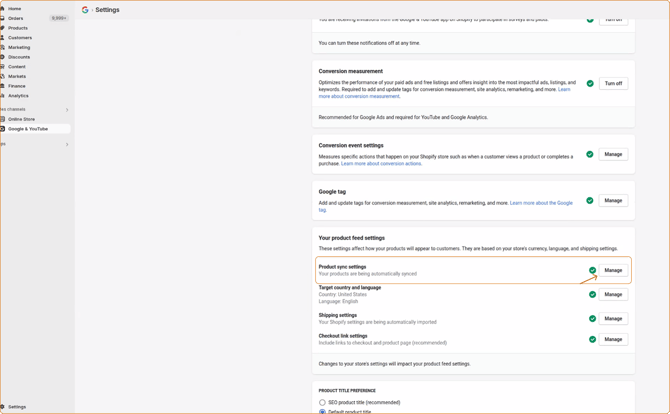
- Then, select "Manually add your products or sync them using a third-party app".
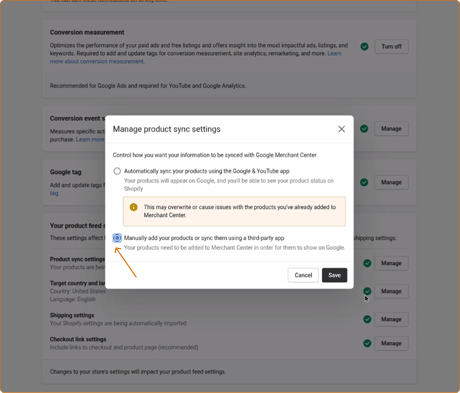
- Click Save.
- Now, go to Google Merchant.
What to do if you can't see the option to turn off Product Sync:
If the option to turn off product sync is missing, it means you have a local program enabled. When this program is active, data from the Content API automatically flows to your free local listings.
If you want to keep the Local Ads program active: To safely disconnect the Content API, you must first create a local inventory feed inside DataFeedWatch and upload it to Google Merchant Center. If you force-disable the Content API without an alternative local feed from DFW, your local ads can stop working or suffer from limited visibility in Google Merchant Center.
If you enabled the Local Ads program by mistake: We recommend disabling both add-ons and unlocking the main product sync setting, following these steps:
First, in your Google Merchant Center:
- Log in to your Google Merchant Center account.
- Go to Settings in the left sidebar, select Addons.
- Go to My Addons and turn off both local programs.
Next, return to the Google & YouTube app inside Shopify:
-
Go to Settings on the left menu, locate Product Sync.
-
Go to Additional Settings and turn off "Local inventory retail locations".
Now, you will have the option to turn off the main product sync setting.
To check if you are sending products via API connection:
- Log in to your Google Merchant Center account.
- Go to Feeds in the left sidebar.
- Under Primary feeds, find Content API, and select Delete API.
If you see a message saying “No data”, it means there’s no active API connection - you're good to go!
⚠️ Keeping both the Content API and the DataFeedWatch feed active can cause conflicts in your GMC account.
Shopify’s Google App may overwrite the DataFeedWatch feed, leading to disapproved products and poor campaign performance.
If you want to preserve historical performance data, make sure the product IDs in both feeds match.