
Are you getting a 401 error when trying to open the DataFeedWatch App in Magento Dashboard?
It may happen because you haven’t allowed OAuth Access Tokens.
To fix the problem:
1. Navigate to Stores in your Magento admin panel.
2. Navigate to Services.
3. Go to Configuration.
4. Click on OAuth.
5. Direct to Consumer Settings.
6. Select Yes to allow OAuth Access Tokens.
7. Click on Save Config.
What you'll find in this article:
- Before you start connecting the Magento store in DataFeedWatch.
- How to connect the Magento store to DataFeedWatch
Before you connect your Magento store in DataFeedWacth to import your product data
1. Log in to your Magento Shop's Admin Panel.
2. On the left-hand panel, go to Stores.
3. Once the menu slides out, select Configuration.
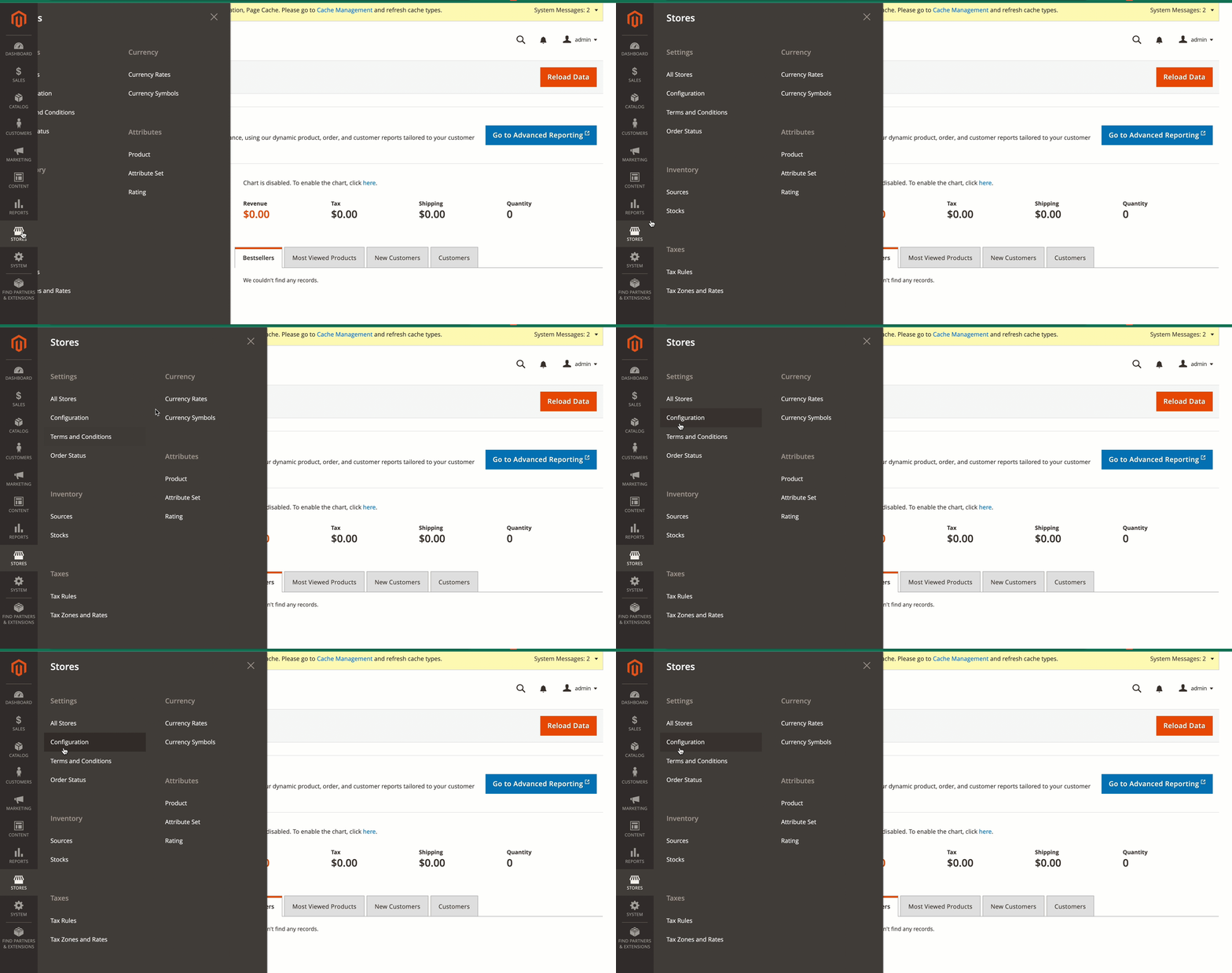
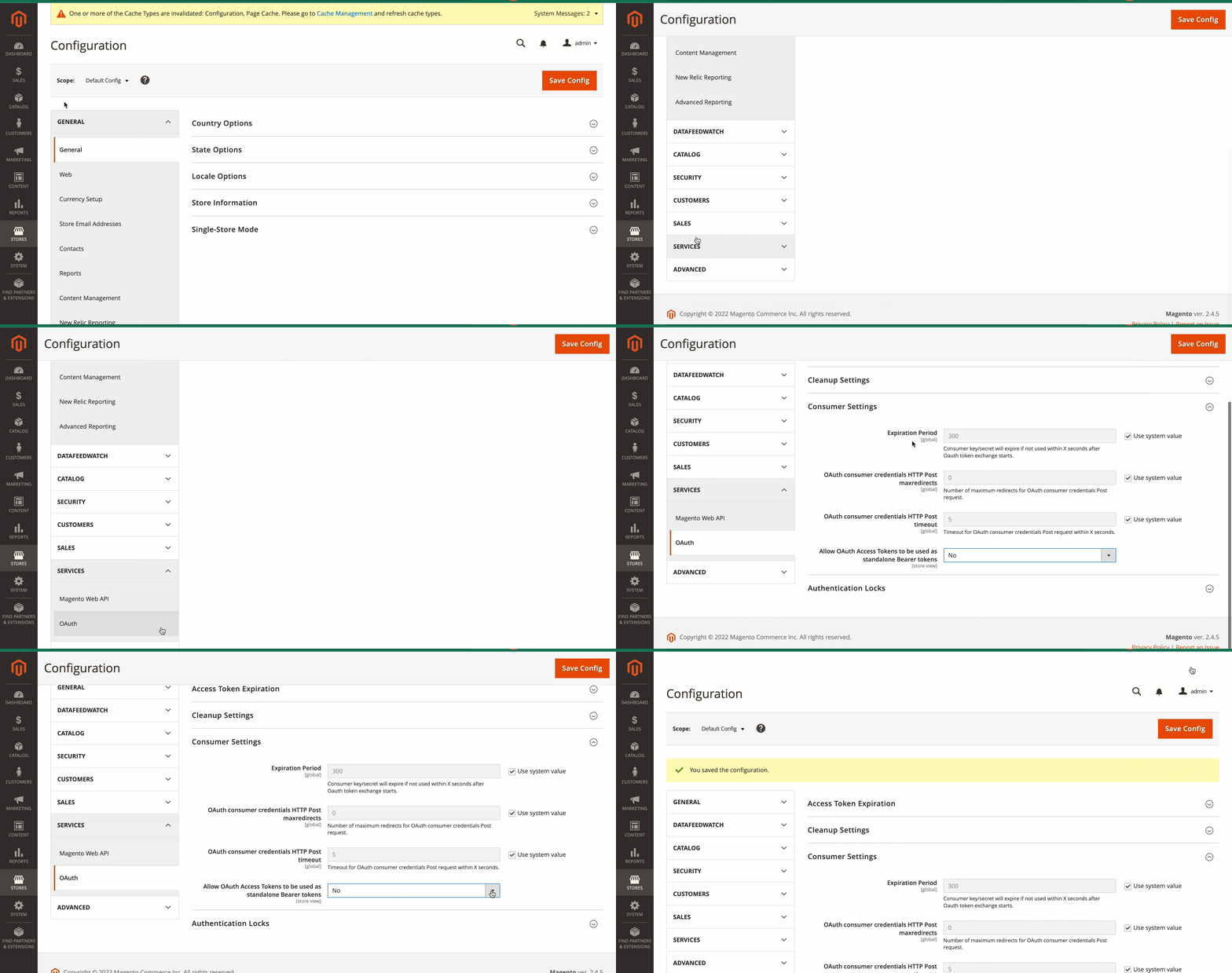
4. In the Configuration panel, navigate to Services.
5. Under Services, click on OAuth.
6. Go to Consumer Settings.
7. Set Allow OAuth Access Tokens to be used as standalone Bearer tokens to Yes.
8. Click on Save Config at the top-right corner.
9. Next, go to the Packagist page to download the DataFeedWatch connector.
10. Scroll down to the README section and follow the instructions.
11. Once the plugin is installed, navigate to DataFeedWatch.
12. Click on Next: Select Ownership to proceed.
This permission is necessary to enable the seamless work of our DataFeedwatch App on your store.
13. Download and install our DataFeedWatch Plugin.
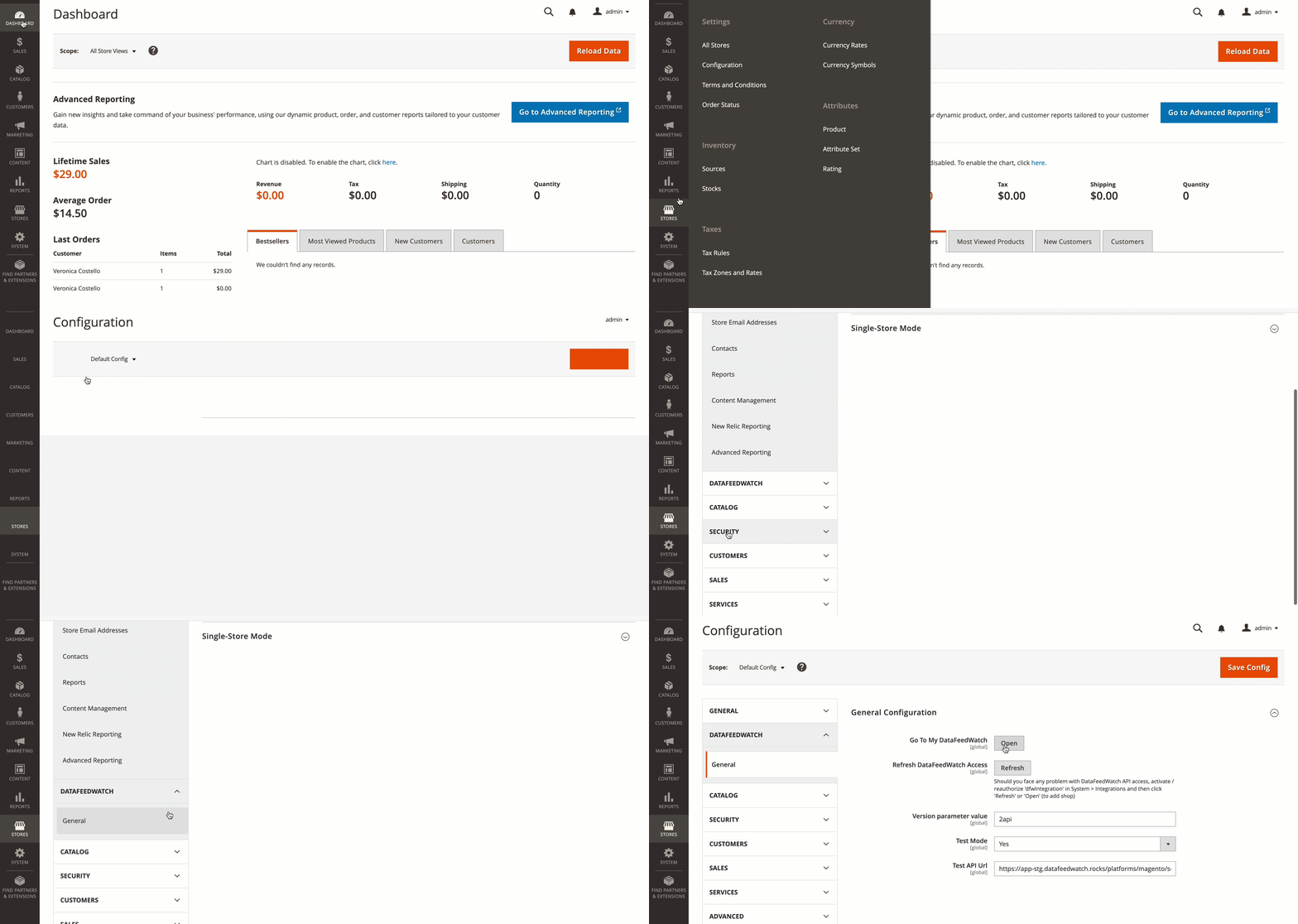
14. Open Your Magento Shop’s Admin Panel.
15. Go to Stores.
16. Navigate to DataFeedWatch.
17. Open General.
18. Go to your DataFeedWatch by clicking on Open.
19. You’ll be redirected to your DataFeedWatch dashboard.
How to connect your Magento store to import your product data
1. Log in to your DataFeedWatch Account.
2. Navigate to Shops.
3. Click the Add Shop button.
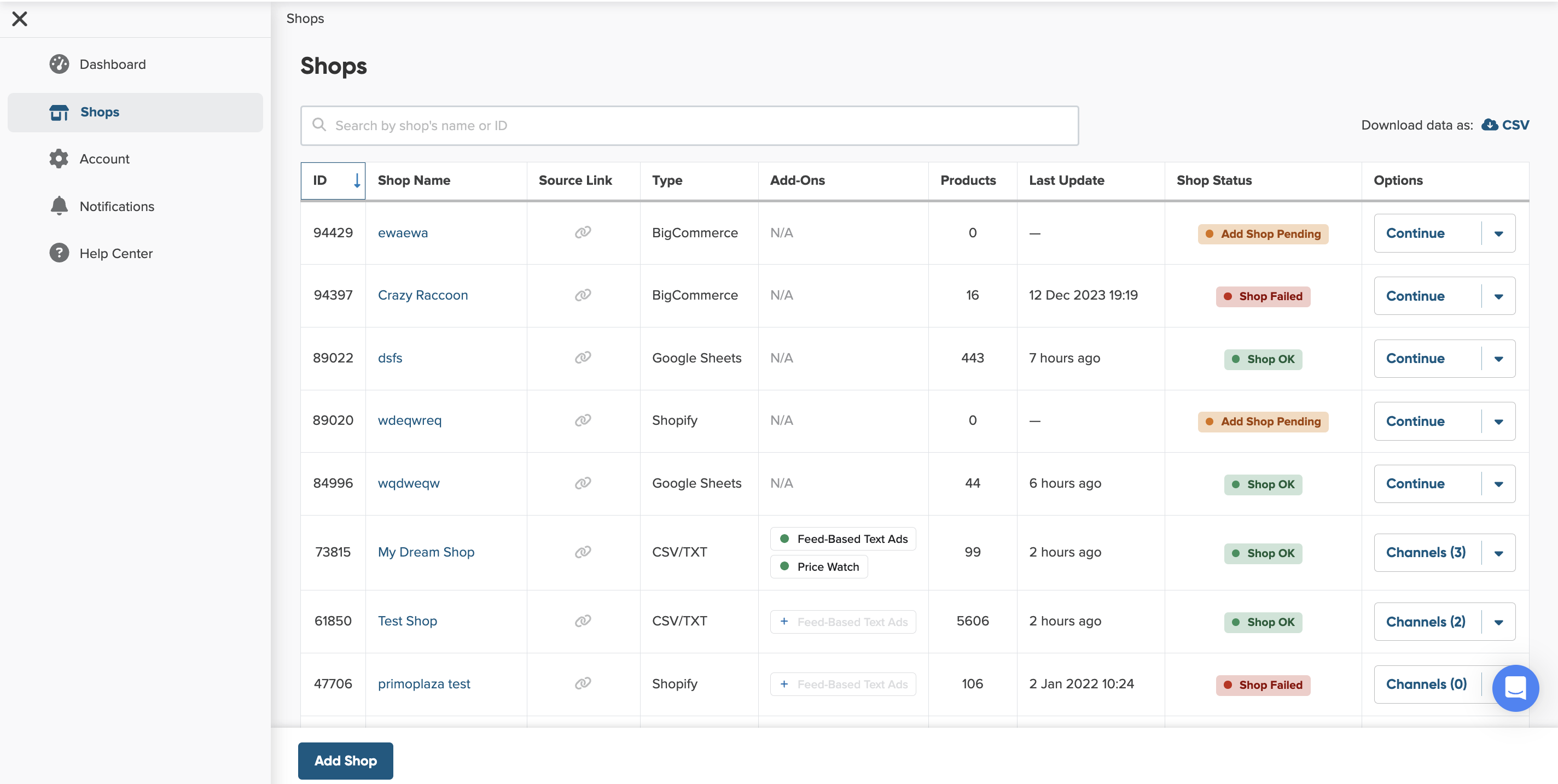
4. Before you select Magento to import your product data, name your shop.
Why should you name your shop?
Giving your shop a name makes it easier to identify among others on your shop list. You can choose any name you like—it won’t affect feed optimization.

5. Next, start setting up your input feed.
What is input feed?
An input feed is the product data you import from your shop or another source so we can create an optimized channel feed.
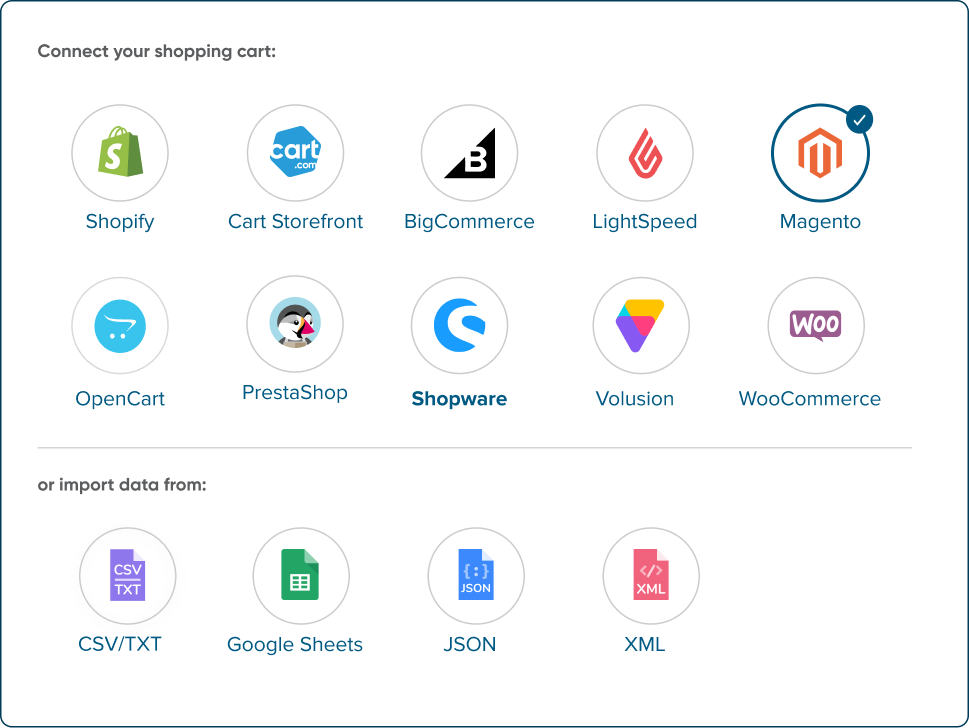
6. Select Magento from the list of Shopping Carts.
7. Provide your Magento URL in the designated field.

8. Choose the product type, by selecting the corresponding checkbox.

How to check product type?
If you’re unsure what product type you have, check it in your Magento Admin.
- Log in to your Magento Admin.
- Navigate to Catalog > Products.
- In the Products list, check the Product Type column to see each product type.
- If you don’t see this column, click Columns at the top right to add it.
9. Click on Next: Connect Your Shopping Cart to proceed.
10. On the next screen, select I am the Shop Owner.
For now, only the Shop Owner can add a Magento shop to DataFeedWatch.
11. Then click Next: Update Schedule to schedule the regular updates and finish importing your product data.
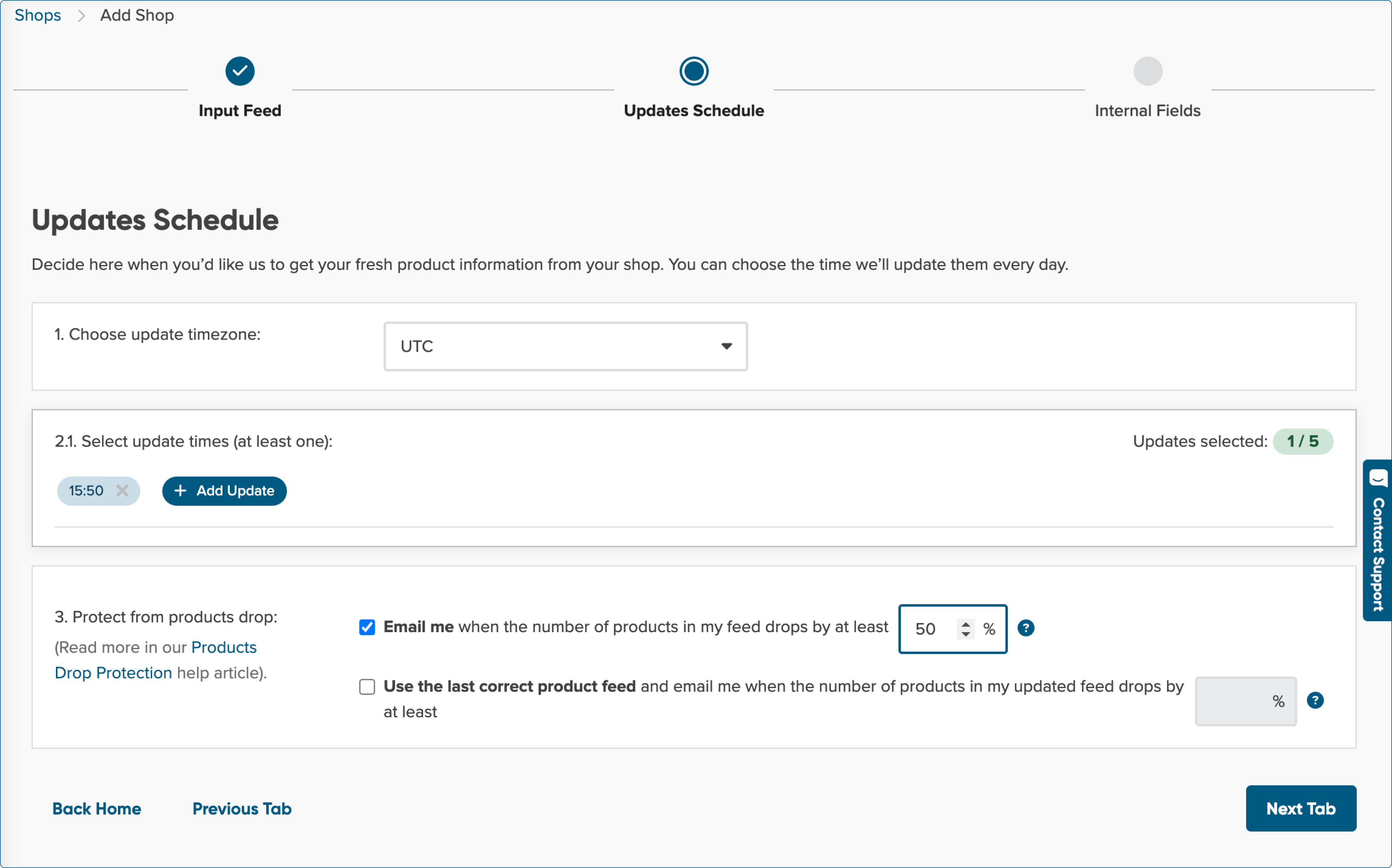
You may find interesting: How does Products Drop Protection work?
12. Once you finish scheduling the regular updates, click Finish.
13. We'll start uploading your product data.