The option to add a Google Promotions feed is activated in your shop after you add a Google Shopping channel.
To create a Merchant Promotions feed, follow the steps below:
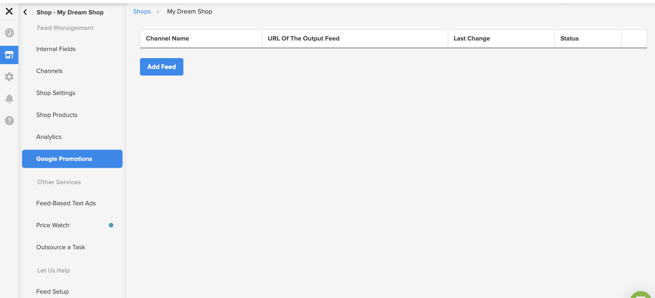
- In DataFeedWatch, go to your shop (the one with a Google Shopping channel added).
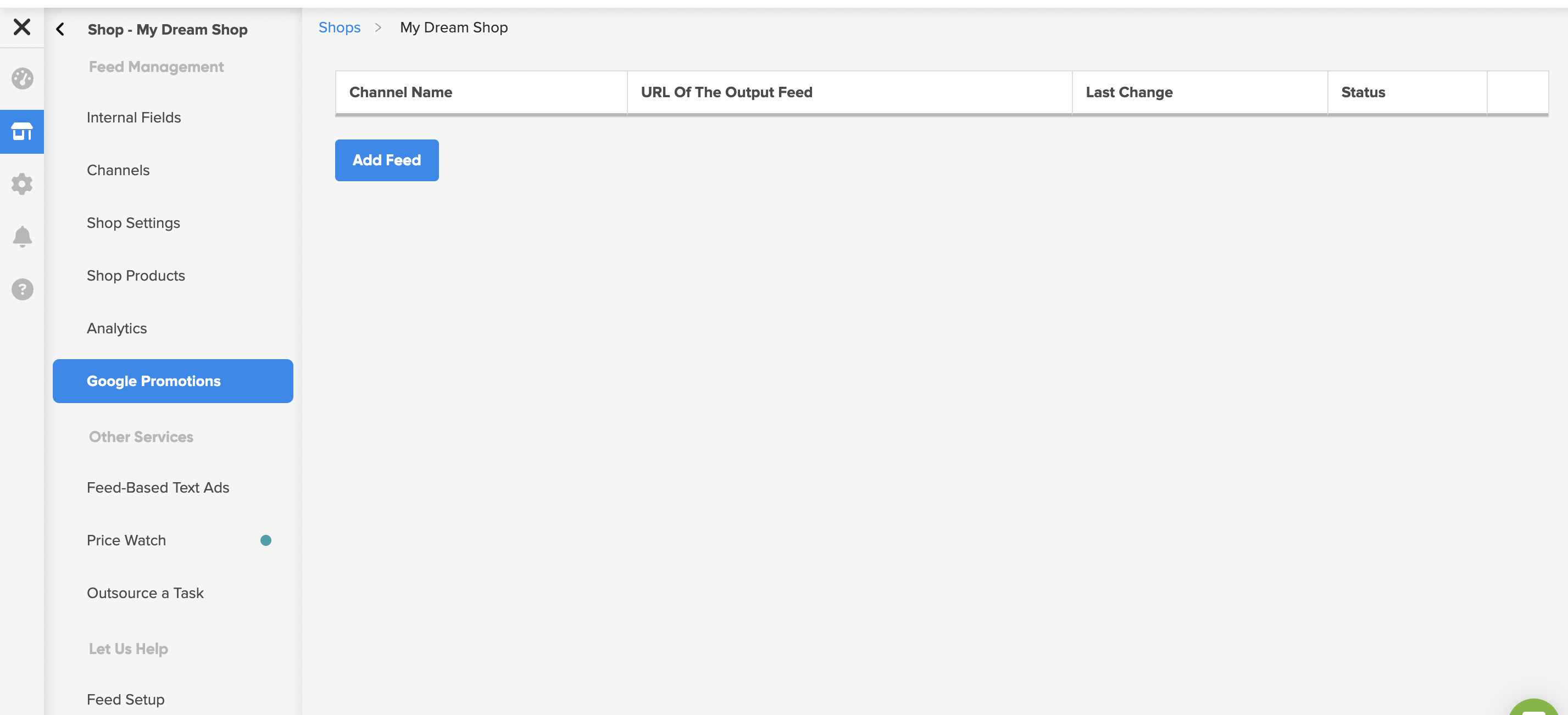
- Click Google Promotions, followed by Add Feed.
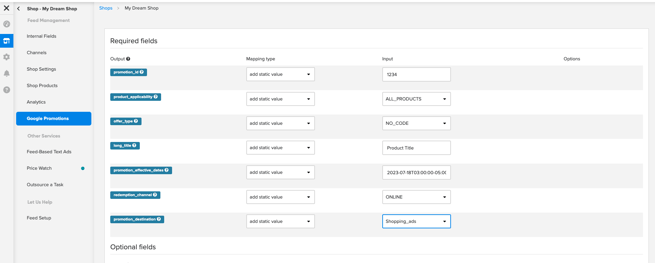
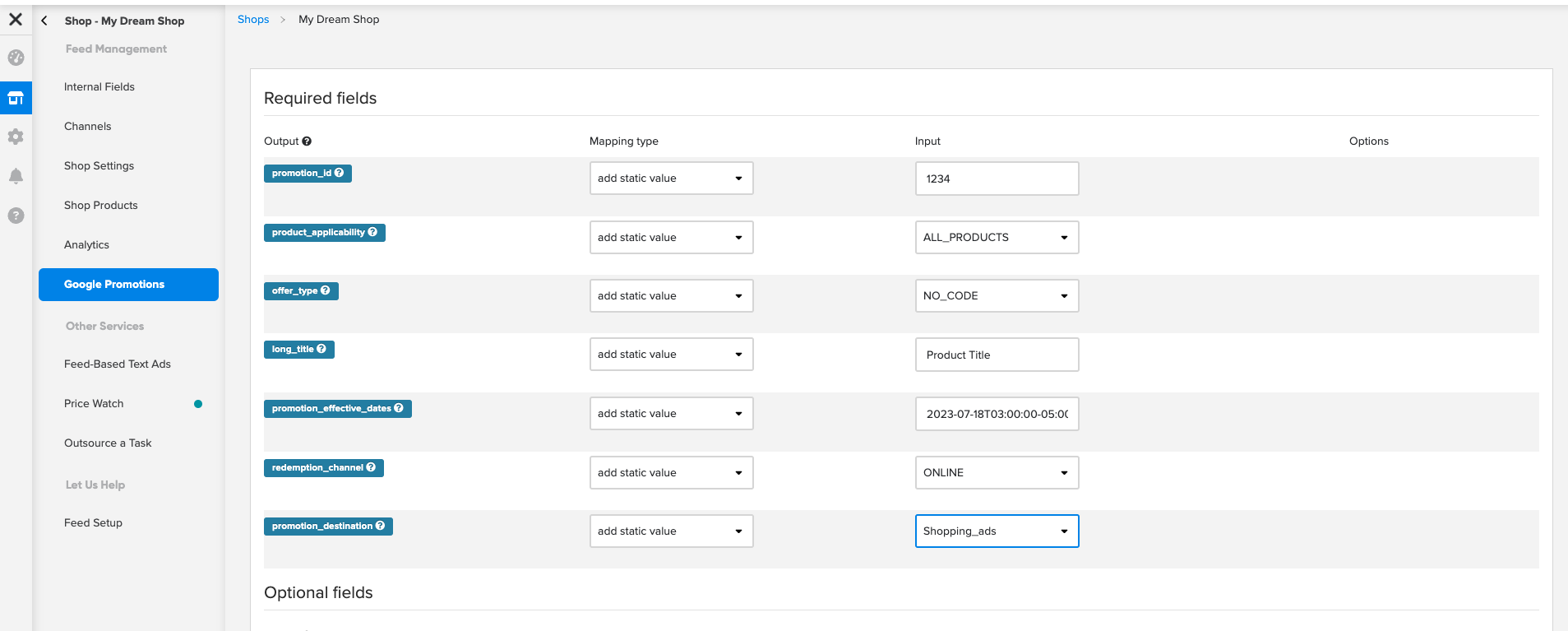
- Provide the required parameters for your feed.
- To save the setup, click Save.
The promotion feed can contain multiple promotions, just like a product feed can contain multiple products.
Each promotion must include the following fields:
- Promotion_id – the unique ID of the promotion. It shouldn't contain any spaces or symbols. If you want to limit the promotion to a specific group of products, you need to provide the same promotion ID for those products in your standard Google Shopping feed.
- Product_applicability - specifies whether the promotion is applicable to all products or only specific products.
- Offer_type - this attribute indicates whether or not a coupon code is required for users to redeem the offer.
- Long_title - this is the full title of the promotion. It should describe the promotion completely and accurately. Maximum length is 60 characters.
- Promotion-effective_dates - the date and time frame when the promotion is active.
- Redemption_channel - Indicates that promotion is valid online. - To finish, click Save (or Save & Add Next to create another Merchant Promotions feed).
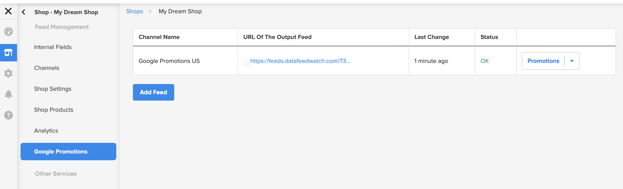
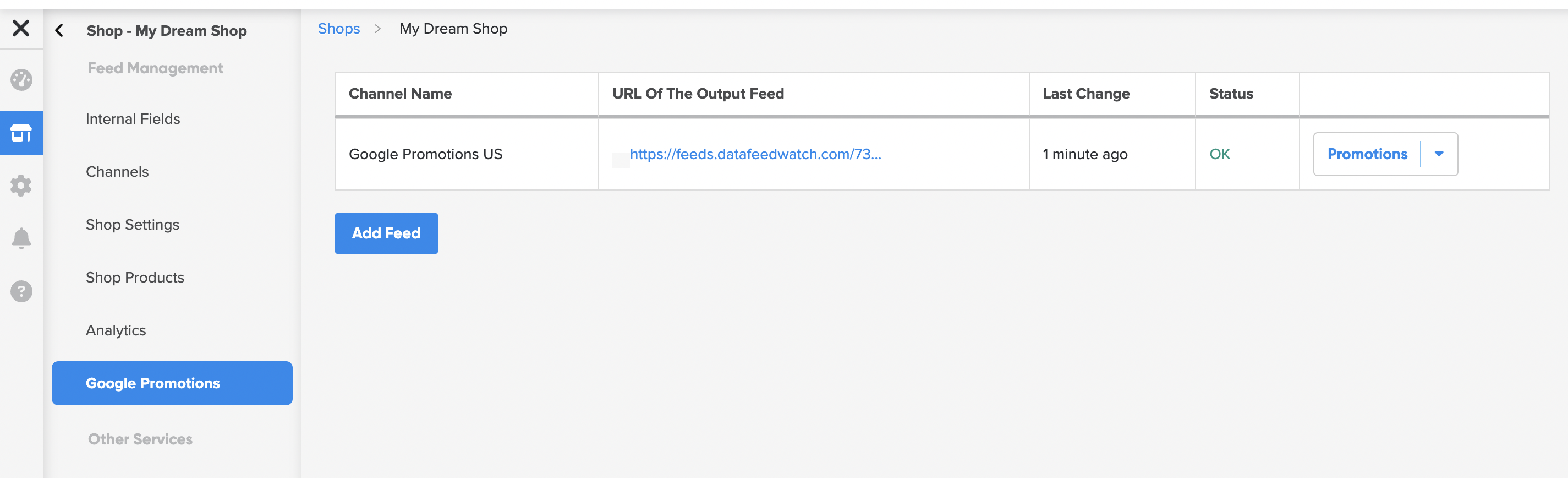
- To upload the feed to Google, copy the URL of the Output Feed.
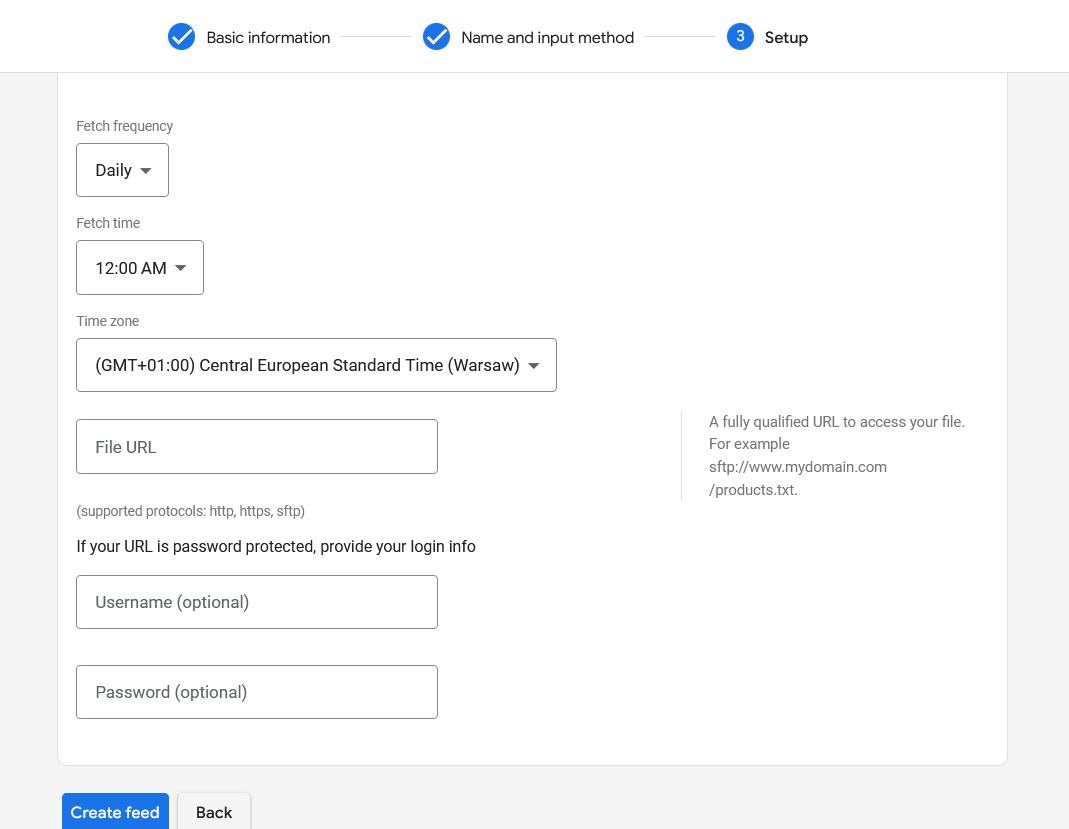
To upload your promotion to Google Merchant Center, follow the steps below:
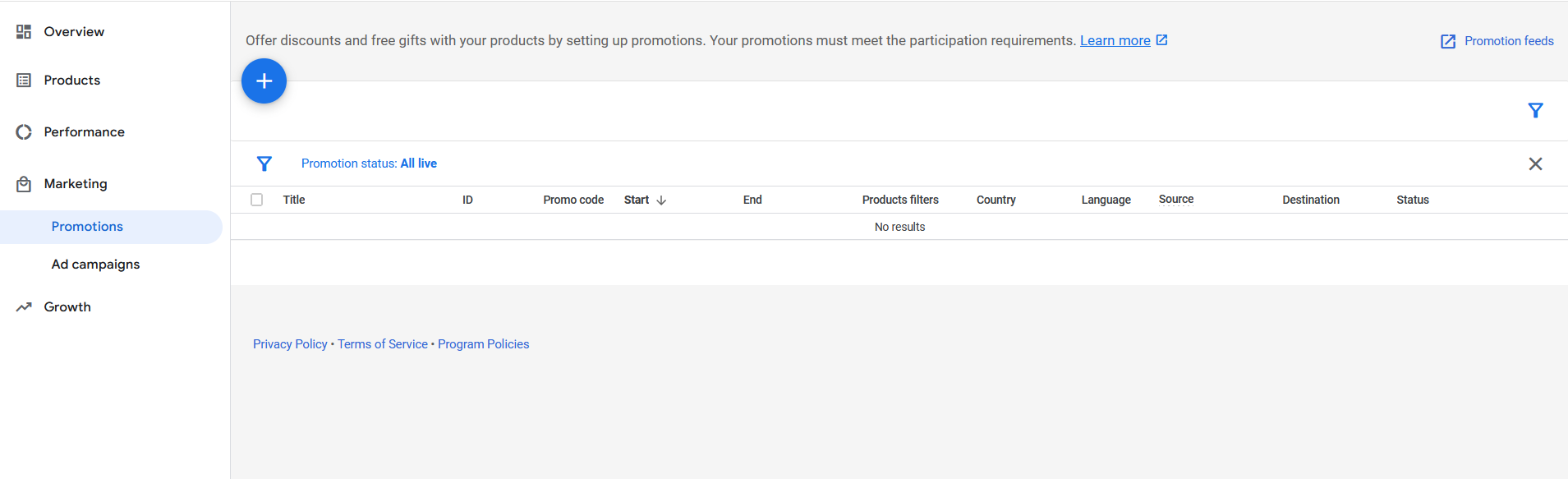
- In Google Merchant Center, go to Marketing.
- Then, head to Promotions.
-
Click Promotion Feeds in the right-hand corner.
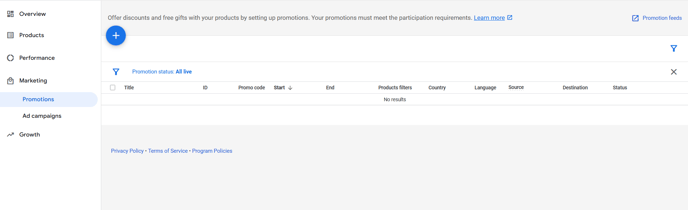
- On the next page, click the blue + button.

- Follow the remaining instructions provided by Google to configure the promotion settings:
-
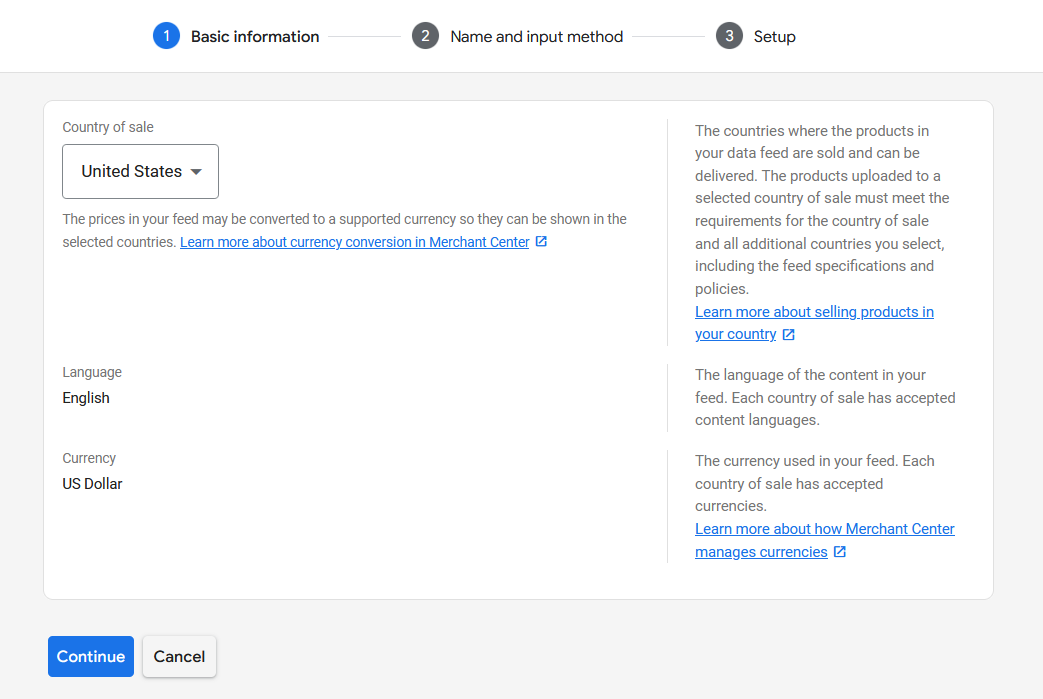
Provide your Basic Information.
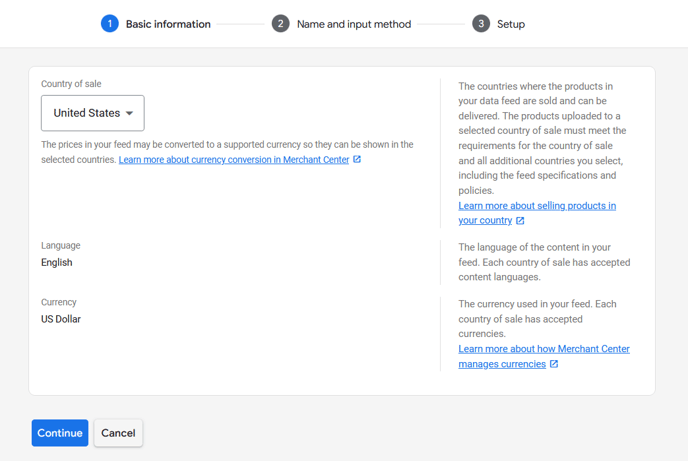
-
In the Name and Input Method Step, introduce the feed's name into the field Primary feed name.
-
Select Scheduled fetch as a setup and connect option.
input_method.png?width=688&height=494&name=provide_name_and)input_method.png)
d. Click Continue.
e. In the Setup Step, paste your feed URL into the field File URL, which you copied in DataFeedWatch.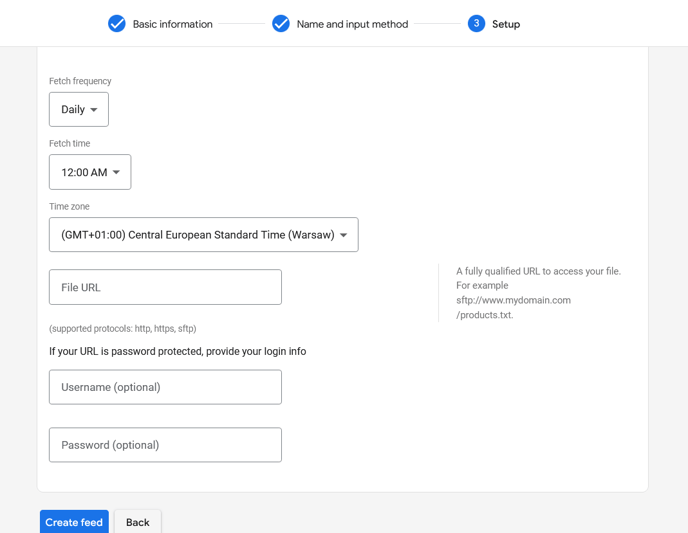
f. Click Create feed.
-

input_method.png?hsLang=en)