
In DataFeedWatch, you can export many CSV (Comma Separated Value) files to preview or upload your data to other platforms.
Yet it happens sometimes that Microsoft Excel doesn't handle the opening operation well and makes changes to the file.
In consequence, the file doesn't contain what you expected since the data doesn't display correctly; for instance, data that are supposed to be divided between the columns are included in only one column, and separated with a delimiter (usually semicolon or comma).
How to get a CSV file with correctly displayed data?
1. Download the CSV file that you have a problem with, or save it URL.
2. Open a new file with Microsoft Excel.
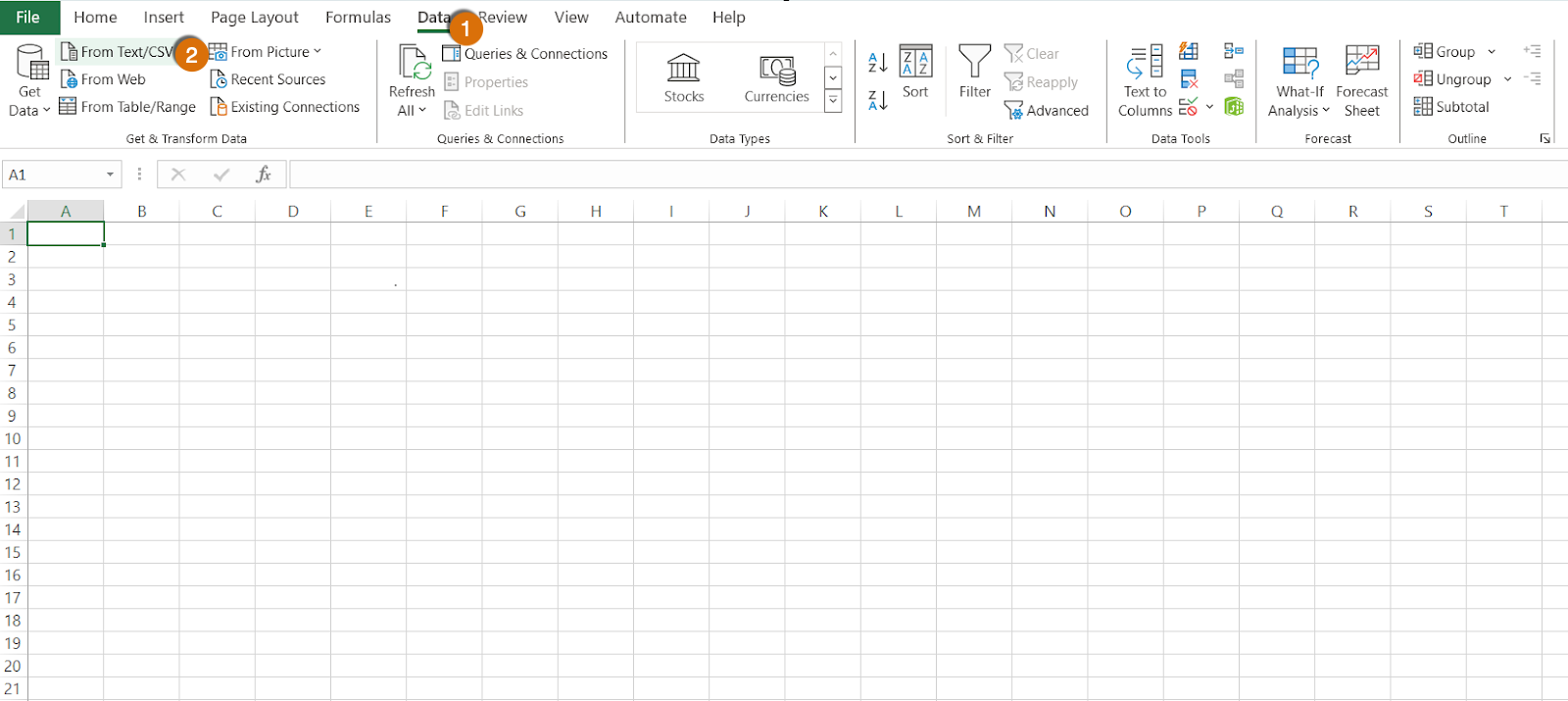
2. On the top navigation, select Data.
3. Next, select From Text/CSV.
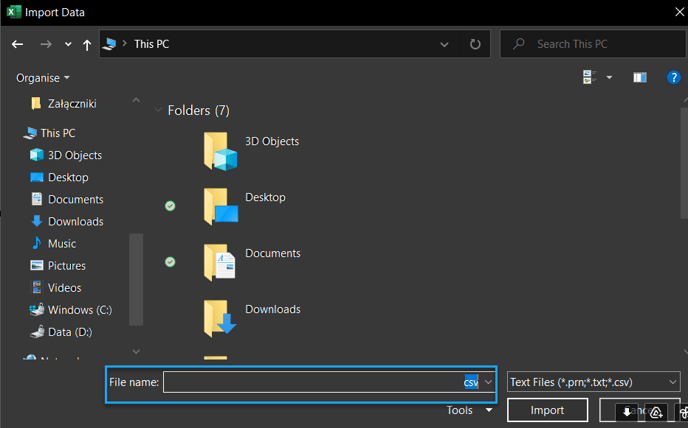
4. Choose the saved file from your device or paste the file's URL link in the field File name.
5. Click the button Import.
6. In the Import wizard, select the delimiter that separate the data in the columns.
7. Click button Load.
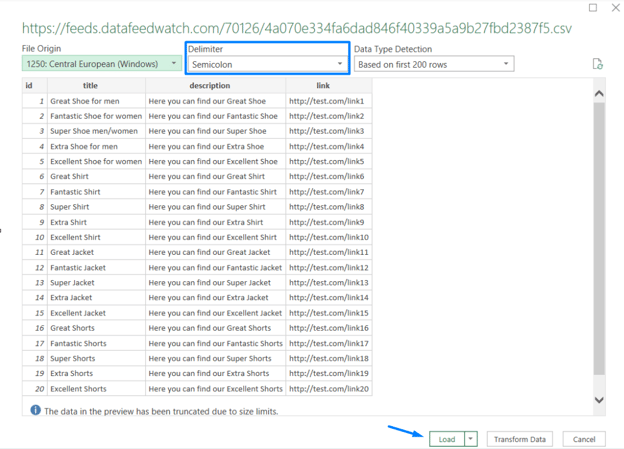
You will receive a spreadsheet with amended data, divided into the relevant columns.
Once you finish making changes, remove the previous incorrect tab, and save a new file as a CSV.