What you can find in this article:
- How to connect your BigCommerce shop, and import the product data from it.
- How to add the store when I am not the shop owner
- I am the shop owner, yet I don't manage the DataFeedWatch app
To connect your BigCommerce shop, and import the product data from it:
1. Log in to your DataFeedWatch Account.
2. Navigate to Shops.
3. Click the Add Shop button.
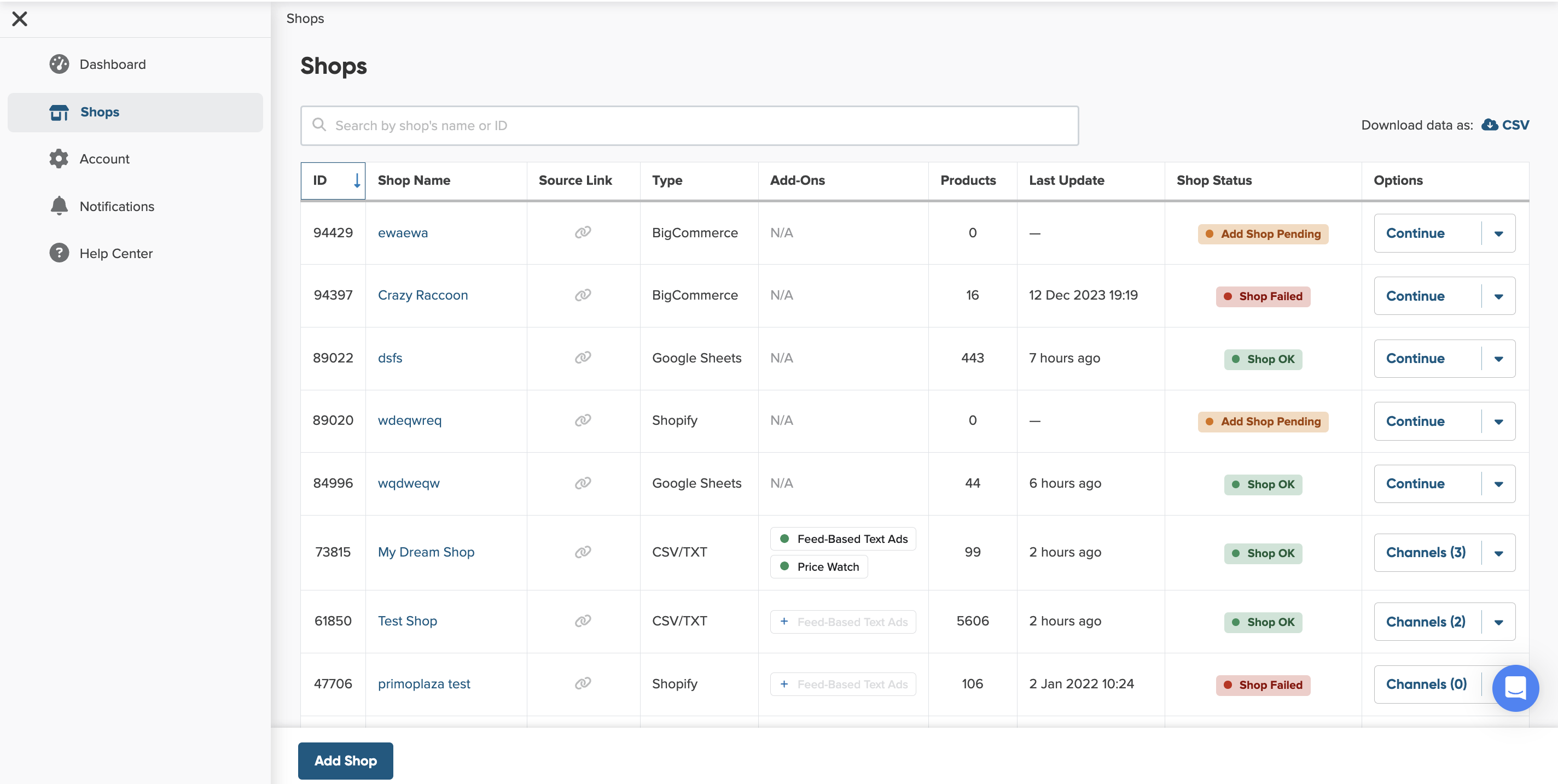
4. Before you select BigCommerce to import your product data, name your shop.
Why should you name your shop?
Giving your shop a name makes it easier to identify among others on your shop list. You can choose any name you like—it won’t affect feed optimization.

5. Next, start setting up your input feed.
What is input feed?
An input feed is the product data you import from your shop or another source so we can create an optimized channel feed.
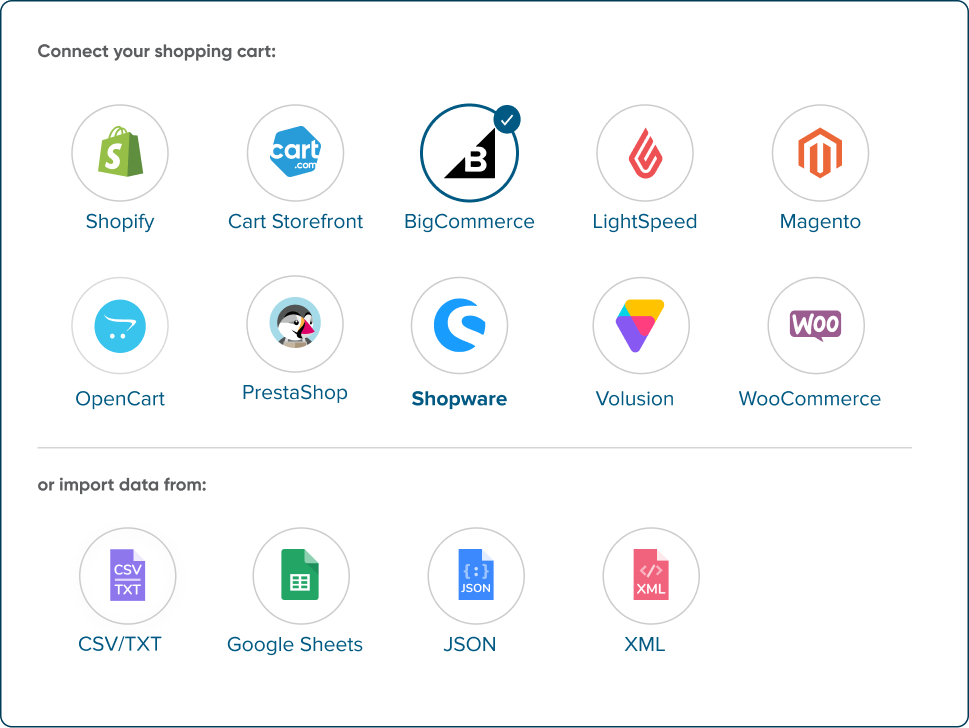
6. Select BigCommerce from the list of Shopping Carts.
7. Provide your BigCommerce URL in the designated field.

8. Click on Next: Connect Your Shopping Cart to proceed.
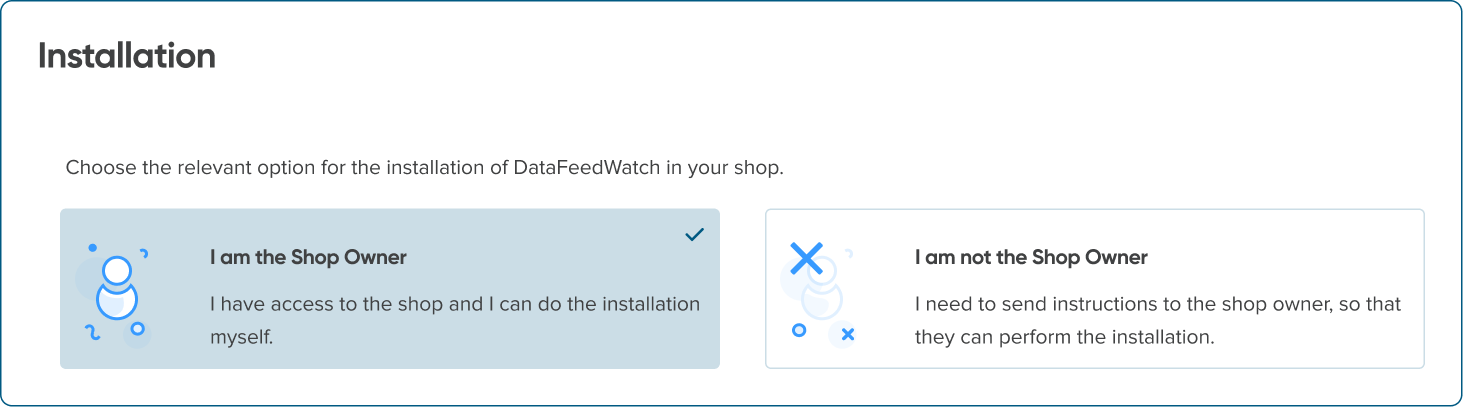
9. On the next screen, select whether you're the Shop Owner or not. If you're not a Shop Owner, refer to the section: I am not a shop owner.
10. If you're the BigCommerce shop owner, select the option I am the Shop Owner.
11. Click the Go to BigCommerce button.
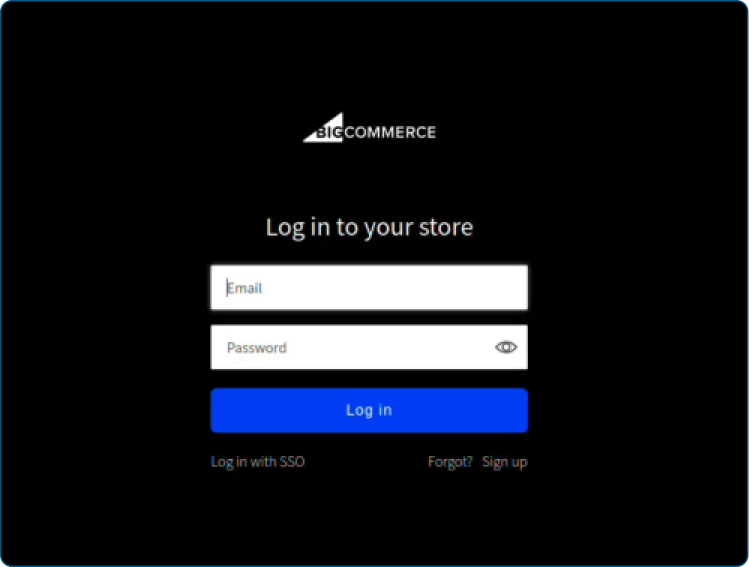
12. Log in to your BigCommerce admin panel.
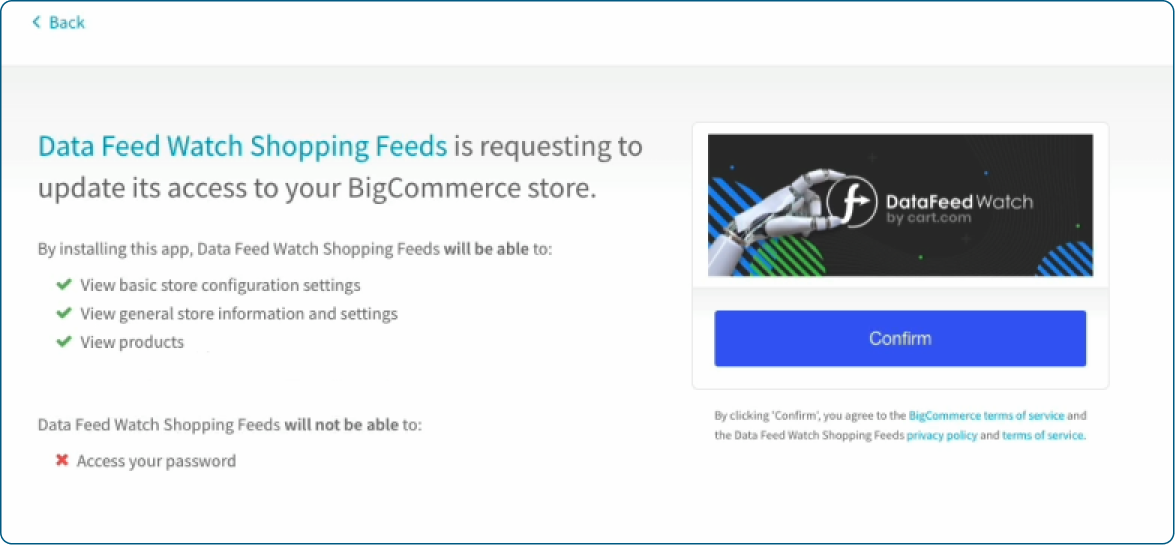
13. Click the Confirm button.
14. You’ll then return to DataFeedWatch to schedule the regular updates and finish importing your product data.
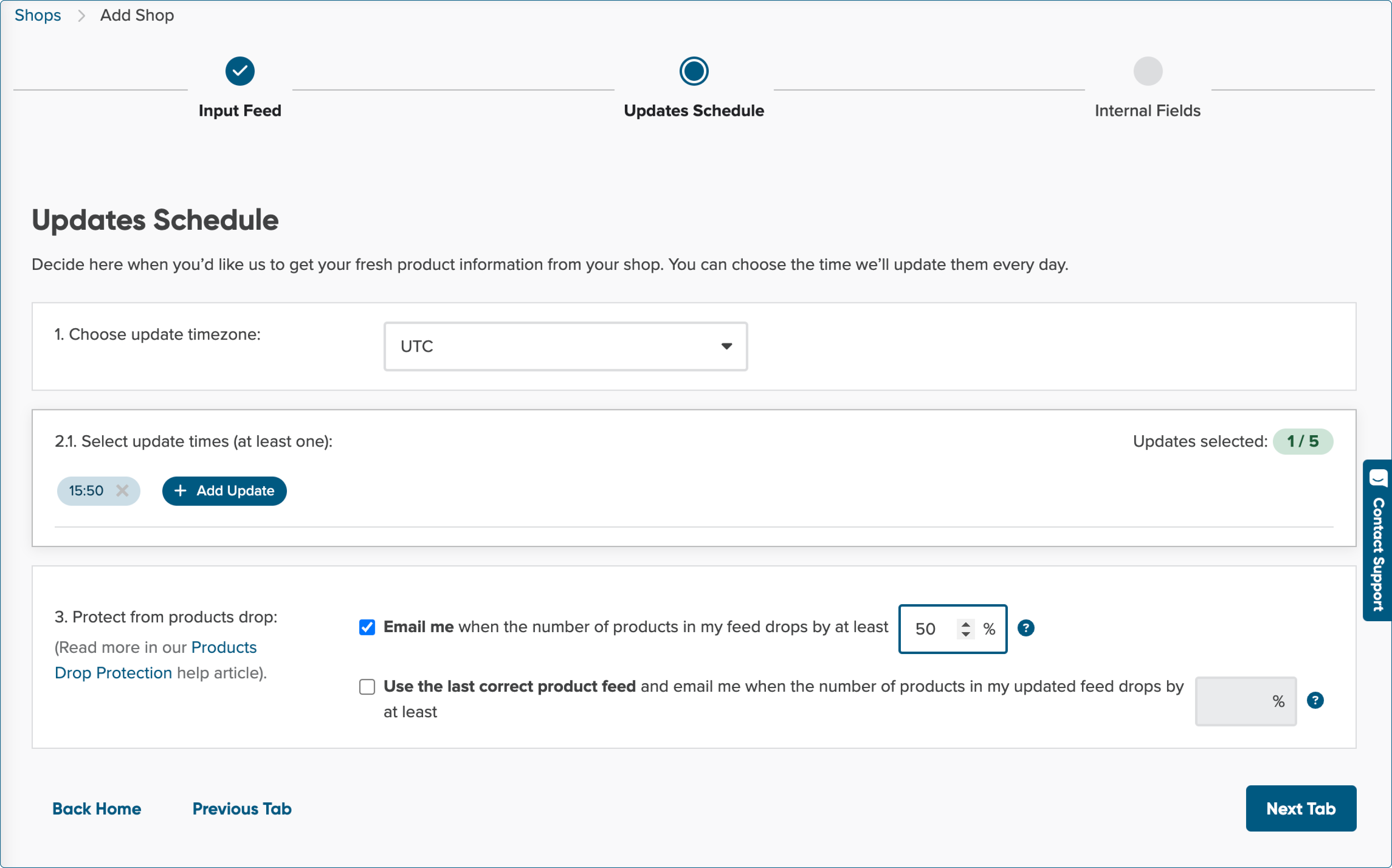
You may find interesting: How does Products Drop Protection work?
15. Once you finish scheduling the regular updates, click Finish.
16. We'll start uploading your product data.
How to add the store when I am not the shop owner
BigCommerce requires logging in to the admin panel to grant the DataFeedWatch app access to the product data, and basic configuration settings from the BigCommerce store.
If you manage your clients' feeds, you may need their BigCommerce admin panel credentials or ask them to grant access themselves. Usually, it's a quick and easy process. To make it even smoother, we've prepared a message that you can send directly to the shop owner.
If you don't have credentials or you're not enabled to access the BigCommerce admin panel:
1. Select the option I am not a shop owner.
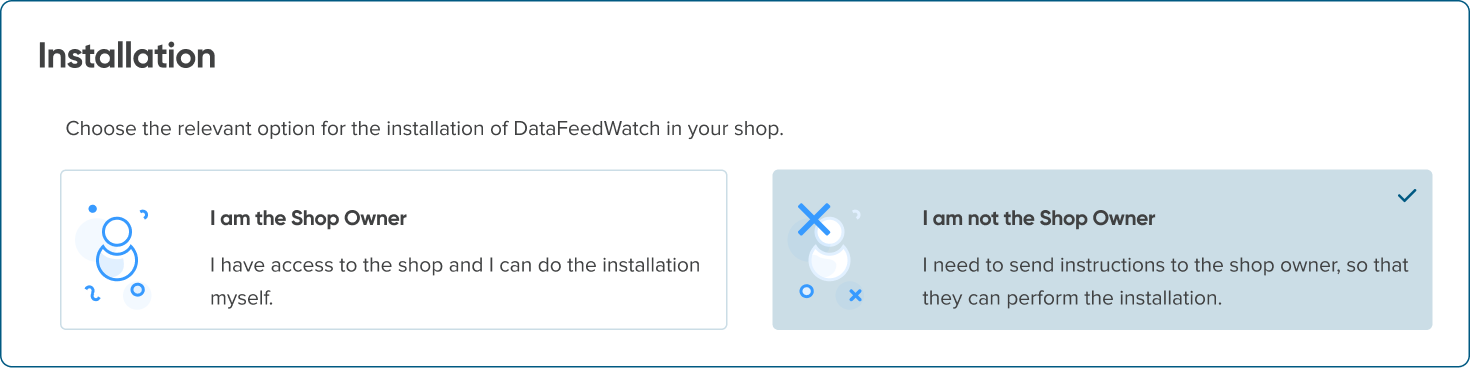
2. Reach out to the store admin. If you prefer, copy the ready-to-use message we've prepared and send it to the admin.
You can also send them a link to the section: I am the shop owner, but I don't manage the DataFeedWatch app.
Copy this link 👉 https://help.datafeedwatch.com/article/da3e4r9mtw-3202679-adding-bigcommerce-version-2#shop-owner-but-not-dfw-manager
3. Once you've been informed that everything is ready, log in to DataFeedWatch again.
4. The shop you were setting up will have a status of Add Shop Pending.

5. Select this shop and complete the installation.
I am the shop owner, yet I don't manage the DataFeedWatch app
BigCommerce requires logging in to the admin panel to grant the DataFeedWatch app access to the product data, and basic configuration settings from the BigCommerce store.
If the person managing your DataFeedWatch account has reached out to request access to your store, please follow these steps:
1. Go to the BigCommerce App Store via the link the manager sent to you.
2. Log in to your BigCommerce store.
3. BigCommerce will ask you to grant DataFeedWatch access to your store.
4. Just click Confirm.
5. Once DataFeedWatch has been installed, let the manager know so they can complete the installation process.