
Difficulty level: Pro.
If you're unsure how to proceed or the function does not produce the right effects, please contact our Support Team.
The Extract from the option will let you obtain given values much faster, compared to adding multiple conditions.
You can, for example, use this function to obtain a color or brand from the description field of your shop and add it to your color field.
To use Extract from option, follow the steps below:
- First, open Notepad, and create a list of values you would like to appear in the given field.
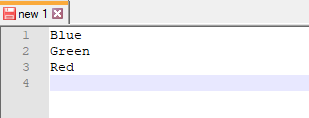
It can be a .csv or .txt file, each value in a separate line.
2. On your mapping page (Master Fields or Map Fields tab), scroll down to a given field (e.g. color).
3. From the drop-down list, select Extract from option.
4. In the next field, choose the field in which to look for the values from your list (e.g. description).
5. To upload your file, click Add from drive.

Optimization Case Studies:
Colors obtained from the Description field
You can, for example, use this to map the color field, even if there is no such field in your shop. All you need to do is create the file with the values that are present in your descriptions.
And add it using the Extract from option. The color field will now be filled in with the colors that appear in your description.
