
Difficulty level: Pro.
If you're not sure how to proceed, or the function does not produce the right effects, please contact our Support Team.
The Lookup table option allows you to replace old values with new ones, if you upload a comma separated CSV (or refer to the article for Google Spreadsheet).
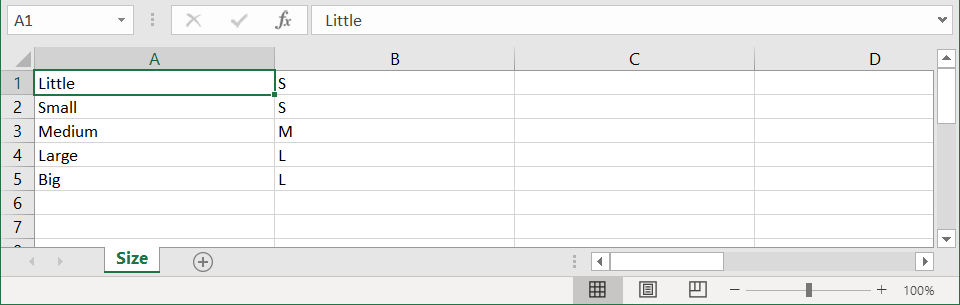
The file must contain 2 columns: one with current values from your shop, and another column with new values. Make sure your file contains only one sheet inside.
To use the Lookup table option, follow the steps below:
1. Prepare the relevant file with both columns included
2. Save your spreadsheet as comma separated CSV
The first column must include the values as they are in your feed. And to the second one add the new values.
3. On your mapping page (Master Fields or Map Fields tab), scroll down to a given field (e.g. size)
4. From the second drop-down list, select Use lookup table option
5. In the next field, select the field to be searched for values from the first spreadsheet column (e.g. size master field)
6. Upload your CSV
7. Click IF, select the same field with values (e.g. Size), and is in list from the dropdown adding the same file
This will let you only change these values if they exist.
8. In Else > Use, choose the same field with values (e.g. Size)
The original values will be kept if you add this rule.
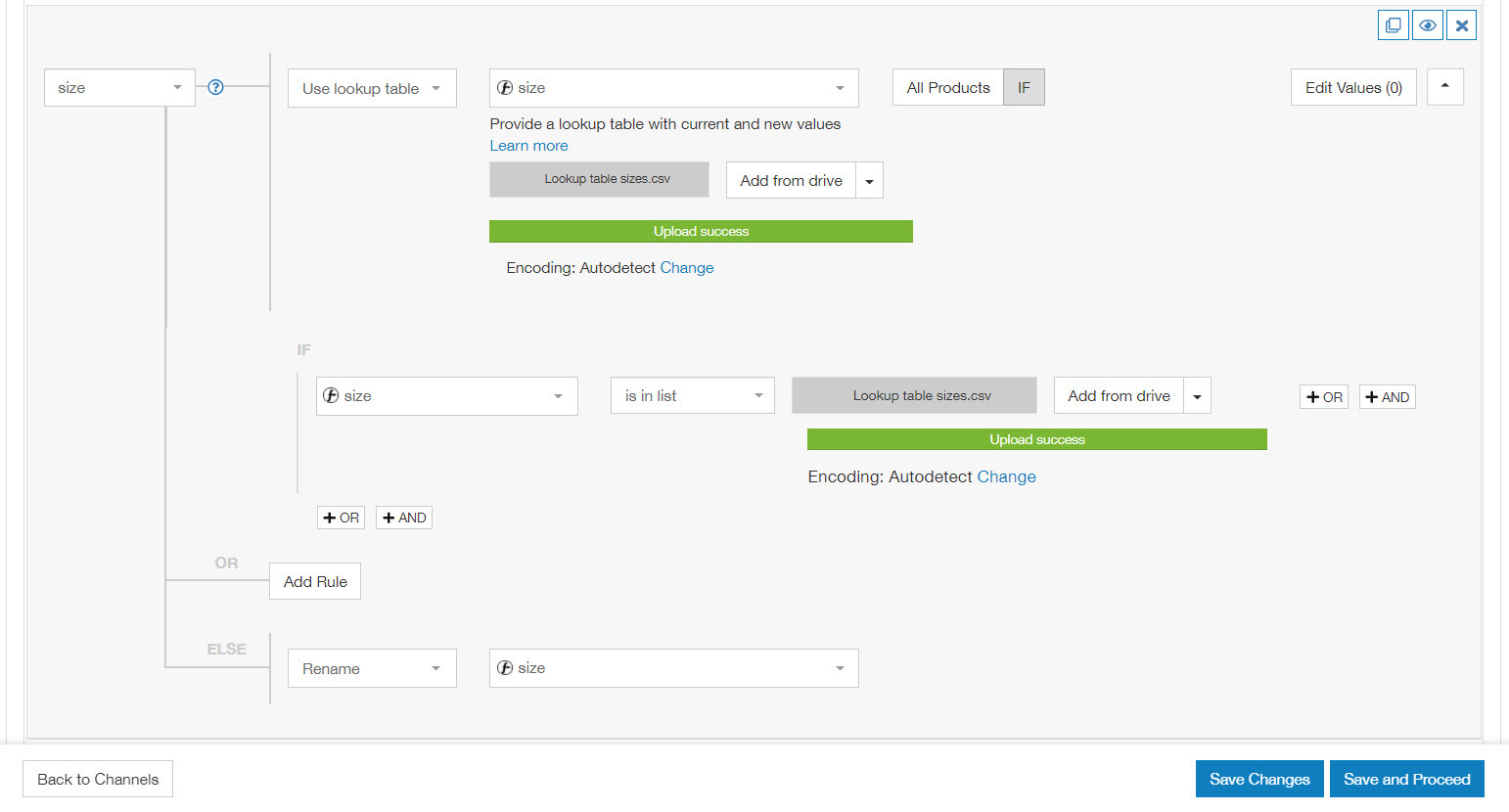
9. To apply changes, click Save and Proceed
Optimization Case Studies:
Using standard S, M, L sizes instead of other non-standard sizes (like Little, Small, Medium, Large and Big)
Here's a step-by-step animation: