
For adding other files, refer to Adding Product Files (.csv, .xml, .txt, .json).
Before you start
- Open your Google Sheets file you want to import product data from, and:
- Select Share in the top right corner
- Select Anyone with the link, and click Copy link.
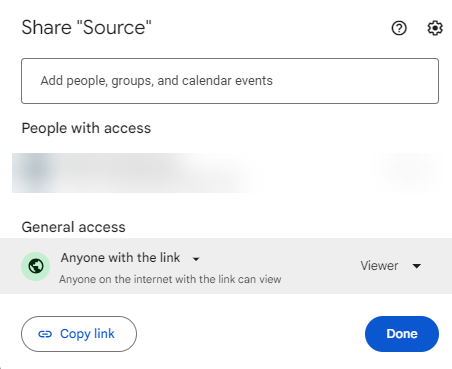
2. Log in to your DataFeedWatch Account.
3. Navigate to Shops.
4. Click the button Add shop.
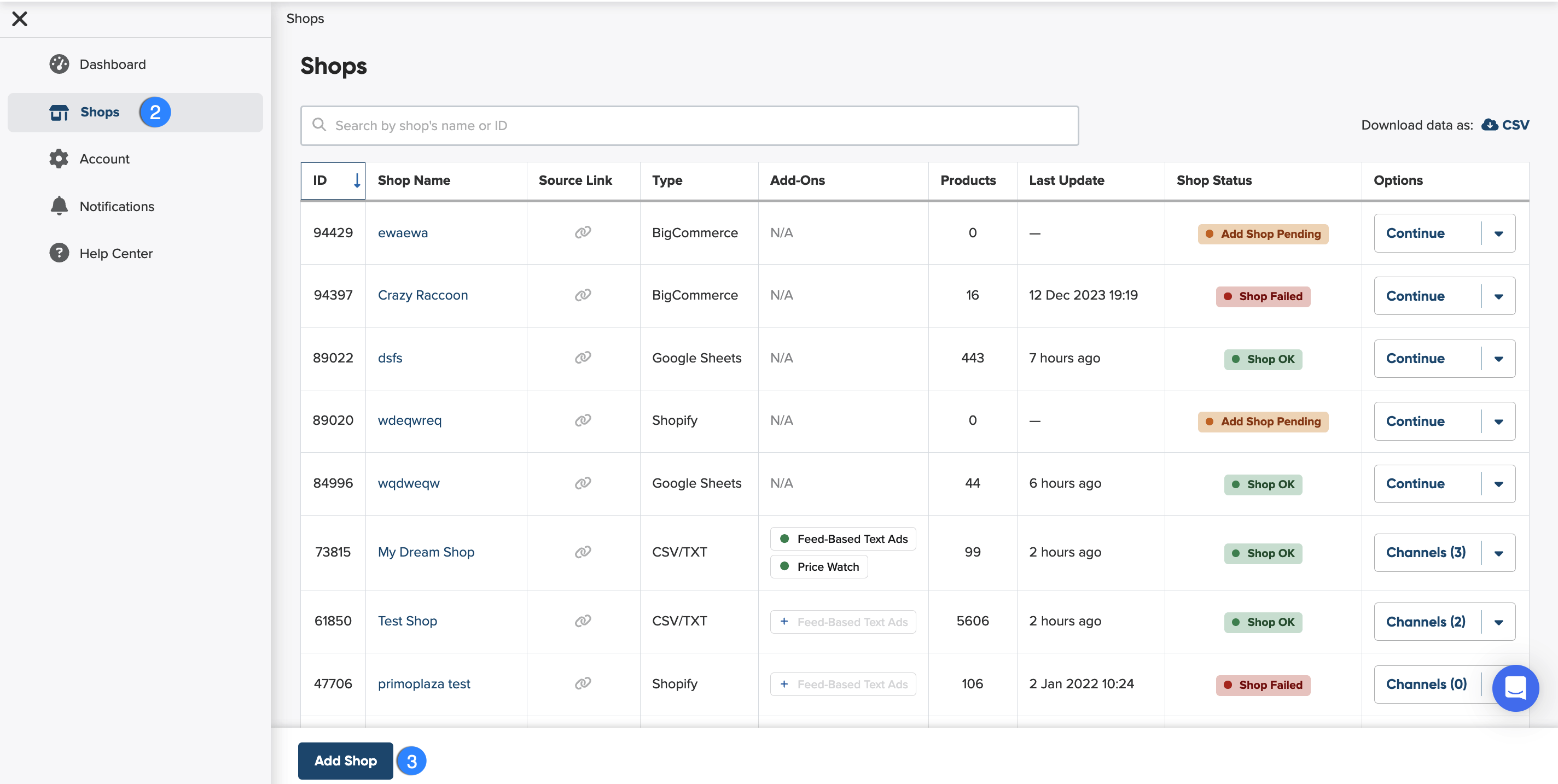
4. Before you select the (CSV/TXT, JSON, XML as an import file, you need to name your shop.
Why should you name your shop?
Giving your shop a name makes it easier to identify among others on your shop list. You can choose any name you like—it won’t affect feed optimization.

5. Next, you can start setting up your input feed.
What is input feed?
An input feed is the product data you import from your shop or another source so we can create an optimized channel feed.
To add Google Sheets as an input feed:
- When setting up your input feed, choose Google Sheets as an import file.
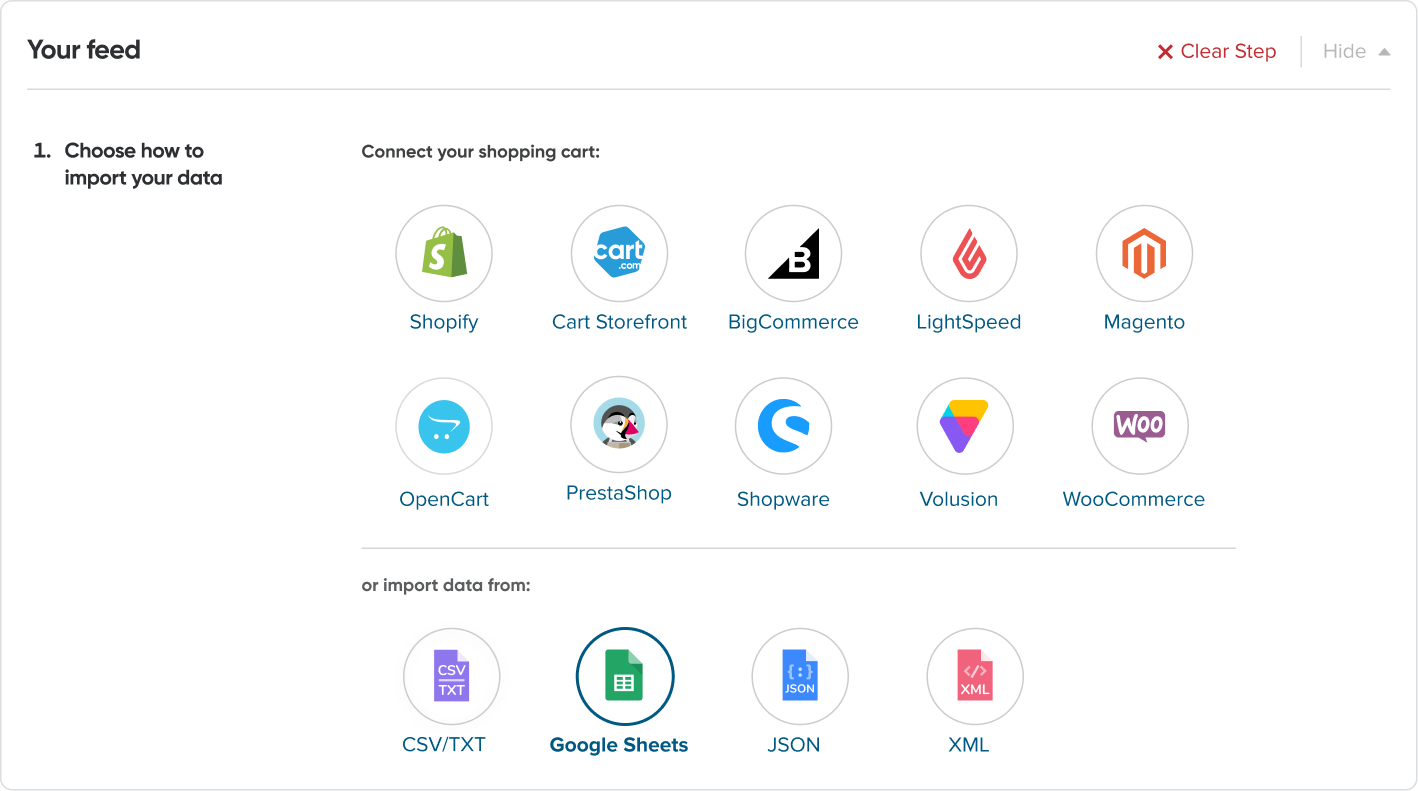
2. Enter Google Sheets URL.

3. Click Next: Update Schedule to continue.