
To add more files as one shop:
-
Log in to DataFeedWatch.
-
Navigate to Shops.
-
If you haven't added the shop yet, click Add Shop.
-
Name your shop.
-
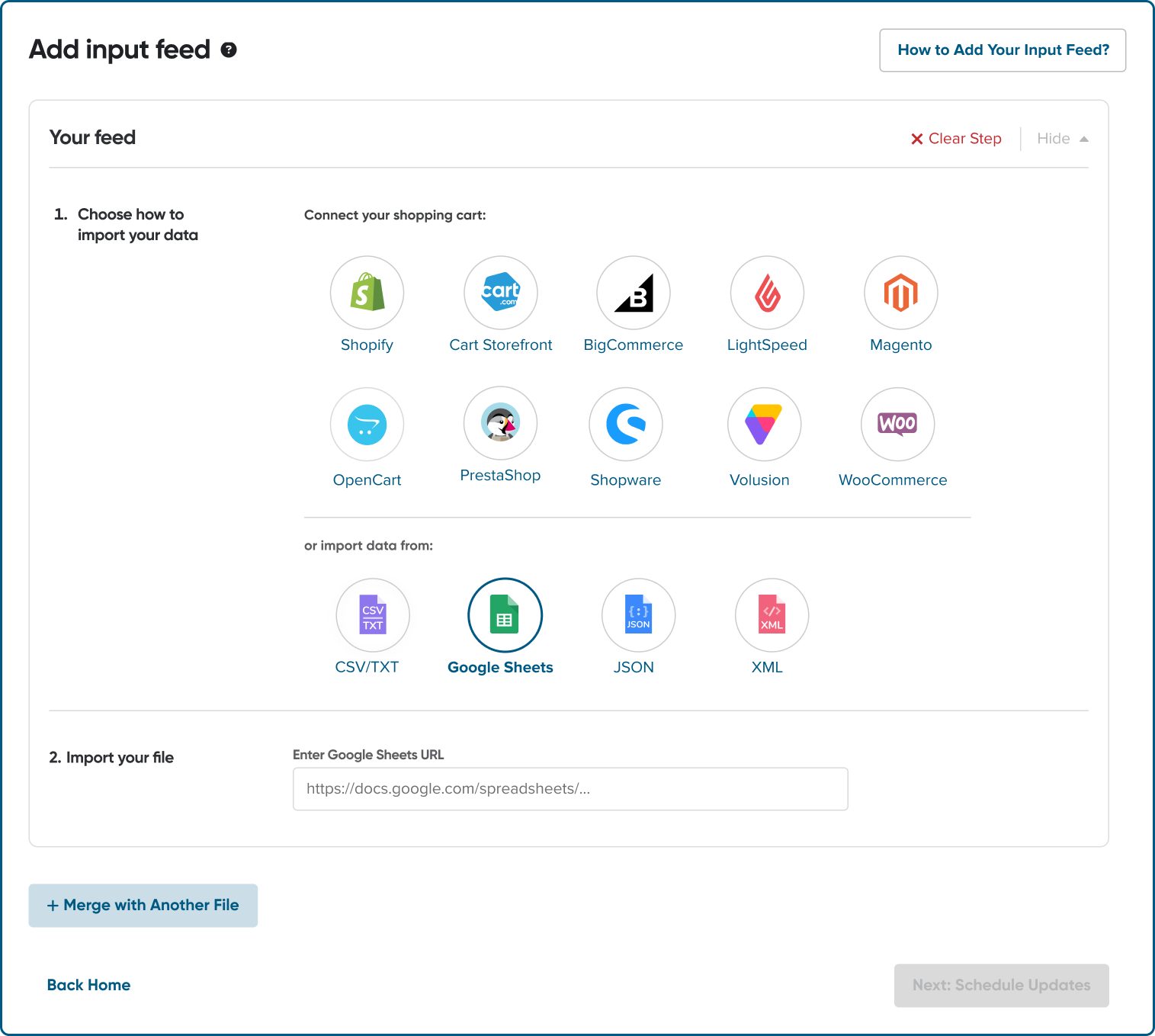
Select the CSV/TXT, Google Sheets, JSON, or XML, as a main feed import file.
-
Paste the file address (or browse to upload one from your drive).
- Click Merge with Another File.
7.
Enter the URL of the additional file you want to merge, and configure any settings.
You can use different file types. For example, you can merge XML with CSV/TXT or any other file type.
9. In the Updates Schedule tab, select the timezone and times when you want your data to be updated.
10. Once you schedule your updates, click Next: Configure Merging.
- If you want to add additional information to products from the main feed, select Merge Products.
If you selected this option, indicate what products from the main feed should be supplied with the data from the additional field. To do so select the attribute that should be used to identify the product (e.g. ID).
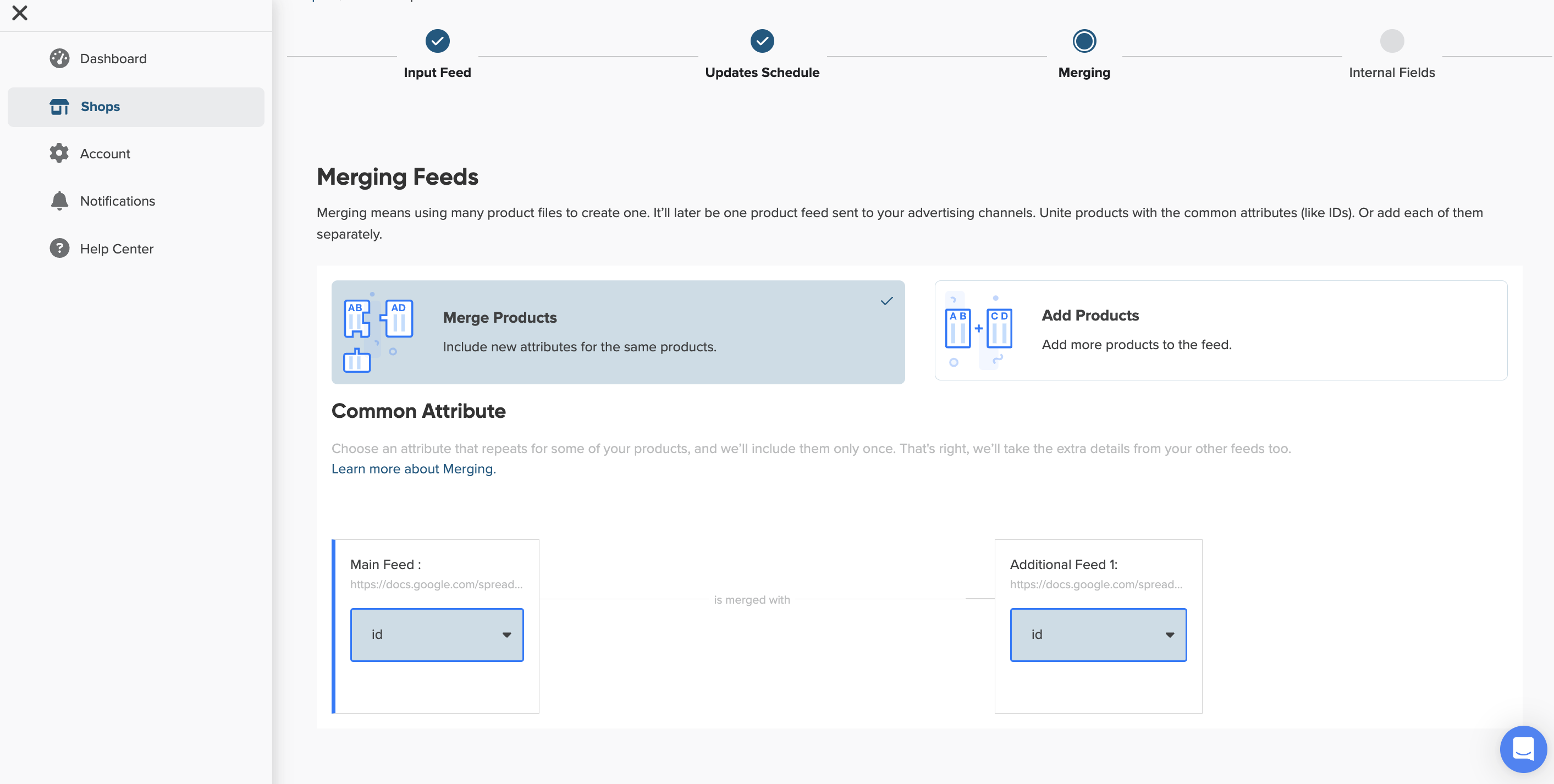
- If you choose Merge Products, products with matching values in the specified field will be combined. Attributes from both feeds will be merged into one product instead of creating duplicates.
If you select the Merge Products for the product with the same values in this field, all the other attributes from both feeds will be combined. So it will be added as one product.
13. Click Next: Upload Merged Products.
14. Once we've uploaded merged products, follow the instructions on the interface.
Next recommended read: Creating Master Fields.