
How to connect your PrestaShop store to import your product data:
1. Log in to your Prestashop dashboard and keep it open in another tab.
2. In another tab, log in to the DataFeedWatch app.
3. Navigate to Shops.
4. Click on the blue button Add Shop below the Shop list.
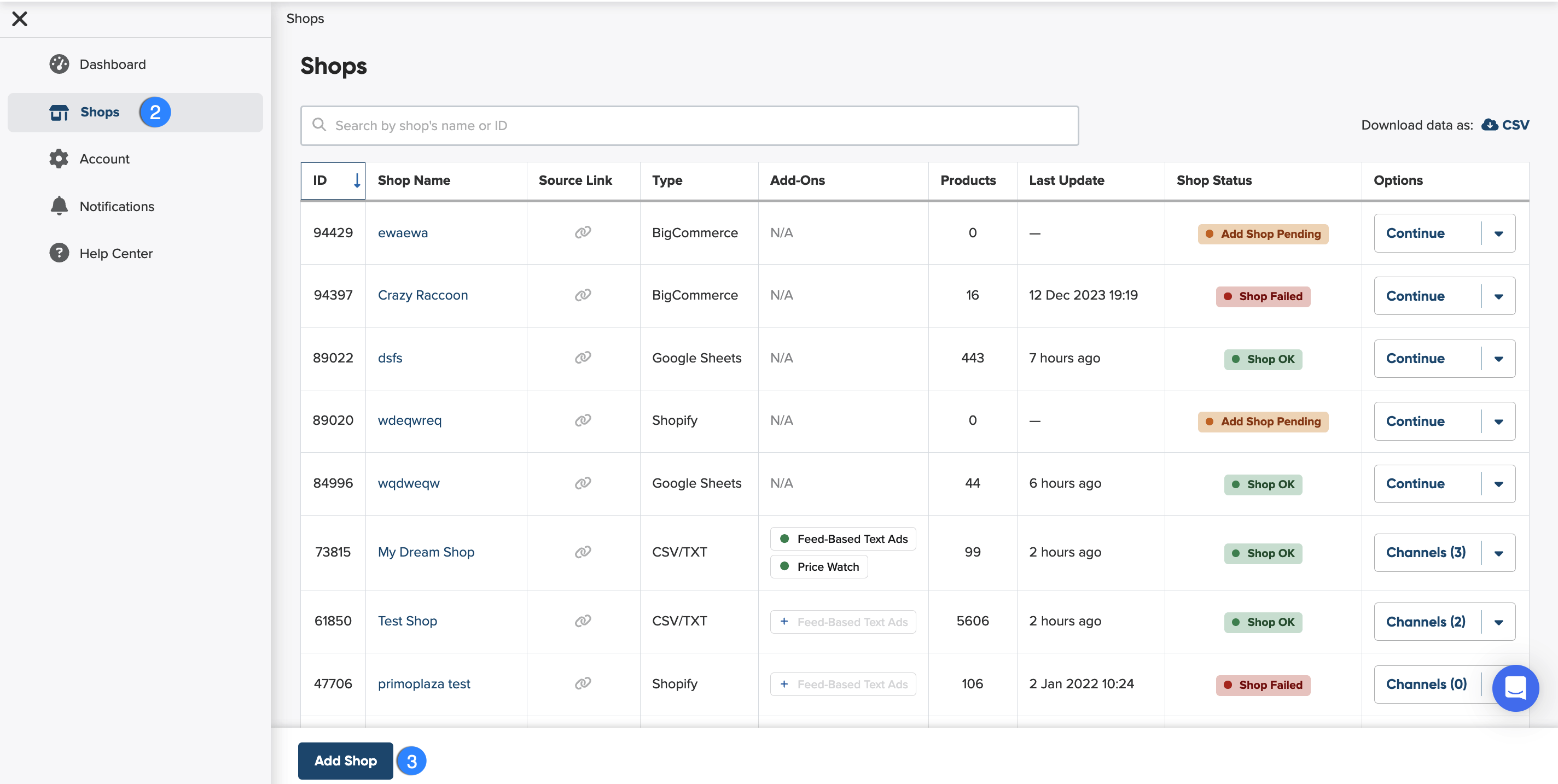
5. Before you select PrestsShop to connect, and import your product data, name your shop.
Why should you name your shop?
Giving your shop a name makes it easier to identify among others on your shop list. You can choose any name you like—it won’t affect feed optimization.

6. Next, start setting up your input feed.
What is input feed?
An input feed is the product data you import from your shop or another source so we can create an optimized channel feed.
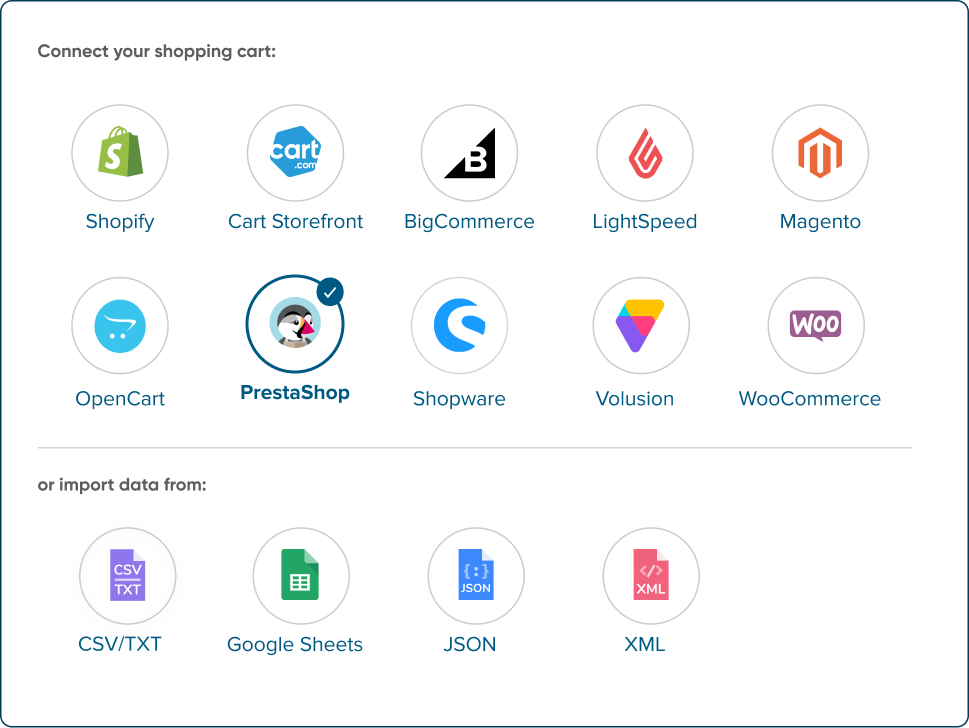
7. Select PrestaShop from the list of Shopping Carts.
8. Click on Download DataFeedWatch Module to download the file with the extension.
9. Save the file.
Please, don’t change neither name nor format of downloaded connector.
10. Go to your PrestaShop's Admin Panel.
11. Navigate to Modules > Module Manager
12. In the upper right corner, click Upload a module.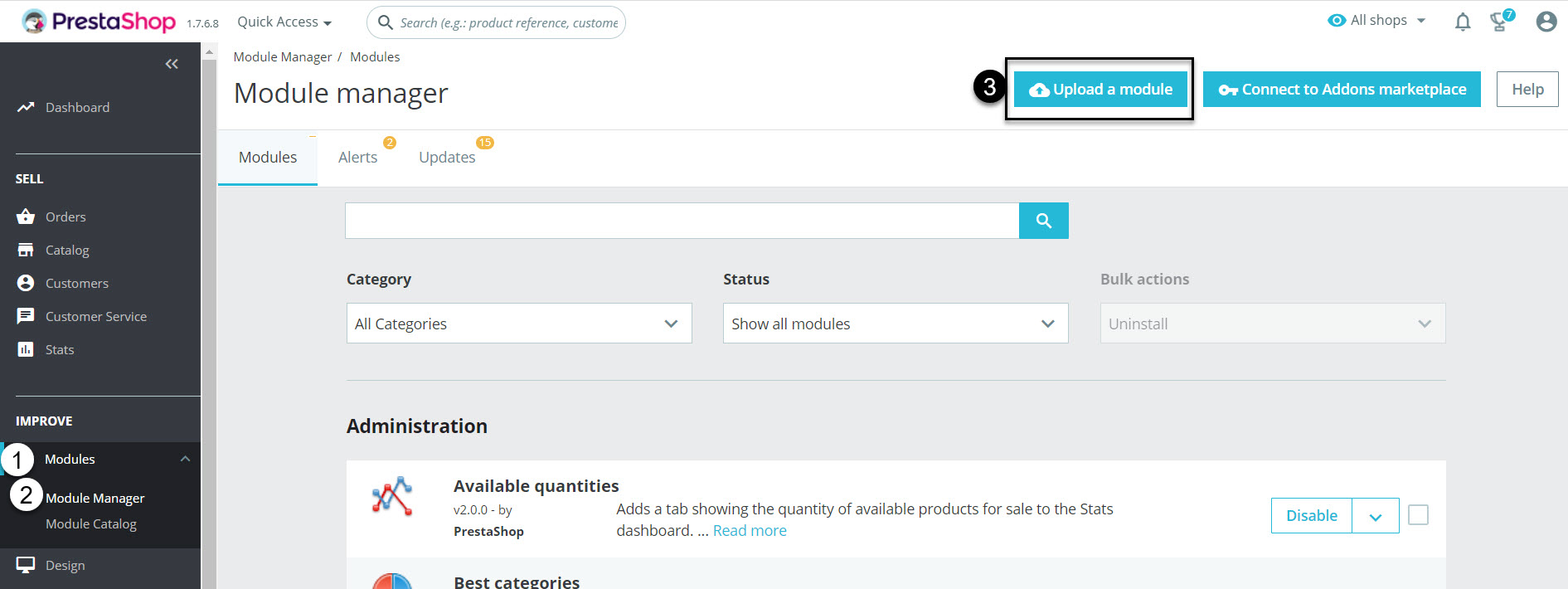
13. Browse and find the module file, and wait for it to install.
14. Once installed, keep the page open, and return to DataFeedWatch.
15. Provide your PrestaShop URL in the designated field.

16. Return to PrestaShop.
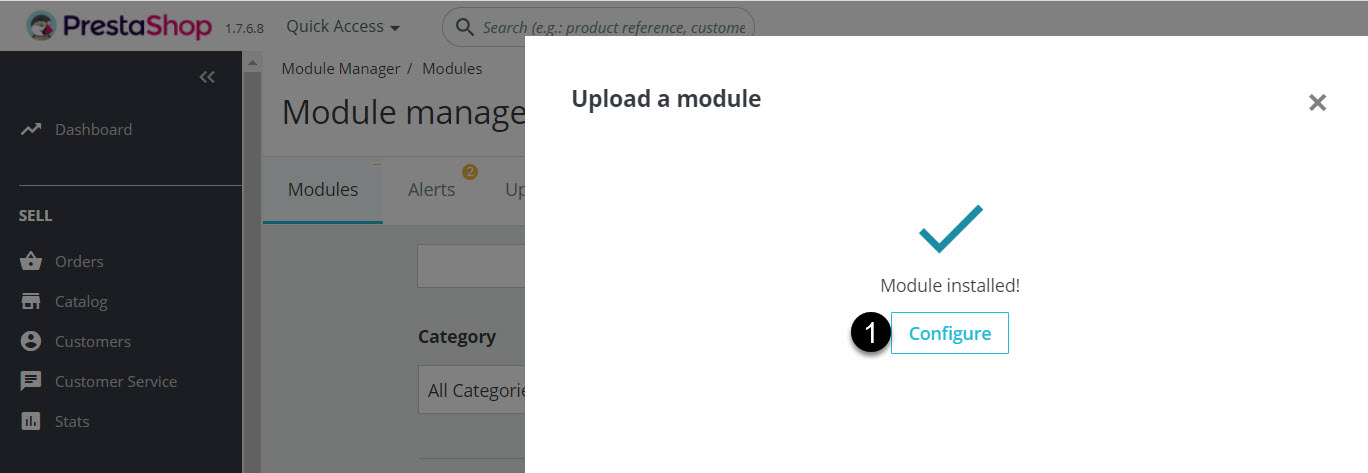
17. In the Upload a module, click Configure.
18. In the configuration section, you can set whether to disable products that are not active or out of stock. This ensures that we won't download these products.
We recommend disabling inactive or unavailable products. Otherwise, we will download all products, which may lead to additional costs if the number of products exceeds the limit within your plan.
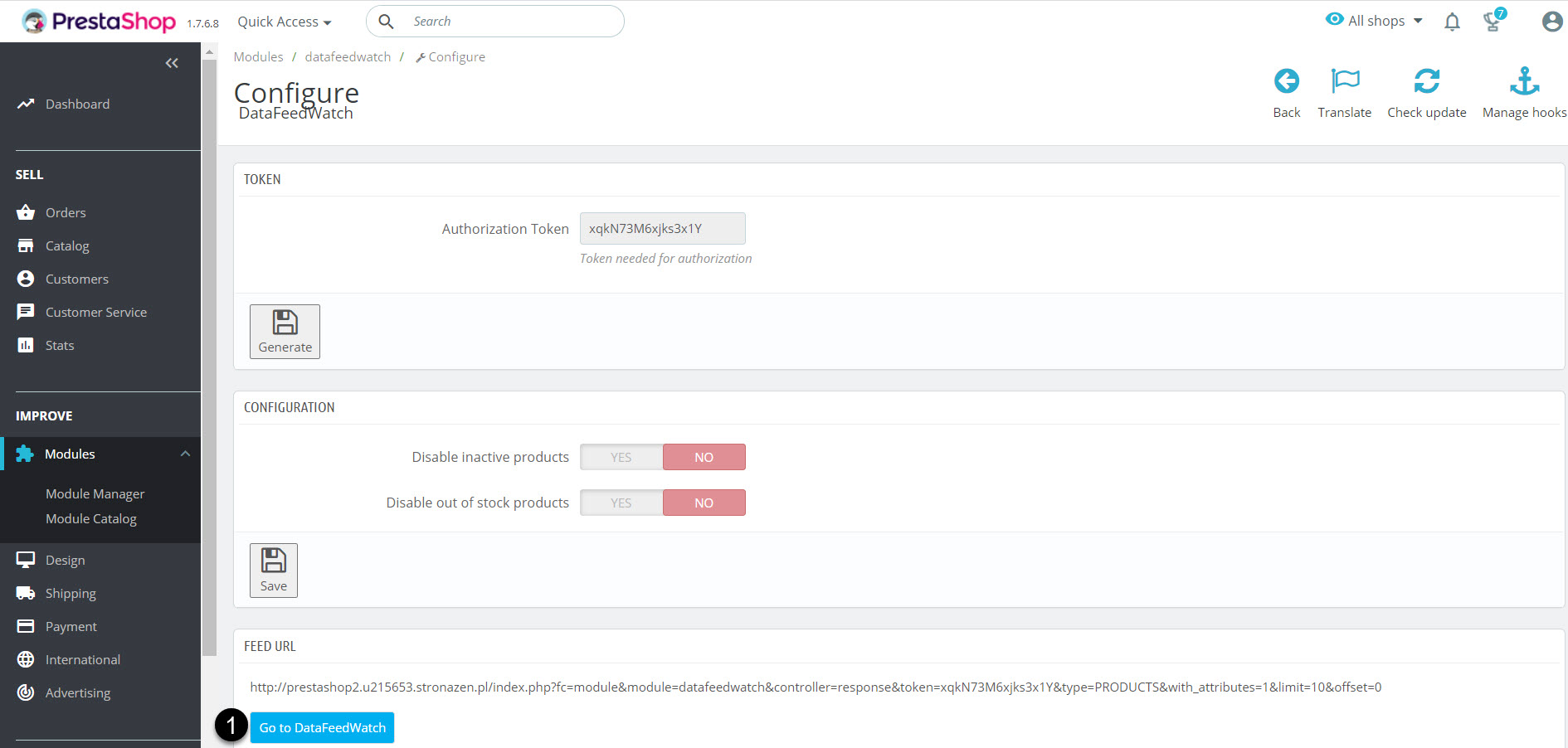
19. Copy the authorization token. We'll ask you for this when you go to DataFeedWatch.
20. Click Go to DataFeedWatch.
21. Paste the authorization token in the corresponding field.
