
As of June 15th, 2025, the mapping type Rename has been replaced with Use.
We made this change because the term "Rename" wasn’t very intuitive for beginners and didn’t accurately reflect the action being performed. “Use” provides a clearer explanation of what will happen in your mapping.
How to use "Use" in the mapping:
Let’s look at an example. You’ve selected Google Shopping as your channel.
One of the required fields for this channel is Title. You already have this data in your feed, but it’s under a different column name, let’s say Product Name.
1. Go to the Mapping page.
2. Find the Title field.
3. From the drop-down, select Use.
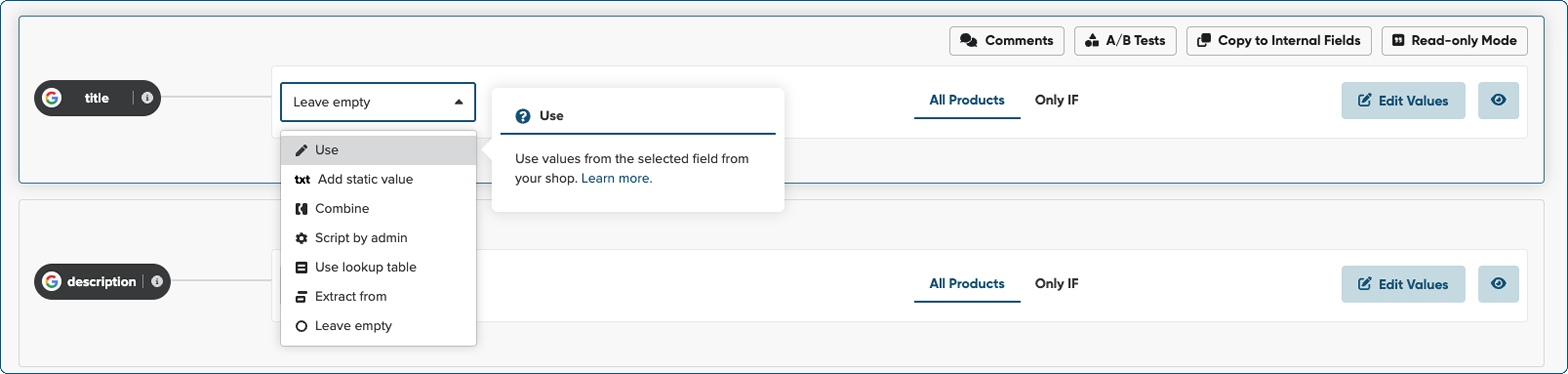
4. In the next drop-down, choose the attribute from your source feed. In this case, select Input Fields, then find Product Name.

When selecting the field to retrieve data from, you have two options:
-
Select a field you’ve already configured in Master Fields.
-
Or, select a field directly from Input Fields, meaning straight from your source feed.
5. Select Product Name.
Optimization tips&tricks:
One of the most commonly used rules among our users is to use their products' SKU numbers as the ID.
As this rule may be used in channels other than Google Shopping, we recommend setting this rule up in Master fields.
1. Go to your shop’s Master Fields.
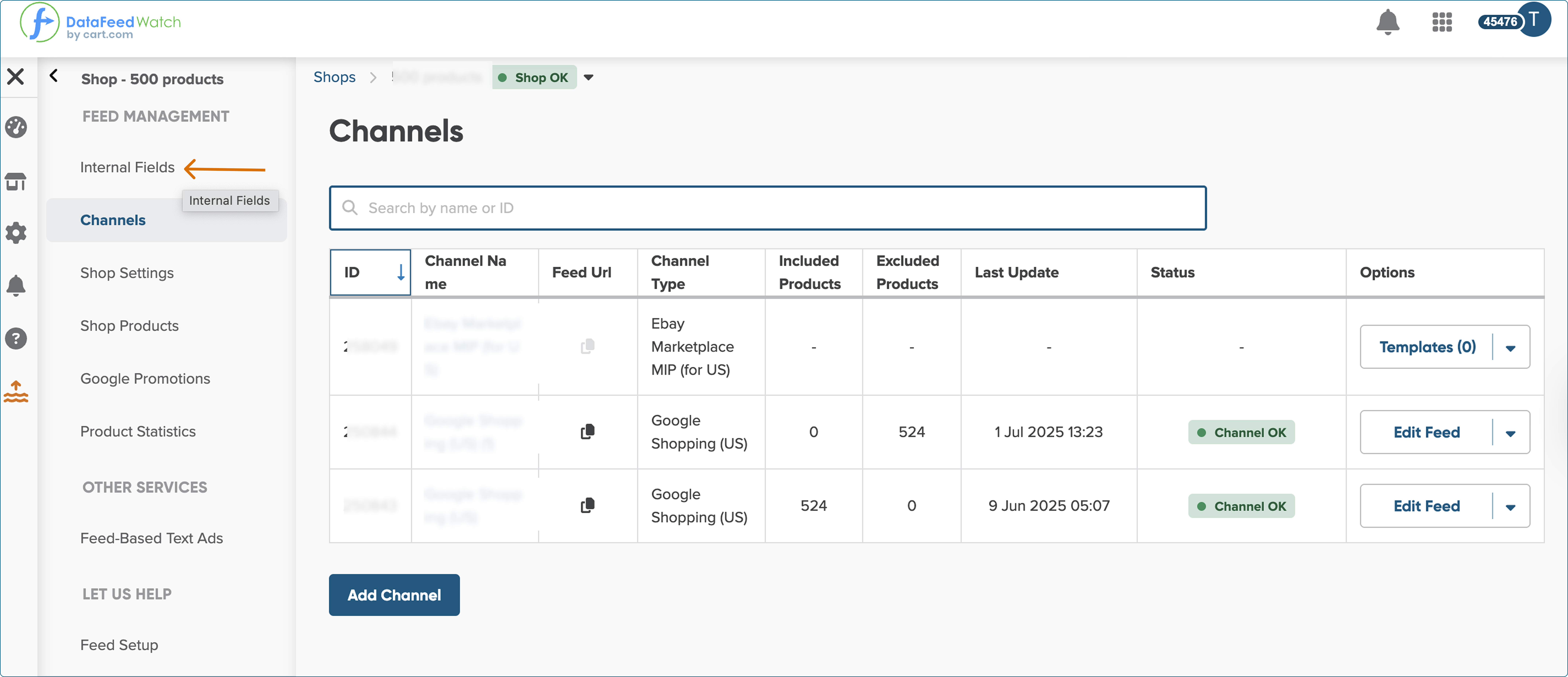
2. Switch Master Fields to Edit Mode.
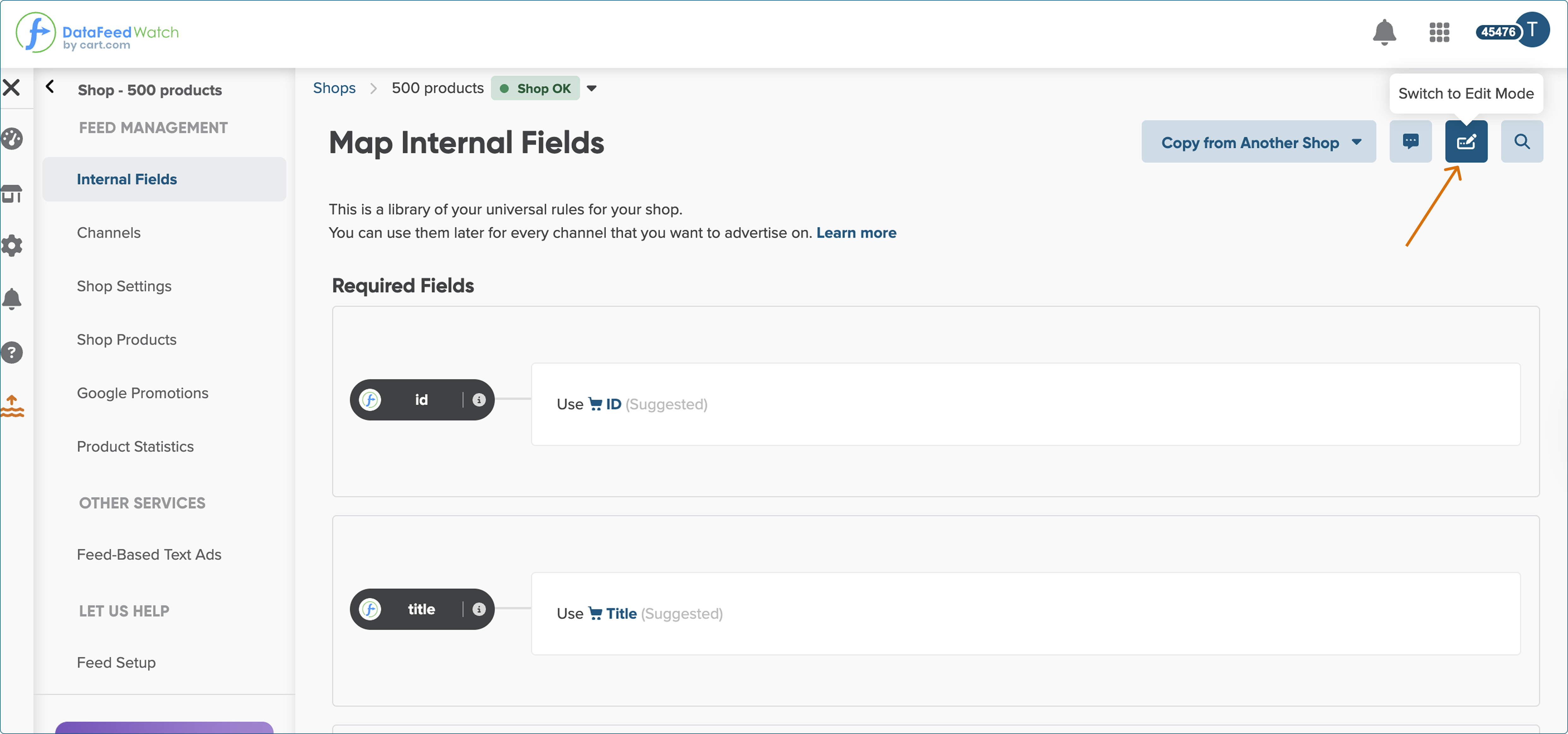
3. Locate the id field.
4. Since the id field is usually locked, hover over it and click Unlock.
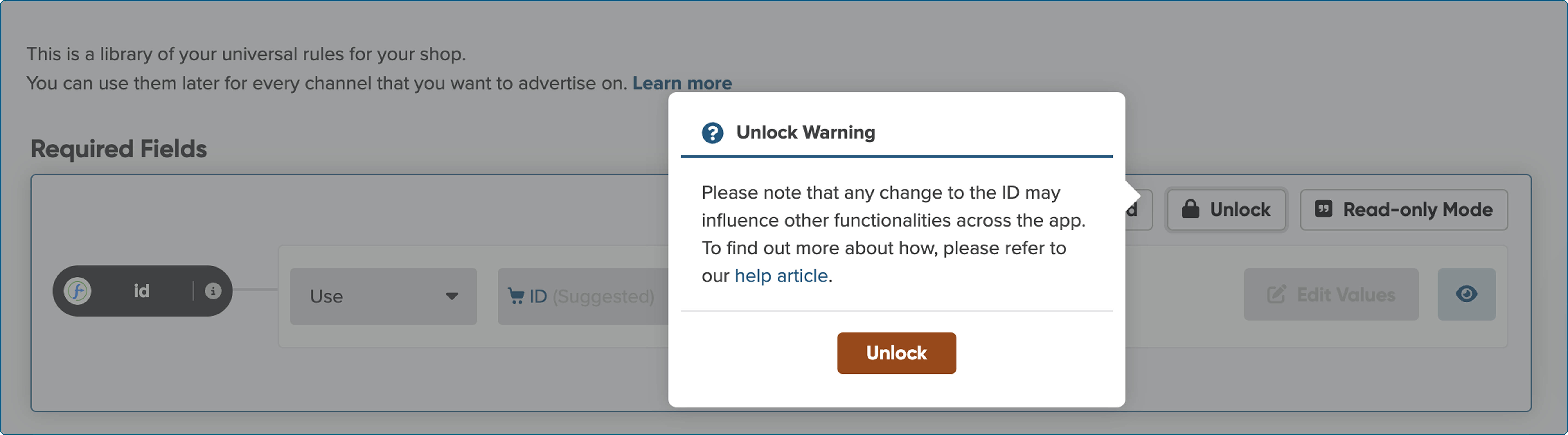
5. From the drop-down menu, select Use.
6. From Input Fields, choose SKU.
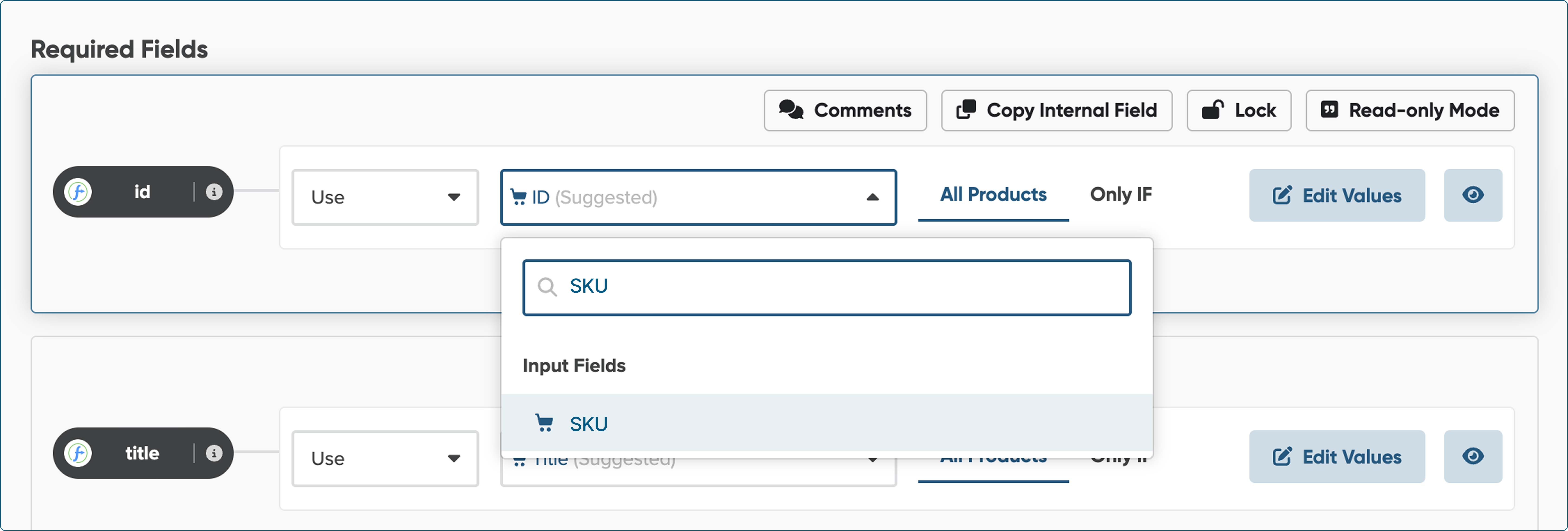
7. When you’re ready, click Save and Proceed.