
After the review, you'll receive a concise and insightful report that highlights any potential errors detected by the channel - errors that could cause your feed to be rejected.
With Feed Review, you can:
- Identify issues with your products before sending them to the channel.
- Understand the types of errors found, so you know exactly what needs fixing.
- Save time by resolving problems early - no need to wait until the feed is submitted and then start over.
Important: At this stage, your data feed is neither sent nor connected to the channel.
How to view your Feed Review
There are three ways to access your channel’s Feed Review:
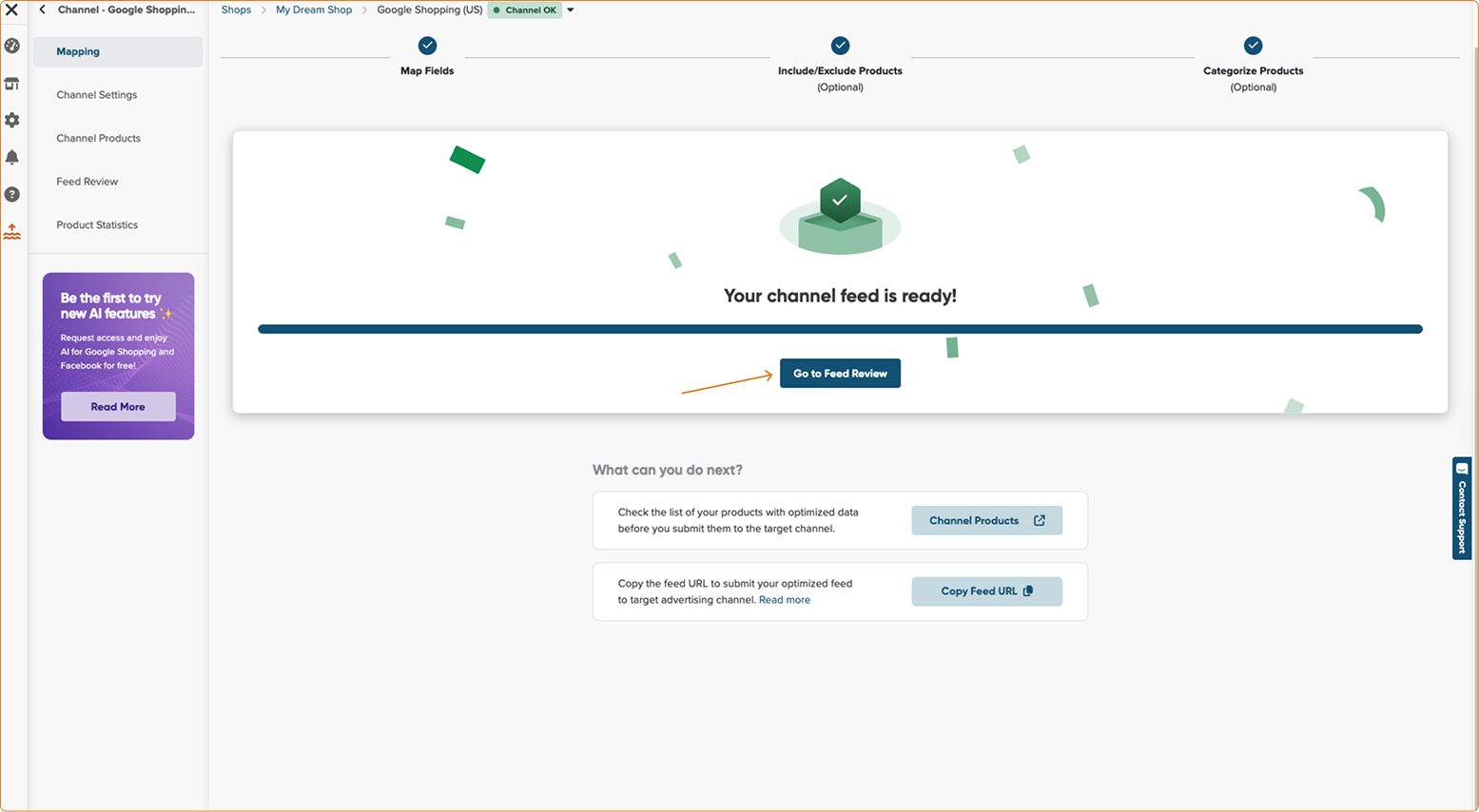
1. After mapping a channel feed. Once you’ve finished mapping your feeds, the Feed Review becomes available.
2. When your channel is already set up.
- Go to the Shops and find the shop you want to review.
- Select the channel.
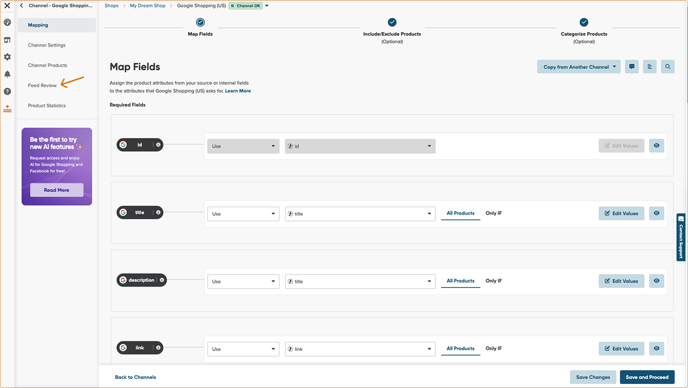
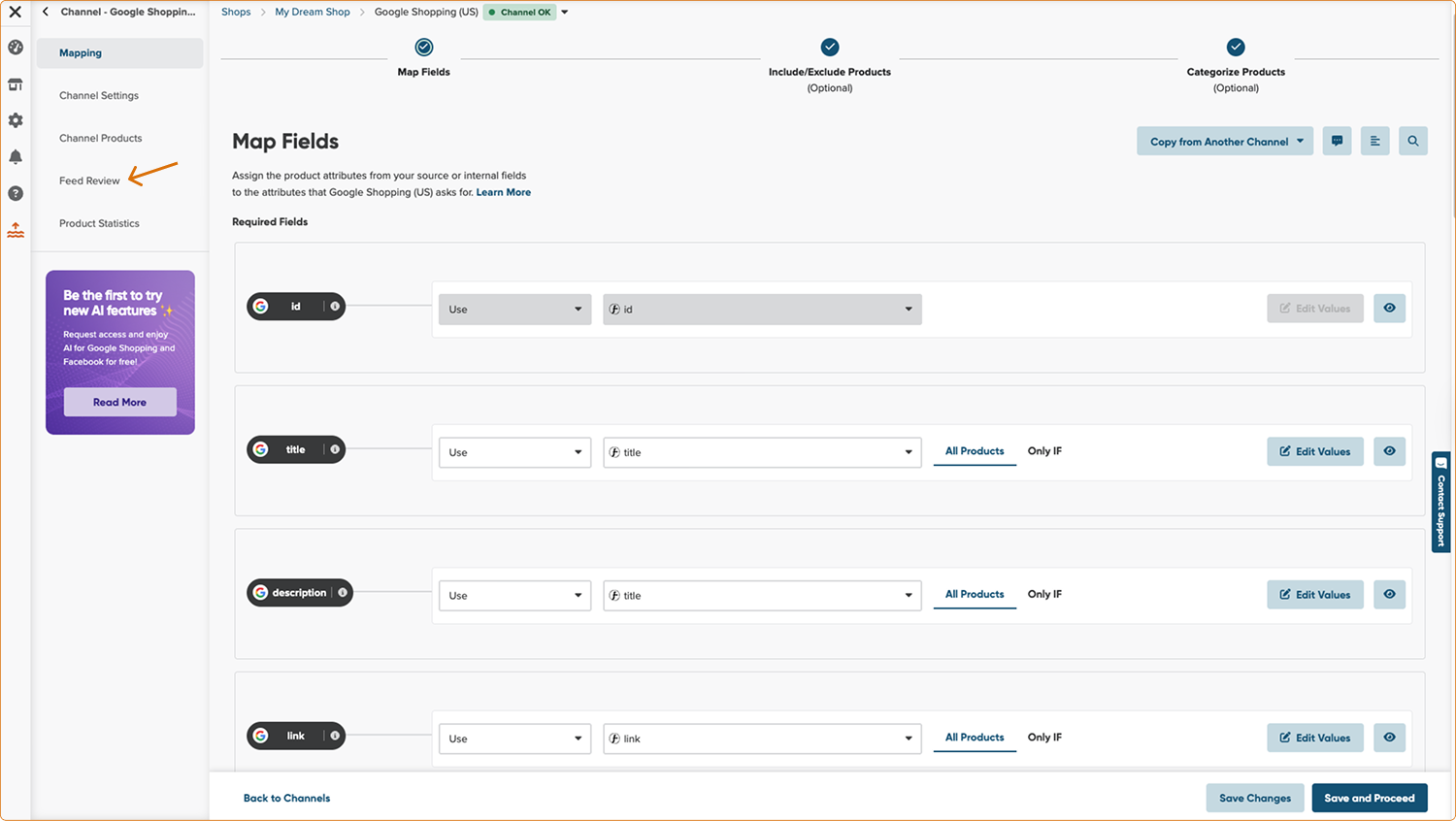
- When the Map Fields page opens, use the left-side navigation bar to click Feed Review.
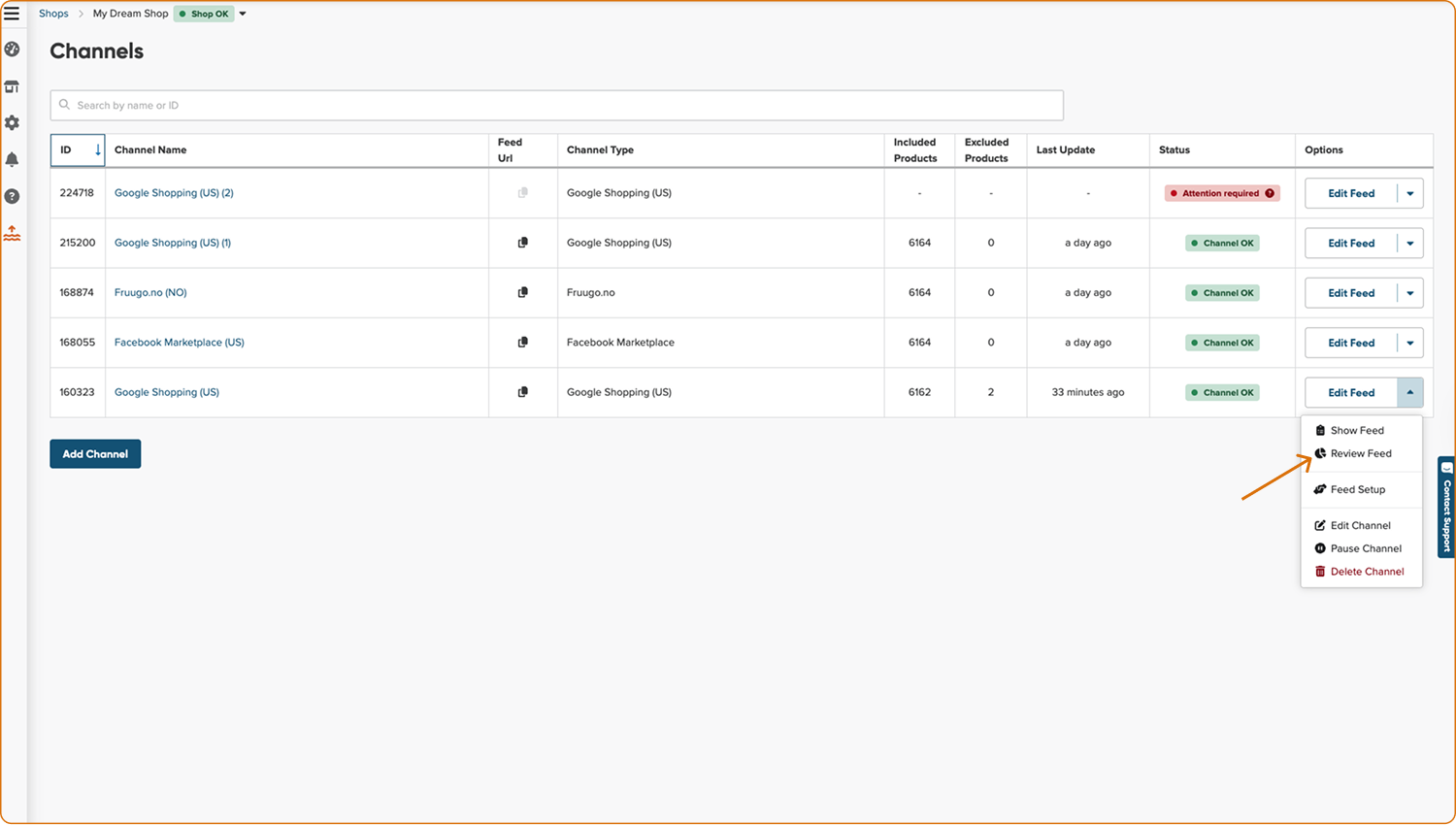
- Alternatively, click the Edit Feed button and choose Review Feed from the drop-down menu.
3. From the Channels List
You can also access the Feed Review directly from the list of channels.
Feed review report overview:
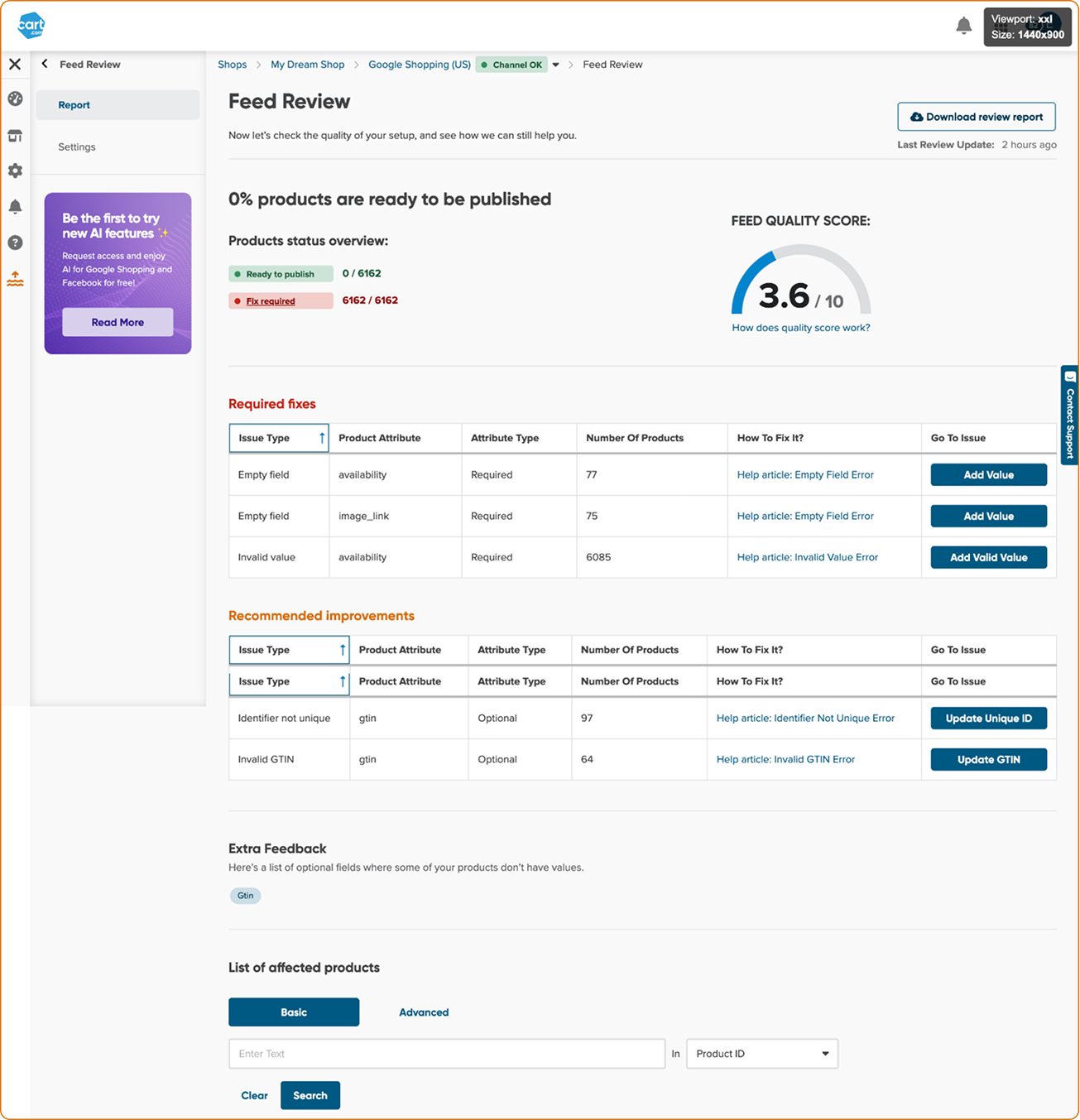
1. Product status after review
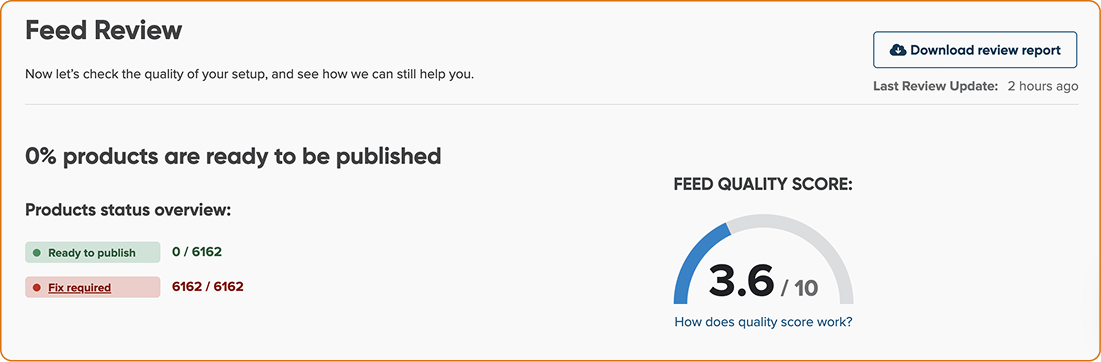
At the top of the report, you can see the general status of the products that have passed the review.
- Products: Ready to publish → The products are good to go.
- Products: Fix required → These products have issues that prevent them from appearing in the feed. Review and fix them to ensure they’re accepted by the channel.
2. Feed quality score
The Feed Quality Score in DataFeedWatch reflects how well your feed is set up.
To learn more about how it’s calculated, check out the article: Feed quality score in DataFeedWatch.
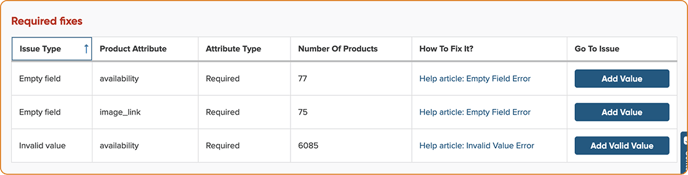
3. List of the fixes
Fixes are divided into two categories:
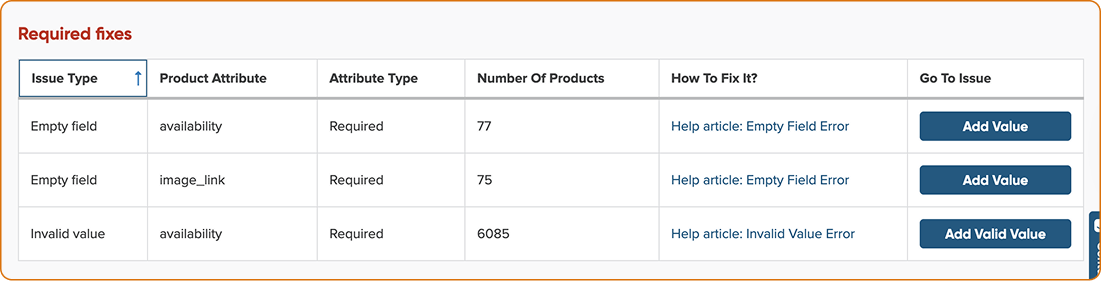
- Required Fixes – These must be resolved. We’re confident the channel will flag these issues or reject the products entirely.
- Recommended Improvements – These are optional, but fixing them can improve the quality and performance of your feed.
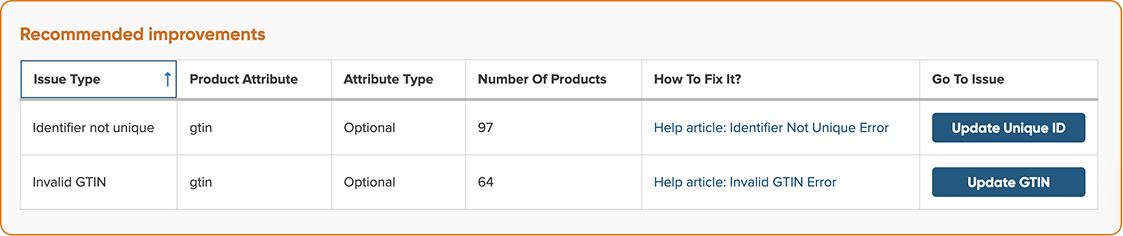
What you’ll see in the Feed Review
To view the full Feed Review report, your feed must first be processed and ready, and its status must be OK.
The Feed Review gives you detailed insights into the issues affecting your feed.
Here's what you can check:
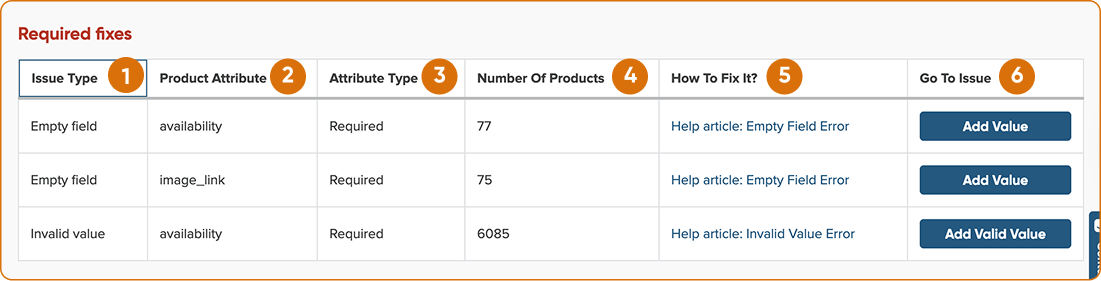
- Type of Issue – Whether it's something you must fix or should fix to improve performance.
- Affected Attribute – Which specific attribute is causing the issue.
- Attribute Requirement – Whether the attribute is required by the channel or just optional.
- Number of Affected Products – How many products are impacted by the issue.
- How to Fix It – Clear guidance on how to resolve the issue.
- Quick Access Buttons – Buttons that take you directly to the issue so you can fix it right away.
Keep in mind: Feed Review is not the final step in the feed optimization process.
The report does not mean your feed has been connected to or sent to the channel. It simply shows how your feed is currently set up and how it may be interpreted by the channel.