
Tip: Use FTP if your prices or stock change often. It supports up to 24 updates per day. To increase how often your feed updates, go to Updates Schedule and set a higher frequency.
FTP is another option to connect your Products from DataFeedWatch with the desired channel. After your first successful connection, we will upload your feeds to the channel automatically.
Before you start, make sure that the status of your channel is OK.
To upload the Data Feed using FTP, follow the steps below:
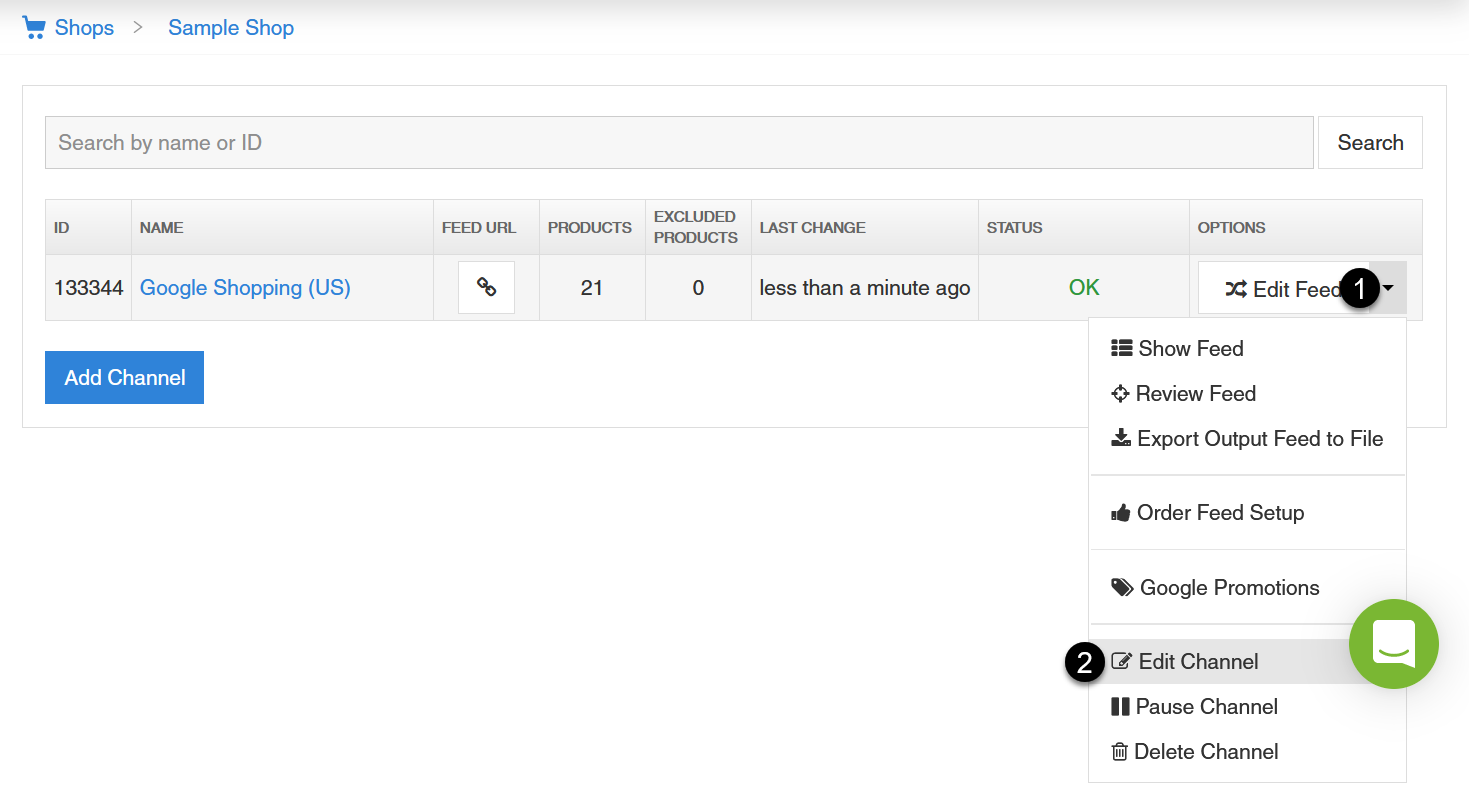
- In DataFeedWatch App, go to Shops > your shop's name
- Click Options dropdown next to your channel, and select Edit channel
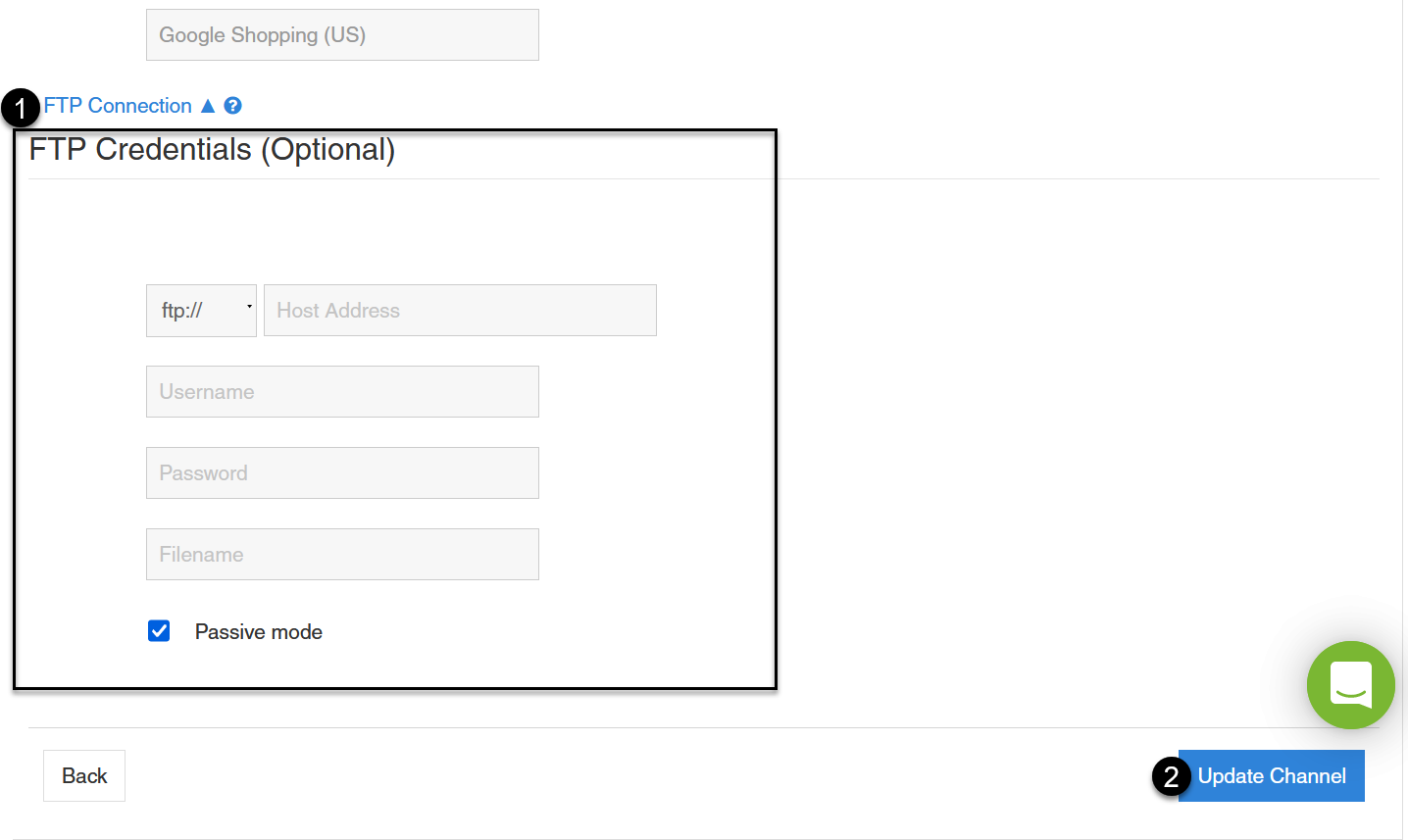
- Click FTP Connection, and then provide your credentials in the fields below
At this step, you need to know FTP Credentials required by your channel.
- To send the feed to the channel at any point, click FTP Upload button in the drop-down list next to the channel (optional)
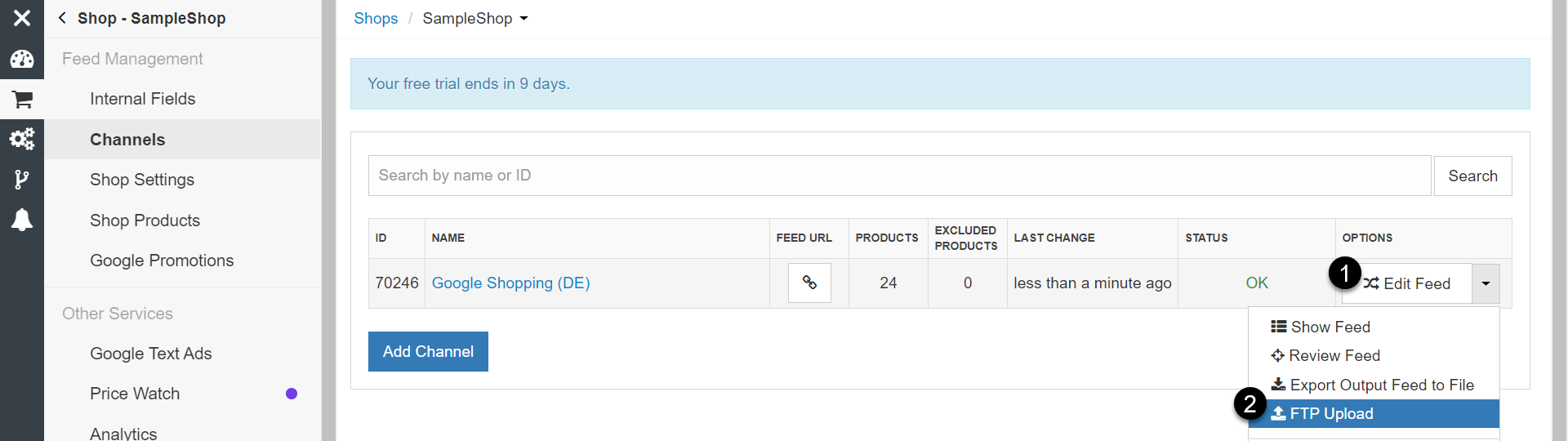
Your product feed will now be sent to the server automatically every day, just after your products are updated in DataFeedWatch.
To obtain FTP credentials and make a connection, follow the procedure for the relevant store.