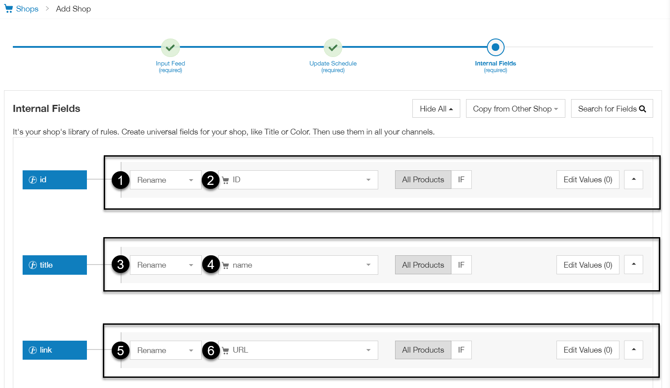
The general procedure of adding your shop or file is as presented below.
If you're looking for information on how to edit a specific source, please check out one of the following articles:
- Adding Product Files (.csv, .xml, .txt, .json)
- Adding Product Files from Google Sheets
- Adding Shops: Adding Shopping Cart Platforms
How to add a new shop
1. Log in to your DataFeedWatch Account.
2. Go to Shops on the side navigation.
3. Click the Add Shop button. 
4. Name your shop.
Why should you name your shop?
Giving your shop a name makes it easier to identify among others on your shop list. You can choose any name you like—it won’t affect feed optimization.
5. Choose how to import your data. You have two options for your input feed:
- File Upload – you can upload a file from a URL or your device.
- Shopping Cart Integration – connect directly to your shopping cart.
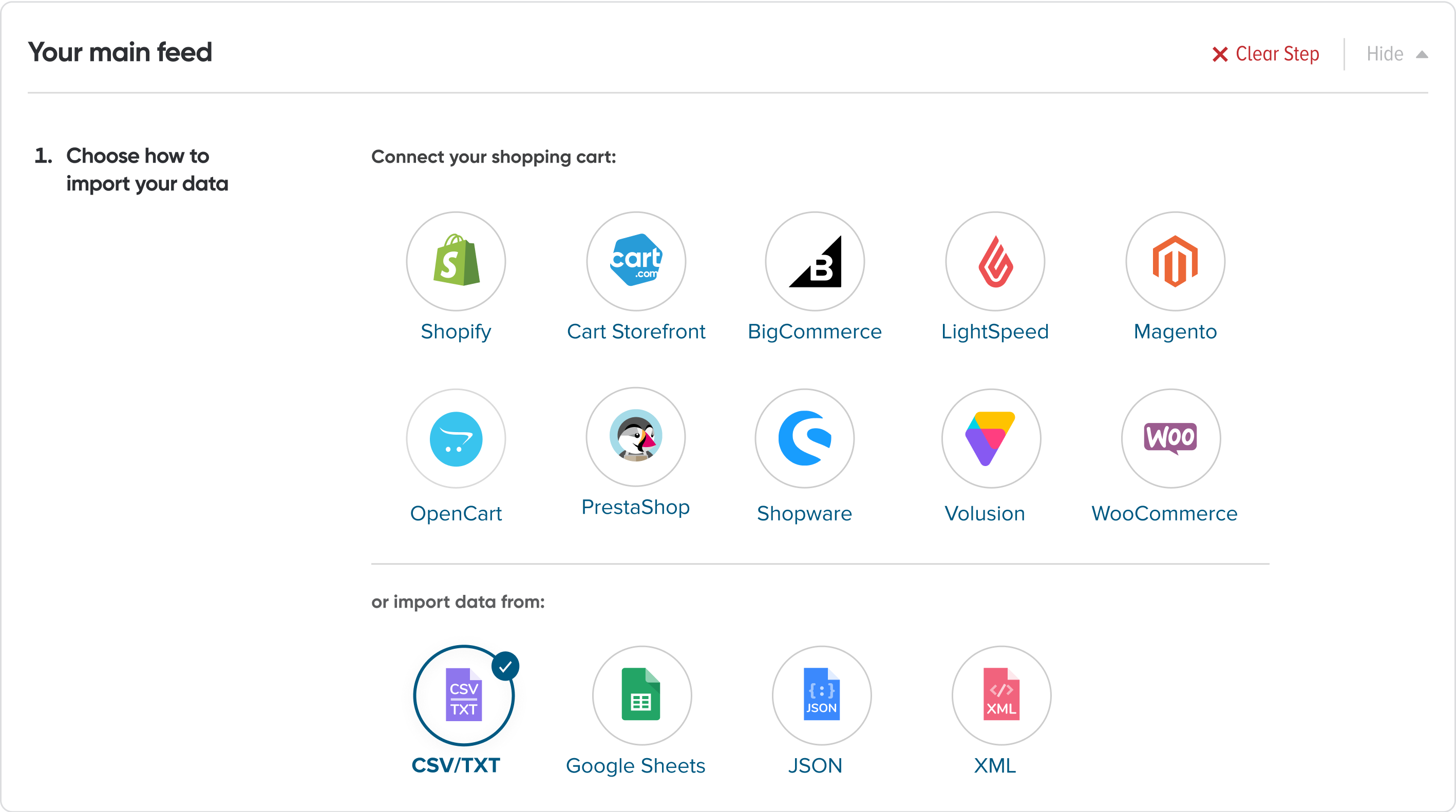
6. Select the input feed type.
Depending on the input feed type you choose, follow the steps displayed. If you need more details about a specific input method, check out the dedicated article.
7. After setting up your input feed, continue to:
-
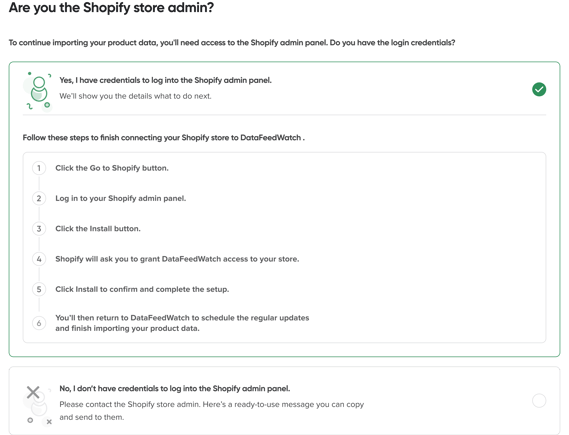
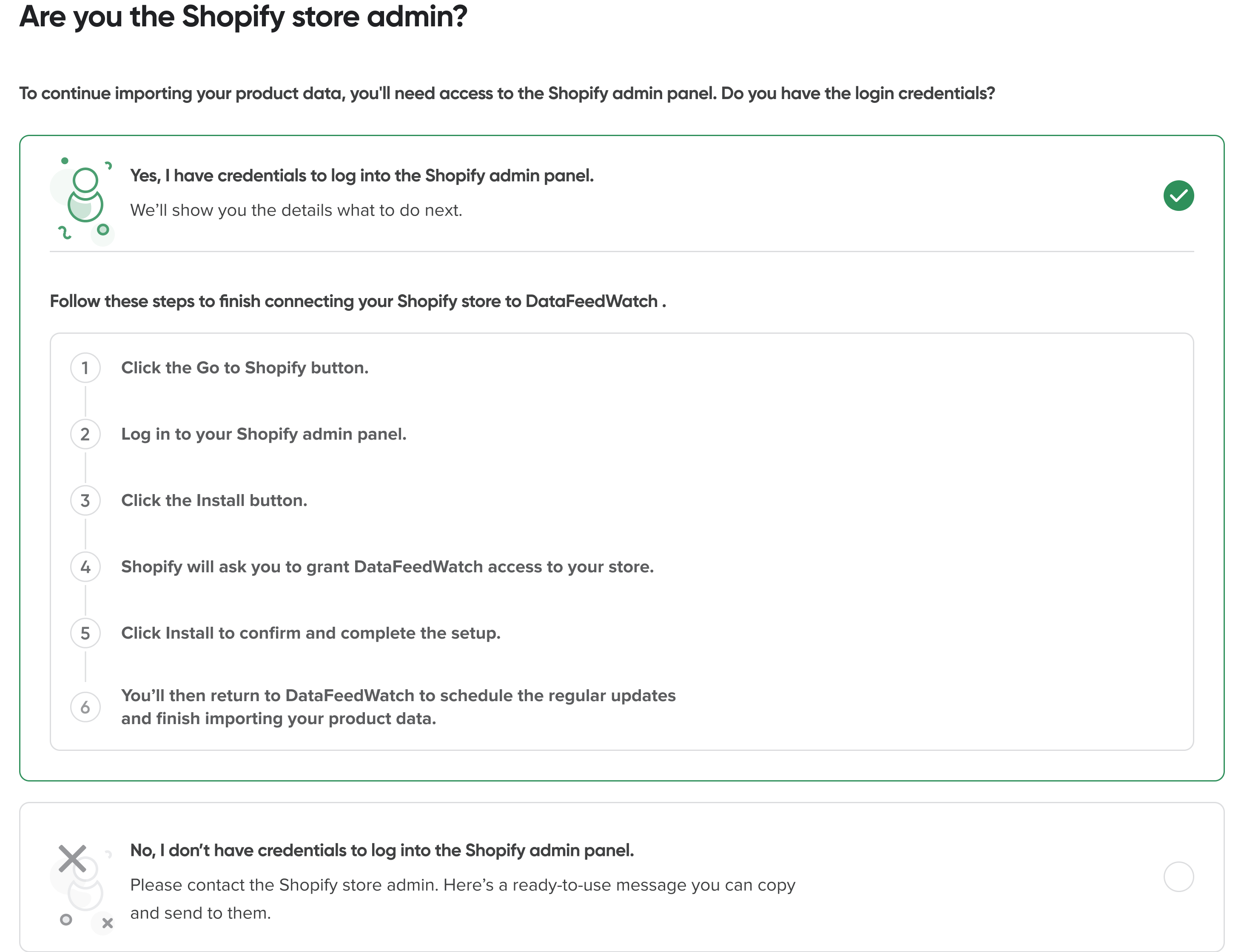
Ownership Page (for Shopify, BigCommerce, or LightSpeed users) – Follow the on-screen instructions.
-
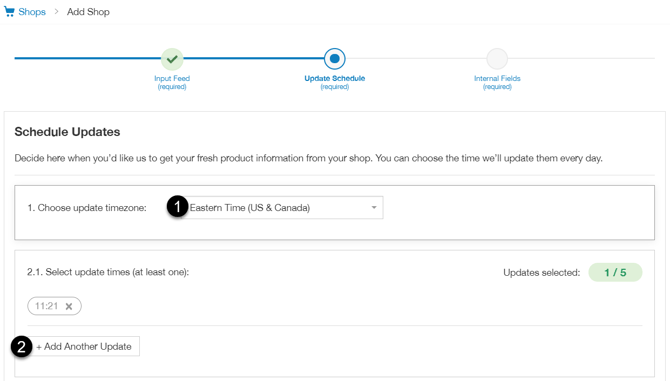
Updates Schedule – Set how often your data feed updates.
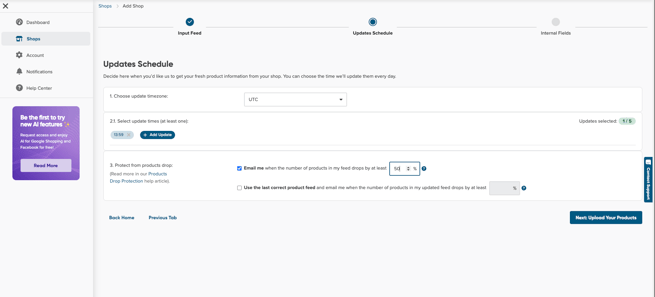
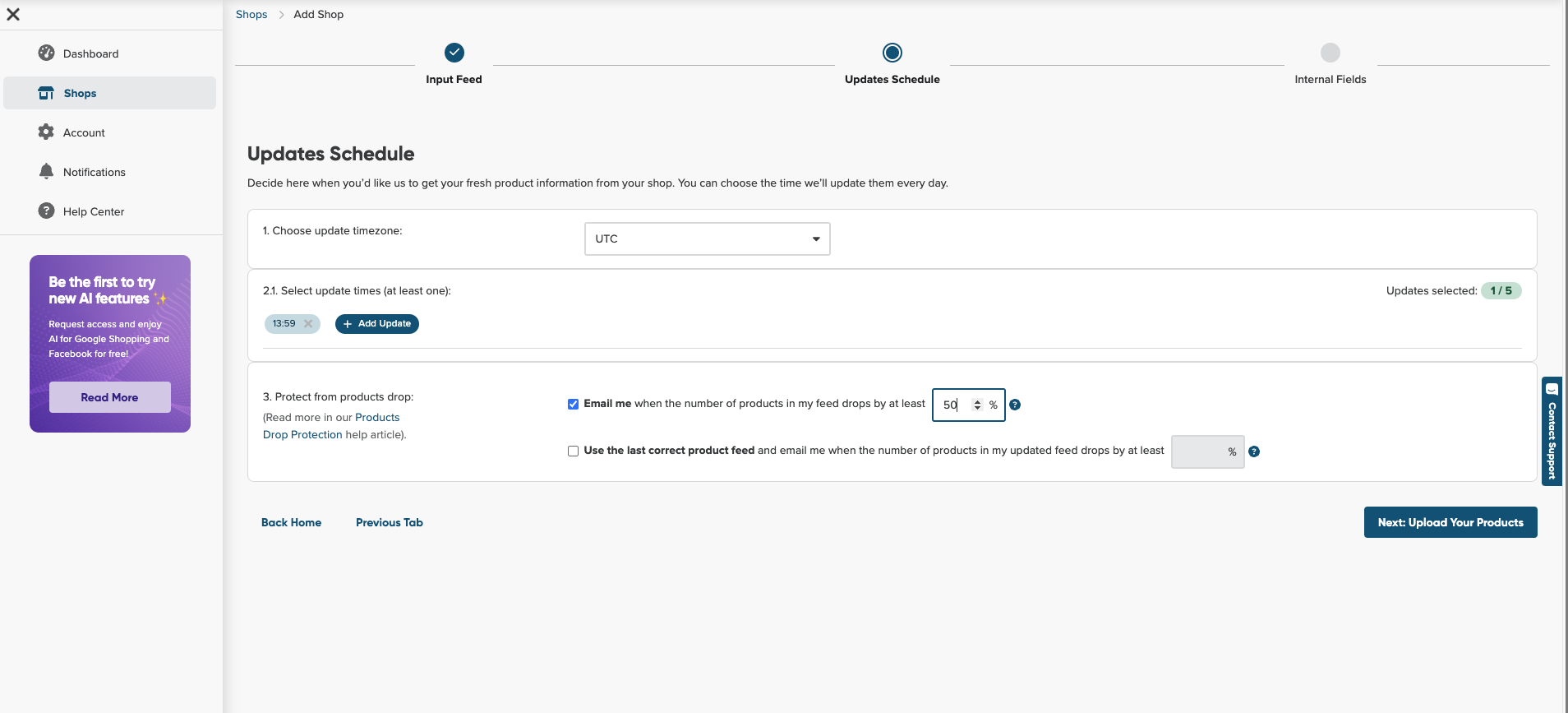
- Choose your time zone from the drop-down menu (e.g., UTC, Central Time, or London).
- Keep in mind that 3 PM in London is different from 3 PM in Sydney, so choose accordingly.
Time is money, so this setting may be quite important. Remember 3 PM may mean different time of gathering your data if you chose London, and different for Sydney.
- Click "Add Another Update" if you want to schedule multiple daily updates.
If you need more downloads than what’s included in your current plan, you can easily upgrade after adding this shop in the Shop Settings.
9. To proceed to the Master Fields tab, click Next Tab.
- For each field on the left, select a main mapping type from the first dropdown.
You can simply review and accept our suggestions where available.
- From the second dropdown, choose the corresponding attribute from your shop.