
- Log in to DataFeedWatch.
- Go to your shop's channels list.
If you don't have a Pinterest channel yet, click Add Channel, and select the target country, and Pinterest.com from the dropdown below.
3. Copy the URL of your feed by clicking the button in FEED URL column.
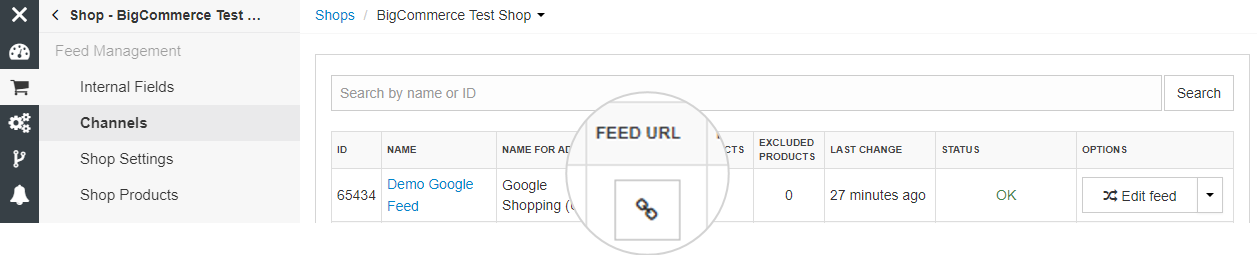
The output feed URL is not generated until mapping of the feed is completed.
4. Log in to your Pinterest Business Account.
5. Go to Catalogs (https://catalogs.pinterest.com).
6. Click Get started -> Add Data Source.
7. Paste the Feed URL copied from DataFeedWatch.
8. Select TSV as the file format.
9. Do not check My data source is password-protected.
10. Click Create Pins.
You are now back to the main Data Source section. After your feed is processed, you'll get a confirmation email from Pinterest.