
Contents:
- What’s changing?
- Why do you need to re-authenticate?
- What happens if you don’t re-authenticate?
- How to re-authenticate
- FAQ
What’s changing?
Shopify is updating the API permissions, also known as "scopes," related to inventory access.
To align with these changes, you’ll need to re-authenticate the connection between your store and our app after the update. This will allow our tool to continue work properly and ensure that your inventory data remains accurate and up-to-date.
Why do you need to re-authenticate before April 1st, 2025?
Re-authentication is required to grant the new permissions needed for Shopify’s updated API. If you don’t re-authenticate, the app will no longer be able to retrieve inventory data, which could lead to:
-
Missing inventory updates: Our app won’t be able to sync your inventory properly.
-
Inaccurate stock information: Product quantities may not reflect the actual inventory levels in your store.
- Potential app disruptions: If the connection is not re-authenticated, you may lose access to important features that rely on inventory data.
What happens if you don’t re-authenticate?
If you don’t complete the re-authentication before the updates goes live you may experience issues with:
- Inventory syncing failures: You will no longer be able to retrieve accurate inventory data from your Shopify store.
- Inability to manage stock levels: The app may not be able to track changes in product stock, leading to potential discrepancies in product availability.
- Possible service interruptions: If the app cannot access inventory information, some features of our service may be affected or stop working altogether.
To avoid any disruptions, we highly recommend that you re-authenticate as soon as possible.
How to re-authenticate
If you can access the Shopify panel:
- Log in to our app.
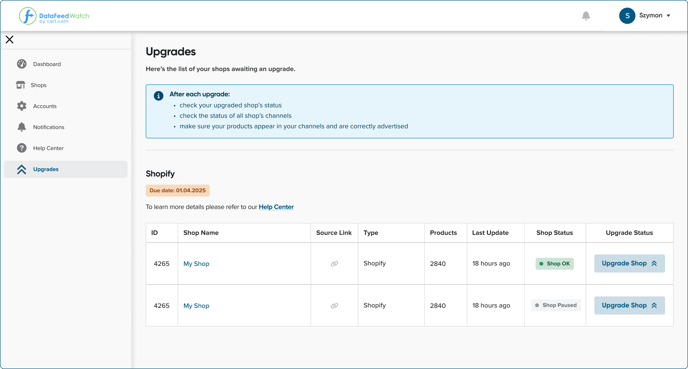
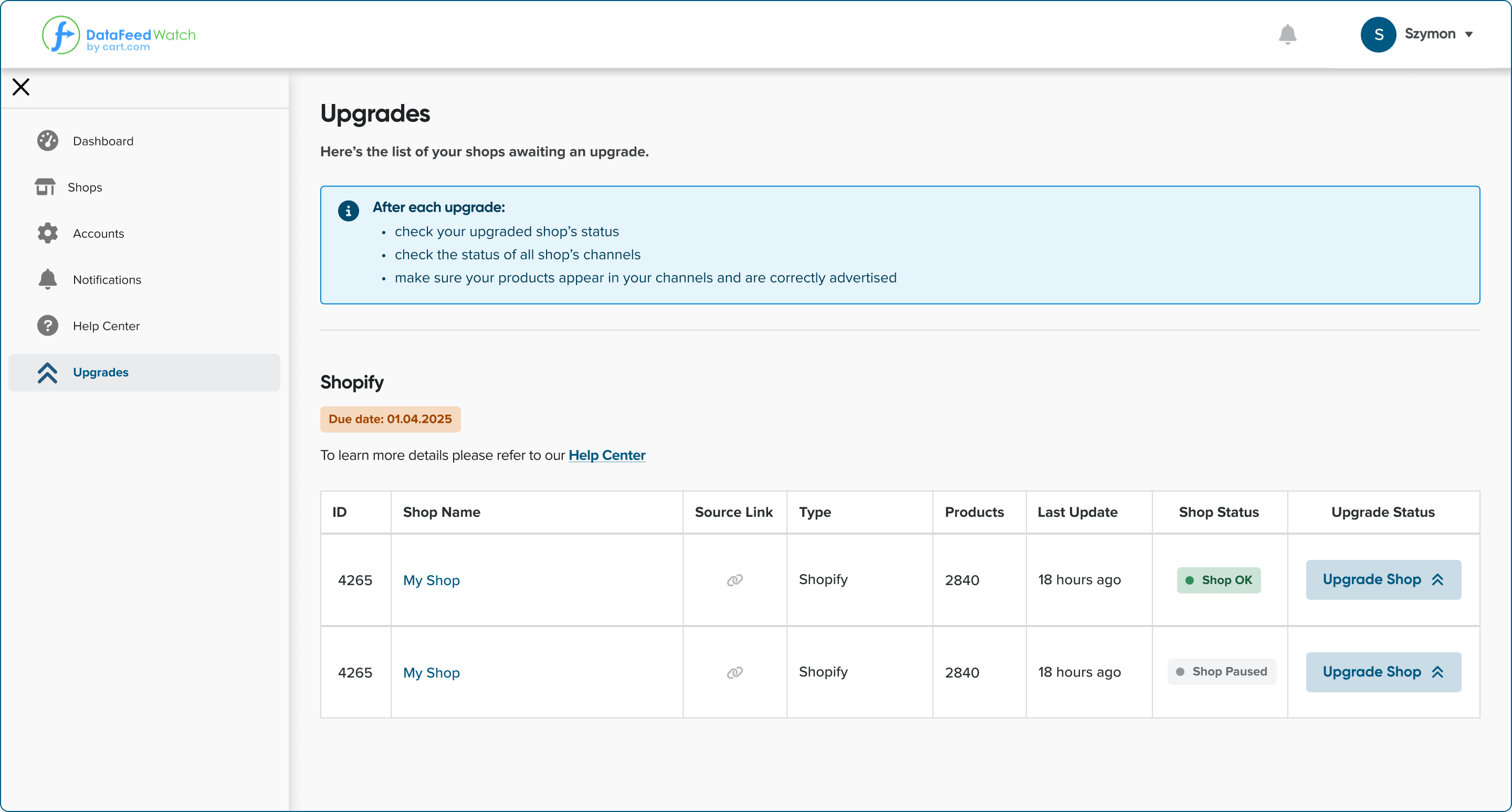
- Go to the 'Upgrades' page.
-
From the list of pending shops to upgrade, click 'Upgrade Shop' next to the store you wish to re-authenticate.
⚠️ You need to access the Shopify admin panel. So if you can't access it go directly to:
I can't access Shopify admin.
- If you can access the Shopify panel, select the option Yes, I have credentials to log in to the Shopify admin panel. Then follow the on-screen instructions to complete the re-authentication process.
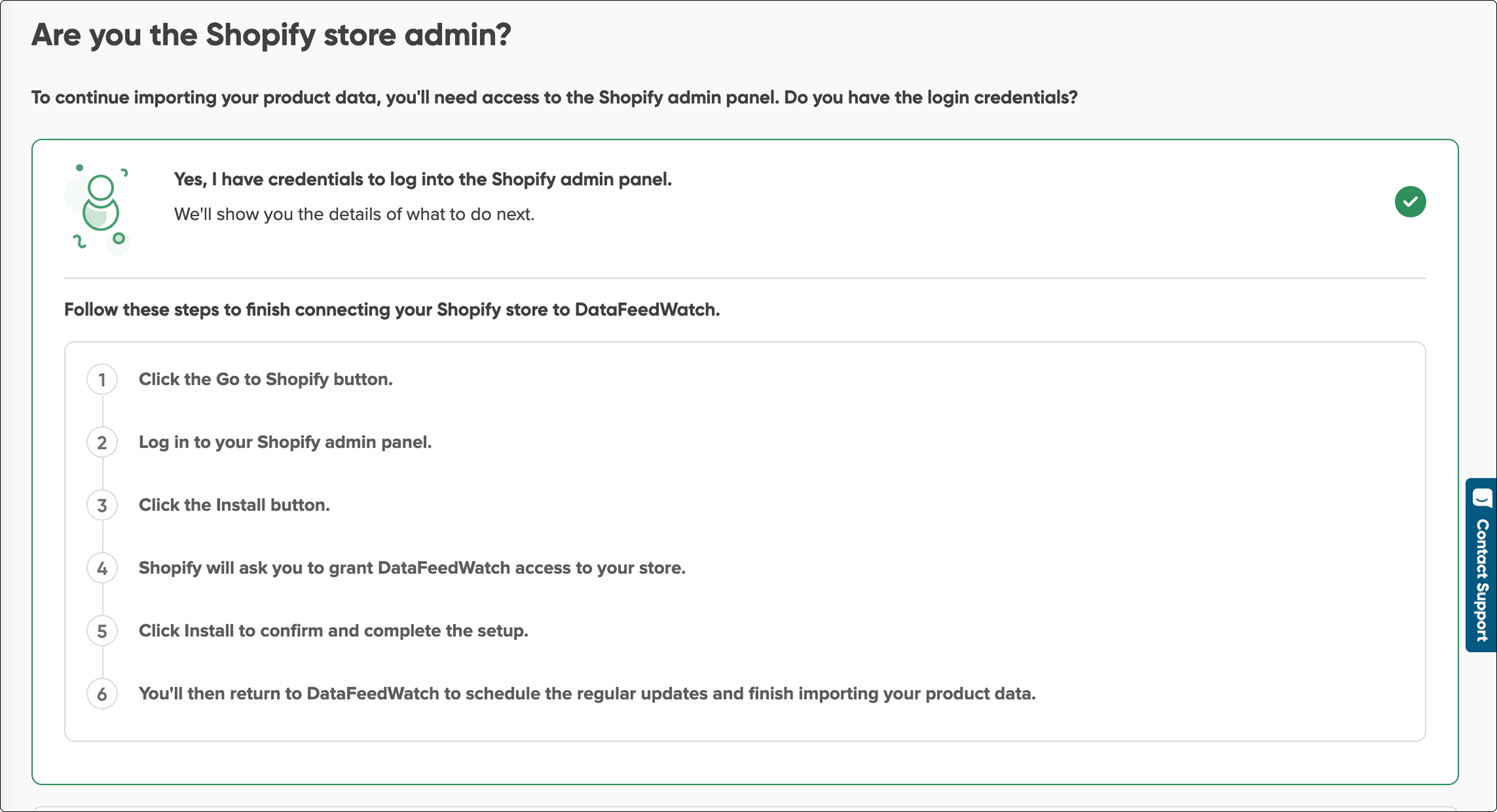
⚠️ After clicking Go to Shopify, make sure you're logged in to the Shopify Admin of the shop you want to re-authenticate.
- If you can't access the Shopify panel, select the option No, I don’t have credentials to log in to the Shopify admin panel. Then follow the on-screen instructions to complete the re-authentication process.
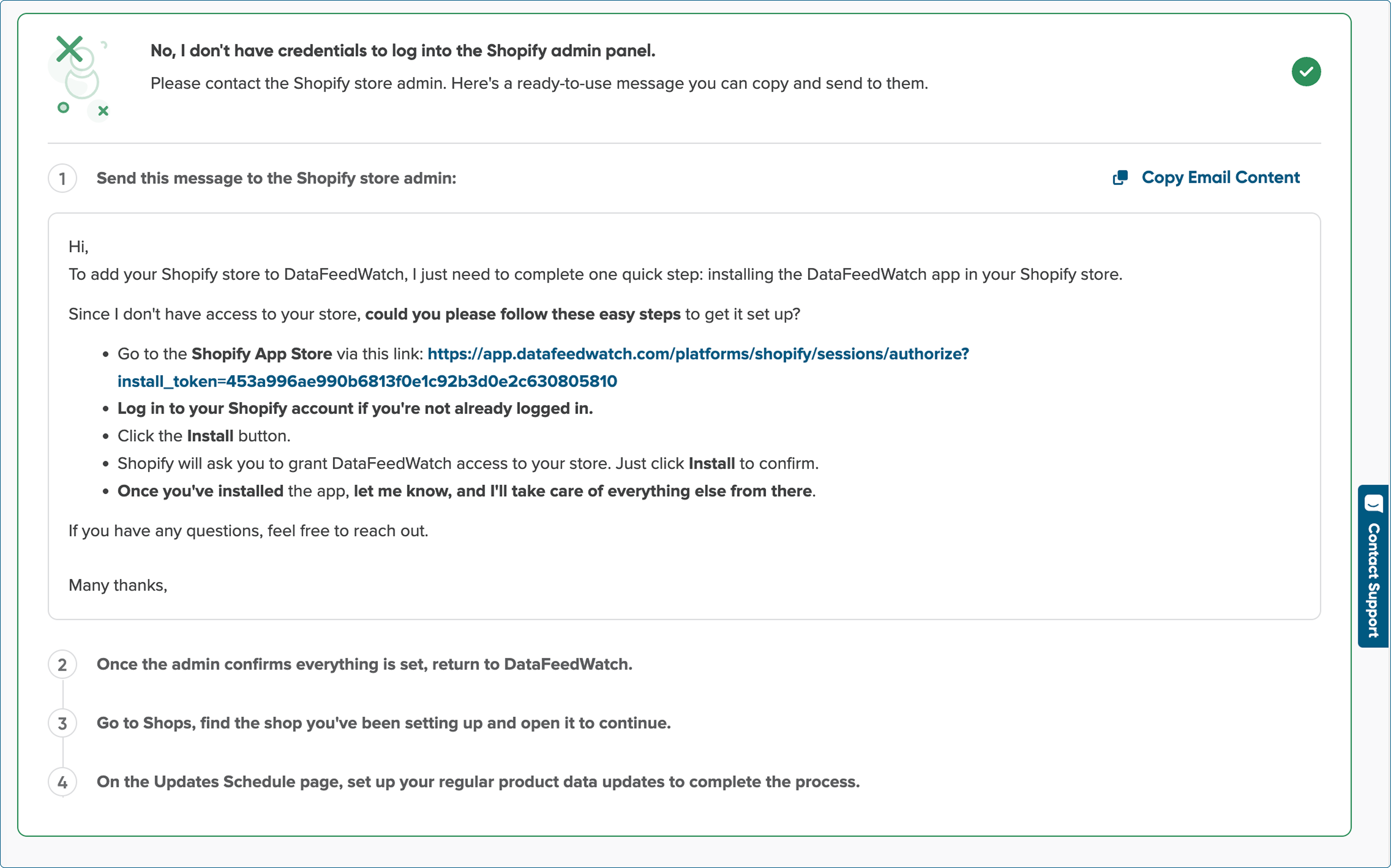
⚠️ Let the admin know, that after clicking Go to Shopify, make sure you're logged in to the Shopify Admin of the shop you want to re-authenticate.
FAQ
Before the upgrade (re-authentication):
-
Will my store continue to work if I don’t complete the upgrade?
Yes, but some fields may be missing.
-
Will my channels and output feeds be working?
Yes, your channels will function as usual. Your output feeds will be available, but product quantities may not reflect your actual inventory levels. -
Could my store stop working at any point during the upgrade?
We’ve taken all necessary steps to ensure your store runs smoothly throughout the upgrade.
-
I don’t have access to the Shopify account linked to my store in DataFeedWatch. What should I do?
You can still start the upgrade and generate a link. Send this link to the Shopify admin, who can approve access—even if they don’t have a DataFeedWatch account.
-
Will the upgrade change my DFW pricing?
No, your pricing will remain the same.
-
Do I need to pay for an upgrade?
No, it’s completely free.
-
What happens if I don't upgrade in time?
The Shopify upgrade goes into effect in April 2025. However, we ask our clients to complete the re-authentication in advance to allow time to resolve any potential issues before the final update. If you don't upgrade on time, our app will no longer be able to retrieve inventory data. Please check the section: What Happens If You Don’t Re-authenticate?
-
Will any other parts of the app be affected?
No, everything else will work the same.
-
My upgrade status is still ‘In Progress’. What does it mean?
This probably happens because you were logged in to a different shop on the Shopify Admin. while attempting to upgrade. To fix this, go to your Shopify Admin panel and log into the correct shop. Then, return to DataFeedWatch, navigate to Upgrades, and try upgrading the shop again. -
I clicked 'Go to Shopify,' but instead of landing on the Shopify Admin page, I see a 403 error. What should I do?
This probably happens because you're logged into a different shop in your Shopify Admin panel than the one you want to upgrade. To fix it, go to your Shopify Admin panel and log into the shop you're trying to upgrade. Then, go back to DataFeedWatch, go to Upgrades, and upgrade the shop again.
If you have any questions or need assistance with the re-authentication process, please don’t hesitate to reach out to our support team via chat. We're here to help! 💙